SSD vs HDD for Photo Storage: Plan Working, Archive, and Backup Drives
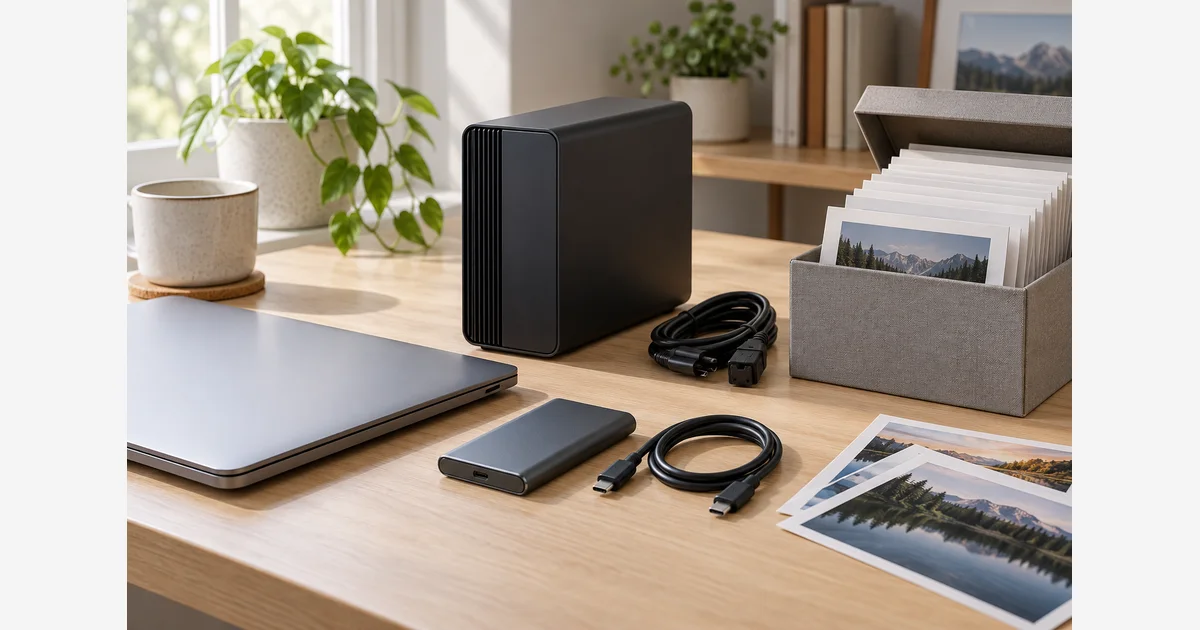
An SSD is a useful starting point for an active editing drive; an HDD can be a practical capacity choice for an archive or backup. Choose the role first, then check the actual drive, connection, usable capacity, and independent copies. Neither technology makes one drive a complete preservation plan.
The fastest advertised transfer number is only one part of the decision. A photo collection also includes catalogs, previews, source files, large layered edits, and backup history, each with different access patterns and consequences if lost.
SSD vs HDD by photo workflow
Western Digital describes the underlying distinction: SSDs use flash memory without moving mechanical parts; HDDs record magnetically on rotating platters. This helps explain their different behavior, but it does not supply a measured speed or failure probability for your chosen enclosure.
| Role | Starting choice | Decision to verify |
|---|---|---|
| Catalogs, previews, active editing | SSD with adequate free space. | Application requirements and the part of the workflow actually waiting on storage. |
| Large, less frequently accessed originals | Compare HDD capacity with SSD convenience. | Retrieval time, portability, power, and current cost per useful capacity. |
| Travel working copy | Compact SSD may suit the carrying task. | Cable, port, enclosure protection, and a second independent copy. |
| Versioned local backup | Either, with sufficient retention capacity. | Completed backups and successful restoration. |
| Off-site copy | Choose for the update and recovery plan. | Physical separation, access credentials, and last successful update. |
Adobe says SSD storage for catalogs, images, and previews can improve Lightroom Classic performance. That is not a guarantee that every export becomes faster: processing, GPU, memory, file format, and preview state also matter. Its guidance also recommends keeping at least 20% free on the relevant drive. Treat that as application guidance, not a law for every storage workload.
A capacity budget with visible assumptions
Separate current content, future growth, work files, and headroom. For example, an invented planning collection might contain 420GB of originals, 80GB of catalogs and edits, and an expected 180GB of new work. That is 680GB before free-space allowance.
If you choose to leave 20% of a working volume free, divide by 0.8: 680 ÷ 0.8 = 850GB of usable volume capacity. This is different from merely adding 20%, which gives 816GB and leaves less than 20% of that total free. File-system overhead, decimal/binary display differences, and unrelated files need their own allowance.
A backup needs a separate estimate. A destination holding version history may require substantially more than a single current copy; the amount depends on change rate and retention. Do not multiply the working-drive example by an unexplained universal “backup factor.”
| Budget item | Enter | How to obtain it |
|---|---|---|
| Current originals | A | Measure all actual source folders, including video. |
| Catalogs, previews, edits | B | Measure separately to avoid double-counting. |
| Growth before next upgrade | C | Use your recent capture rate and chosen planning period. |
| Desired free fraction | r | Choose for the application and workload. |
| Working volume estimate | (A + B + C) ÷ (1 − r) | Use consistent units and allow for other contents. |
Check the complete connection, not the connector shape
USB-C describes a connector; it does not by itself establish the supported transfer rate. USB-IF explicitly distinguishes the USB 3.2 specification from connector types. Check the host port, cable, drive protocol, enclosure, and any hub. An SSD connected through a slower link cannot use bandwidth the link does not provide. Confirm compatibility on the exact product specifications before buying.
If you compare performance yourself, use representative copies of your files and the actual connection. Record the dataset size, source and destination, available space, and elapsed time. A short burst into a cache and a long sustained transfer can behave differently. Do not run an unnecessary destructive benchmark on your only photo copy.
Change storage without reducing protection
- Make a verified independent backup before rearranging an existing collection.
- Copy to the new drive while retaining the source.
- Check completion, file counts and sizes, and representative full-resolution files. Use verification tools when appropriate.
- Update application folder locations using that application's supported process.
- Confirm backups now include the new source path, and try a small restore.
- Only then decide what to remove from the old working location.
For app-specific steps, see moving an Apple Photos library and protecting Lightroom Classic. An archive is a role; a backup is an independent recoverable copy. The backup guide covers that distinction.
Download the drive-role and capacity plan (.txt)
Compare exact options in our external SSD and external HDD guides once the capacity and connection are clear. No drive is assigned a guaranteed lifespan here.
Sources
Frequently Asked Questions
-
No. Backup usefulness depends on independent copies, retention, completion, and restoration. Either drive technology can be part of a suitable plan.
-
No. Check the host port, cable, protocol, enclosure, and any hub. Connector shape alone does not establish transfer speed.
-
For a chosen 20% allowance, divide the expected contents by 0.8. Adding 20% to the contents leaves a smaller free fraction of the resulting total. Include other files and overhead separately.
-
No universal lifespan is reliable for an individual drive. Keep independent copies, monitor errors, verify files and restores, and replace equipment according to its condition and your recovery needs.