Move a Photos Library to an External Hard Drive on Mac
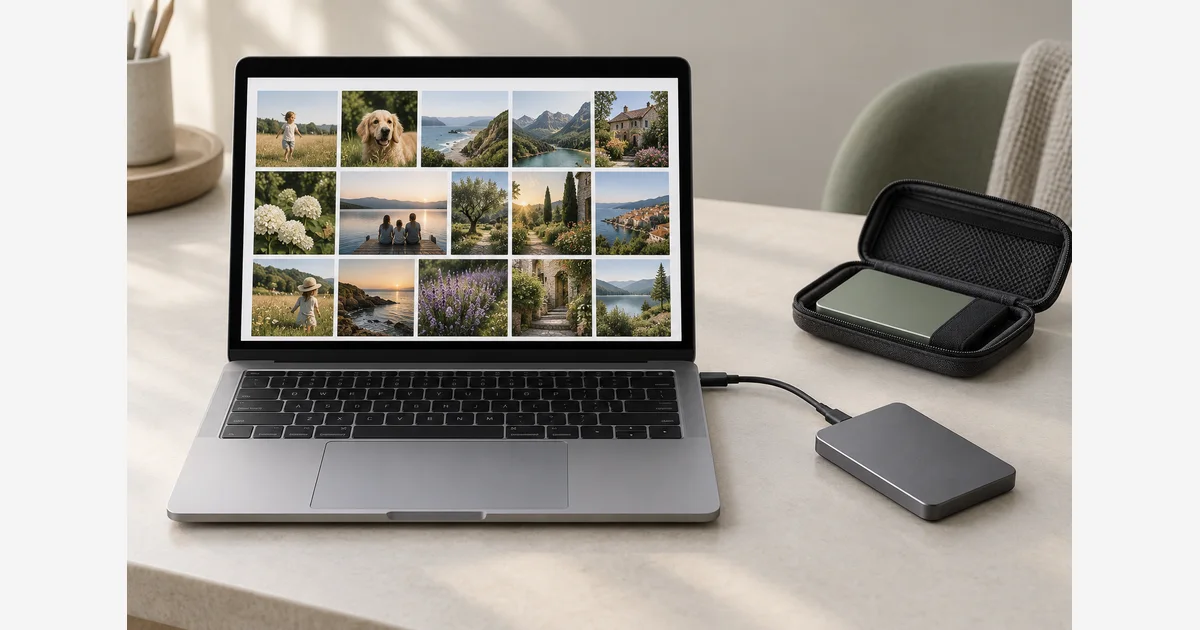
To move a Photos library to an external hard drive on a Mac, quit Photos, copy the complete library to a suitable locally connected drive, and open that copy in Photos. Confirm that you have opened the intended library and that its originals are available before removing anything from the Mac.
Moving the working library is different from making a backup or exporting image files. An optimized iCloud library may not contain every full-resolution original locally, and referenced files can live outside the library. Check both before treating the move as complete.
Move a Photos library, export photos, or make a backup?
| Your goal | Useful operation | What to verify |
|---|---|---|
| Use Photos with its library on another drive | Copy and open the complete library. | Correct library, originals, albums, edits, and a separate backup. |
| Use individual files in another app | Export the required originals or rendered versions. | Format, resolution, metadata, and whether edits are included. |
| Recover after a loss or mistake | Maintain an independent backup of the library and any outside originals. | A recovery copy that can actually be opened and used. |
Do not open the library package and rearrange its internal folders in the Finder. This guide concerns the whole library as a managed collection. If your goal is a portable set of files, use Photos' documented export controls instead; the iPhone transfer guide explains the distinction between original and edited output.
Check the drive before copying
Apple's library-move instructions specify APFS or Mac OS Extended (Journaled) for the destination. They exclude a device used for Time Machine backups, a network or cloud location, and removable media such as SD cards and USB flash drives. A portable external SSD or hard drive connected directly to the Mac is a different category from a thumb drive.
If the format is wrong, use a suitable empty destination or first protect everything already on it. Apple's Disk Utility instructions explain that erasing a device removes its contents. Reformatting is not a harmless troubleshooting step for a drive containing your only photographs.
Record the drive's name, format, available space, and connection. Allow for the collection you intend to keep locally and future imports, rather than fitting today's library into the last available space. Our external SSD comparison and desktop external drive guide can help with hardware choices; neither replaces the library's format requirements.
Before starting, make an independent backup and identify the library you normally use. If several have similar names, record their locations and the date of a recent known import. That gives you something concrete to recognize after the copy.
Copy the complete library and open its new location
- Quit Photos. Let any current import or export finish first.
- Locate your working library. The usual starting place is your home folder's Pictures folder, but use the actual location if you previously changed it.
- Copy the library to the prepared external drive. Keep the source in place during verification. Let the copy finish without disconnecting the drive.
- Open the external copy. Double-click the copied library. To explicitly choose between libraries, quit Photos, hold Option while opening it, and select the intended one.
- Record the opened location. Write the drive and library name in the acceptance record below. Check for the recent import you noted before copying.
This sequence follows Apple's move and library-selection guidance. Connect and power the drive before later opening Photos. If the device is unavailable, Photos can create a new empty library in the default Pictures location; an empty window is not by itself evidence that the external collection was erased.
Check referenced files and iCloud before calling it complete
Apple distinguishes referenced files from files inside the library. Referenced originals remain in their outside locations and need separate backup; moving or renaming them in the Finder can break their links. Copying the library package does not silently gather those files.
If you have referenced originals, record those locations and follow Apple's consolidation guidance if you want them brought into the library. Confirm available space first. Do not assume that every original is inside the package just because Photos displays its thumbnail.
For iCloud Photos, Apple's System Photo Library instructions explain how to designate the intended library in Photos > Settings > General. Enabling iCloud Photos for a newly designated library merges its contents with the existing iCloud collection. Confirm that you chose your copied library before changing that setting.
Download Originals to this Mac and Optimize Mac Storage have different local-storage behavior. An optimized library copy is not proof that all full-size originals were copied. If the external library is intended to hold a complete local collection, arrange sufficient capacity, use the originals-download setting in that opened library, and let downloading finish before relying on it offline. Keep the existing copies while this is unresolved.
Use a small acceptance check before reclaiming space
Download the Photos library move and verification record (.txt)
Sample across the collection, and investigate any mismatch before retiring a source.
Apple recommends a local library backup even with iCloud Photos. If using Time Machine, use a different backup device and verify the external library is included rather than excluded; Time Machine settings expose exclusions. A working library and its only backup on one physical drive share the same drive-failure risk.
If the move fails, preserve the original, note the error and destination format, and consult Apple's permissions guidance. Do not erase the source or run a repair merely because a thumbnail is slow. After verification, decide separately whether to remove the old local package. Deleting photographs inside a synced Photos library is a different operation and can propagate to other devices.
Use the broader photo backup plan for ongoing copies, and the organization workflow for making the collection easier to find.
Sources
Frequently Asked Questions
-
Apple specifies APFS or Mac OS Extended (Journaled) for this library-move workflow. The formats supported for exporting ordinary files from an iPhone are a different question.
-
Copying does not establish that optimized originals have been downloaded. Check the opened library’s download setting, available capacity, and completion before relying on a full local collection.
-
Apple excludes a storage device used for Time Machine backups from this library-hosting workflow. Use a suitable working destination and an independent backup destination.
-
Check that the external drive is connected and that you opened the intended library. An unavailable external device can cause Photos to create a new default library; preserve existing files while identifying which one opened.