How Many Photos Can a Memory Card Hold? Capacity Calculator
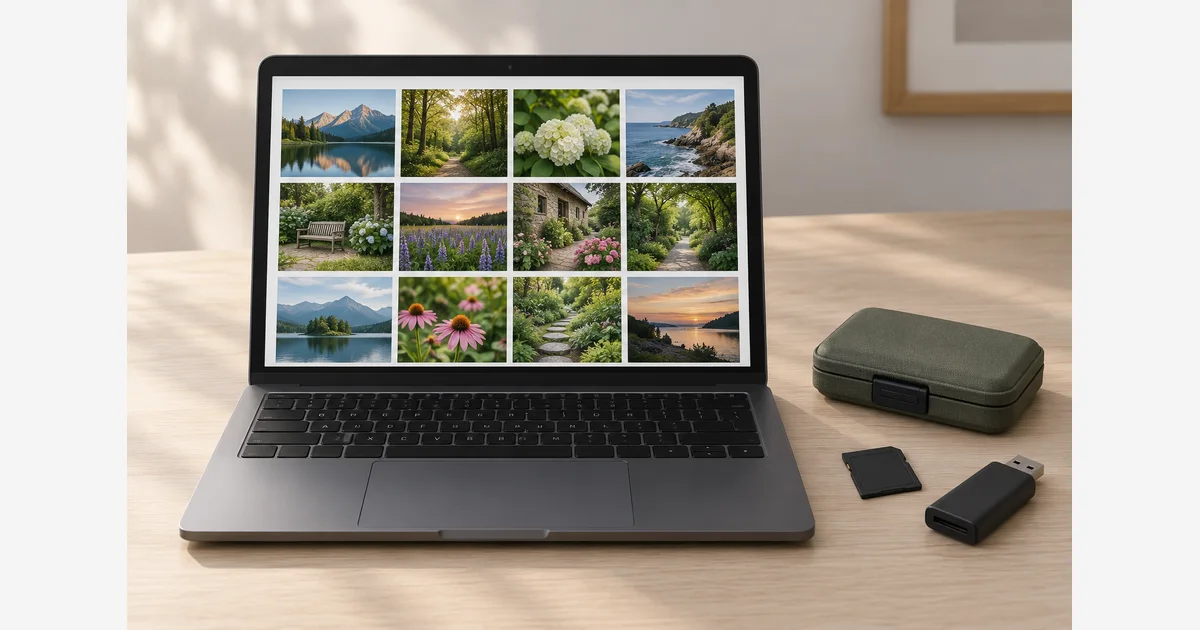
How many photos a memory card can hold depends on its remaining space and the data saved per exposure. Divide the space you plan to use by a representative file size, and round down. For RAW+JPEG on the same card, add both file sizes before dividing.
There is no fixed number of pictures for a 64 GB, 128 GB, or 256 GB card across all cameras. Compression, settings, scene detail, existing files, and formatting affect the result. Use the calculator with measured files, then check the camera's own counter for the actual card and settings.
Calculate how many more photos fit on one card
Use labeled capacity as a rough starting input or enter a measured usable capacity in the correct units. Used space includes anything already stored. The reserve is a user-chosen planning allowance applied to the remaining space; the default 10% is an illustration, not a camera or card standard.
Capacity and used space must use the same selected units. Changing a units selector reinterprets the entered numbers; it does not convert them. The companion-size field applies only when both files go to this card. Calculations run locally in your browser; no image upload is needed.
The formula is floor[(capacity bytes − used bytes) × (1 − reserve/100) ÷ bytes per exposure]. It makes the assumptions visible; it does not measure formatting overhead, hidden data, variable compression, supported capacity, or card health. If you enter actual free space as the capacity input, use zero for already used space so you do not subtract it twice.
64 GB, 128 GB, and 256 GB photo-count examples
| Capacity | One 10 MB file | One 25 MB file | One 50 MB file | 30 MB RAW + 10 MB JPEG |
|---|---|---|---|---|
| 64 GB | 5,760 | 2,304 | 1,152 | 1,440 |
| 128 GB | 11,520 | 4,608 | 2,304 | 2,880 |
| 256 GB | 23,040 | 9,216 | 4,608 | 5,760 |
For example, 128 GB with 20 GB already used leaves 108 GB before reserve. A 10% reserve leaves 97.2 GB for the estimate. At 40 MB per RAW+JPEG exposure, that budget gives 2,430 additional exposures. Selecting two file types does not mean two separate moments were photographed.
Capacity units matter. 128 decimal GB is about 119.21 GiB; that display conversion alone does not mean space was lost to formatting. Actual usable/free space is a separate measurement. Similarly, a file reported in MiB is not the same byte count as that number in decimal MB.
Measure the files your own settings produce
A manufacturer's capacity table is a useful reference when its camera, settings, and card conditions match yours. For example, Nikon's Z6III table lists approximate file sizes of 27.3 MB for lossless-compressed NEF and 10.3 MB for large fine JPEG/HEIF under stated conditions. Those are examples for that camera, not defaults for every raw or JPEG file. Nikon also notes that scene content and compression choices affect results.
- Choose the intended recording settings. Record raw compression, JPEG/HEIF quality, image size, and whether additional files are saved.
- Capture a varied sample. Include the kind of scenes you expect, such as detailed foliage, portraits, and higher-ISO images. Keep valuable existing card files protected.
- Inspect actual file sizes. Use file properties or a tool that reports bytes. Confirm whether the display uses MB or MiB and avoid mixing units.
- Group files by exposure. For same-card RAW+JPEG, pair the files and include both. Preserve any other associated files when inspecting the recording.
- Try more than one estimate. Use the sample's average for one planning case and a larger observed per-exposure size for a more conservative case. Record both assumptions.
Download the file-size sampling and capacity worksheet (.txt)
The default 25 MB is simply an editable example. A few small samples do not establish an upper file-size limit, and the camera may use a more conservative remaining-exposure calculation than this average-based planner. If those estimates differ, leave enough flexibility for the actual shoot rather than promising the larger count.
Do not add two cards without checking the recording mode
| Workflow | How to estimate | What not to assume |
|---|---|---|
| Both RAW and JPEG on one card | Add their sizes for one exposure. | That either file size alone covers the exposure. |
| RAW to one card, JPEG to another | Estimate each card using the file it receives; check the limiting card and camera behavior. | That combined GB represents a single interchangeable pool. |
| Mirrored recording | Plan for each card to hold its recorded copy; confirm stop/switch behavior in the manual. | That duplicating files doubles the unique exposures. |
| Overflow recording | Estimate each supported card separately and follow the actual switching rules. | That every camera switches seamlessly in every mode. |
| Mixed photos and video | Deduct existing data or allocate separate budgets for the expected workload. | That a still-file average estimates variable video recording time. |
These are accounting principles for the stated workflows, not a claim that every camera offers them. Use its manual for actual slot behavior, supported cards, and recording limits. The calculator estimates one card at a time.
Check capacity and recording suitability separately
The SD Association's capacity-family guide emphasizes host compatibility. A card can have enough space on paper and still be the wrong family or supported size for the camera. The speed-class guide covers the separate recording-performance requirement.
Before important work, verify the chosen settings and camera counter with a supported card. Plan a spare or a verified offload route based on the event rather than filling the card to the last estimated exposure. Our SD card guide, card case comparison, and reader guide cover related equipment.
After recording, use the photo backup workflow and verify copied files before any separate decision to erase or format a card. Freeing space and protecting the only originals are different jobs.
Sources
Frequently Asked Questions
-
It depends on the data saved per exposure. In the disclosed example with no existing files and a 10% reserve, one 25 MB file per exposure gives 4,608. Change the file size and other inputs for your workflow.
-
When both files are recorded to the same card, their combined size is the data for one exposure. If they go to different cards, estimate each card separately instead.
-
No. It is the editable planning allowance used in the examples, applied to remaining space. It does not measure overhead or replace the camera’s instructions.
-
No. It estimates additional still exposures on one card from the stated file sizes. Video workload, recording speed, health, and supported capacity require separate checks.