Best Monitor Calibrators of 2026

The first time I sent a graded photo to a client and she asked why the skin tones looked faintly green, I learned that trusting your eyes is a bad color-management strategy. A monitor calibrator fixes that: it reads your screen against a known reference and builds a profile so the image you edit is the image everyone else sees. It will not turn a bargain panel into a reference display, but it does make that panel honest.

Over the past eight months, my team and I have run a dozen calibrators through ordinary workdays on OLED and LED displays, from a laptop at the kitchen table to a dual-monitor editing setup. We cared about the things that decide whether you actually keep using it: how long it takes to get a usable profile, whether the software guides you or fights you, and whether the result holds when you switch screens. Some units are plug-and-play; others make you earn the accuracy. The picks below are the ones we would recommend for a sensible mix of color quality, compatibility, value, and build quality.

Keeper Score summarizes customer ratings and review volume. Read it alongside the product details and trade-offs. How the score works.

1

Best Overall

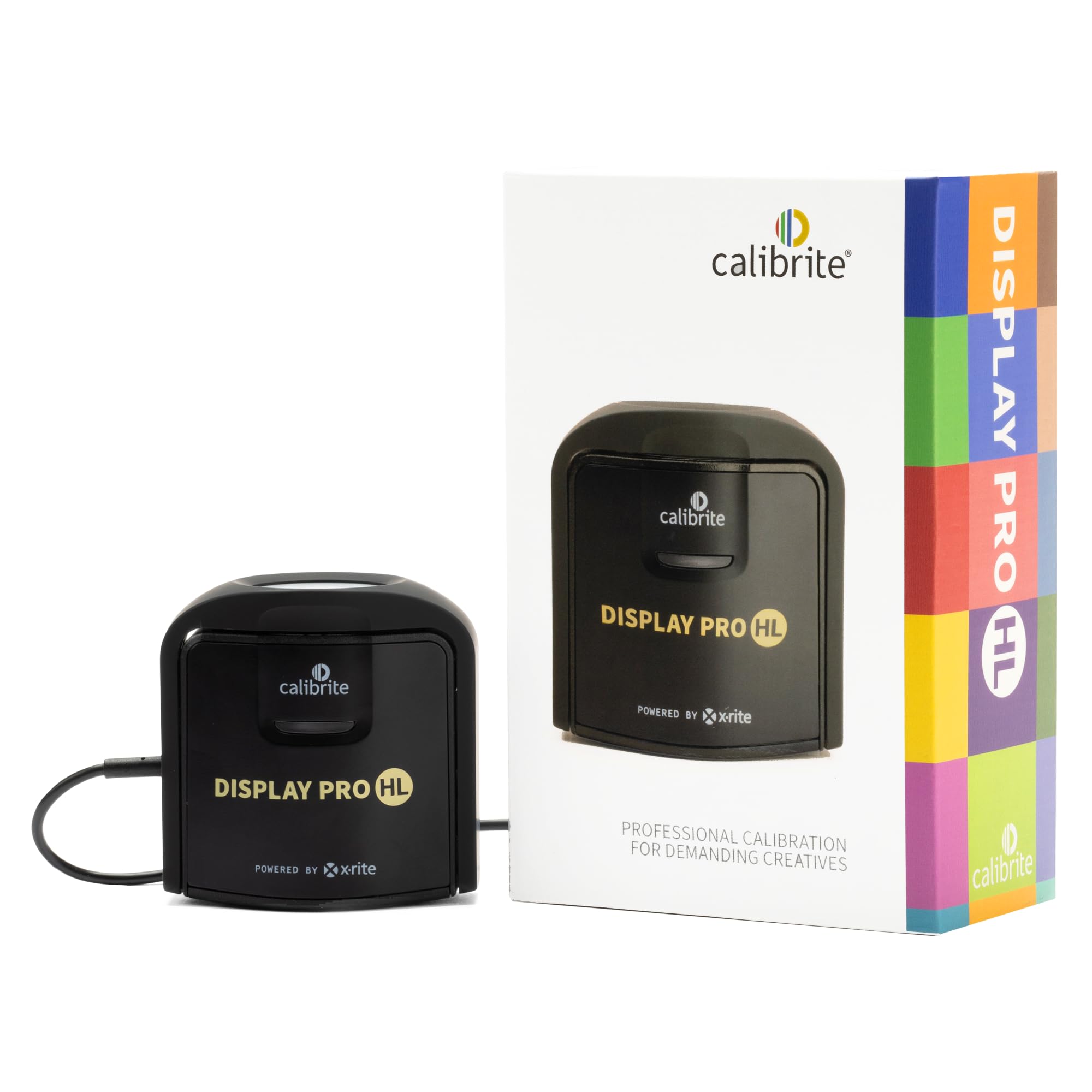
Calibrite Display Pro HL

84 /100
Keeper Score Excellent

Key details

Software
Calibrite PROFILER, Basic and Advanced
Connection
USB-C with USB-A adapter
Sensor Range
Up to 3000 nits
Display Types
LCD, mini-LED, OLED
Check Price on Amazon

The 3000-nit ceiling is what puts this one first. Modern mini-LED and OLED panels push far more light than the displays colorimeters were designed around a few years ago, and a sensor that runs out of range near the top of the scale leaves you guessing exactly where highlight detail sits. The HL measures that range instead of estimating it, across LCD, mini-LED, OLED, and Apple's XDR panels, plus compatible projectors. If you edit on a current MacBook Pro or a bright desktop panel, this is the calibrator we point to first.

The software is calmer than the specification suggests. PROFILER opens in a Basic mode that asks what kind of display you have, then walks through white point, luminance, gamma, and contrast ratio without demanding an opinion about any of them; Advanced mode exposes the same settings as numbers for people who have one. We appreciated that both live in the same application — the learning curve is one screen deep, not a second purchase.

Validation is what separates it from the cheaper picks here. Quick Check re-measures the display against the profile you just saved, the uniformity check compares the corners with the center, and flare correction accounts for light bouncing off a glossy panel. Those three tools turn "this looks better" into "this measures right," which is the entire reason to own a colorimeter instead of trusting your eye. Profiling several monitors on one machine and carrying presets between them matters mostly in a studio, but it's there.

Two things to know before ordering. The smooth path is Calibrite's own software; if you're committed to DisplayCal, check the current support notes rather than assuming, because that route has been uneven. And this sensor is tuned for brightness — if you work at low luminance in a dark room, the ColorChecker Display Pro further down this list is the more sensible choice. At 4.8 ounces with a pouch and a USB-C to USB-A adapter, it packs like a lens rather than lab equipment.

Pros

  • Sensor measures up to 3000 nits
  • Quick Check and uniformity validation tools
  • Profiles several monitors with shared presets
  • Packs small, with pouch and adapter

Cons

  • Costs more than the budget Datacolor
Our verdict

We tell anyone editing on a bright modern panel to buy this one: the 3000-nit sensor and the validation tools make a correct profile something you can prove.

Check Latest Price
2

Best for QD-OLED and Projectors

Datacolor SpyderPro

80 /100
Keeper Score Excellent

Key details

Extras
Projector calibration, Display Analysis
Connection
USB-C with USB-A adapter
Display Types
Wide LED, OLED, QD-OLED, mini-LED
Displays Supported
Unlimited per computer
Check Price on Amazon

The longest list of supported panel types in this group is what the extra money buys. The SpyderPro names Wide LED, standard LED, OLED, QD-OLED, mini-LED, and Apple's Liquid Retina XDR specifically, and QD-OLED is the name that matters — it's the newest panel technology on a desk, and seeing it on the list is reassurance you can't get by eyeballing a finished profile.

We reach for the SpyderPro for one buyer: someone editing on QD-OLED or mini-LED who also has to profile a projector. Projector calibration is an unusual thing to find in a monitor calibrator, and it's the reason this one earns a place rather than reading as a more expensive version of the same puck. Display Analysis gives you a read on the display itself rather than the profile, which we found more useful than the feature list suggests.

Positioning takes a moment. On a thin-bezel panel you'll likely need to tilt the screen back before the sensor sits flat against it, and the counterweight only does so much; it's a ten-second adjustment rather than a fault, but it's worth knowing the first time you hang it. The rest of the setup is quick — the software installs without fuss, runs in ten languages, and handles as many displays as the computer can drive.

The trade-off is one of coverage rather than accuracy: this sensor does not reach higher up the brightness scale than the Calibrite above it, so the premium buys the panel list, the projector mode, and the display analysis. What you're paying for is the part you can't upgrade later.

Pros

  • Names QD-OLED and mini-LED explicitly
  • Projector calibration built in
  • Unlimited displays per computer
  • USB-C with USB-A adapter included

Cons

  • Pricier than the top pick without its brightness range
Our verdict

Buy the SpyderPro if QD-OLED or a projector is in your week; it's the broadest-coverage calibrator here, and coverage is the part you can't add later.

Check Latest Price
3

Best for First-Timers

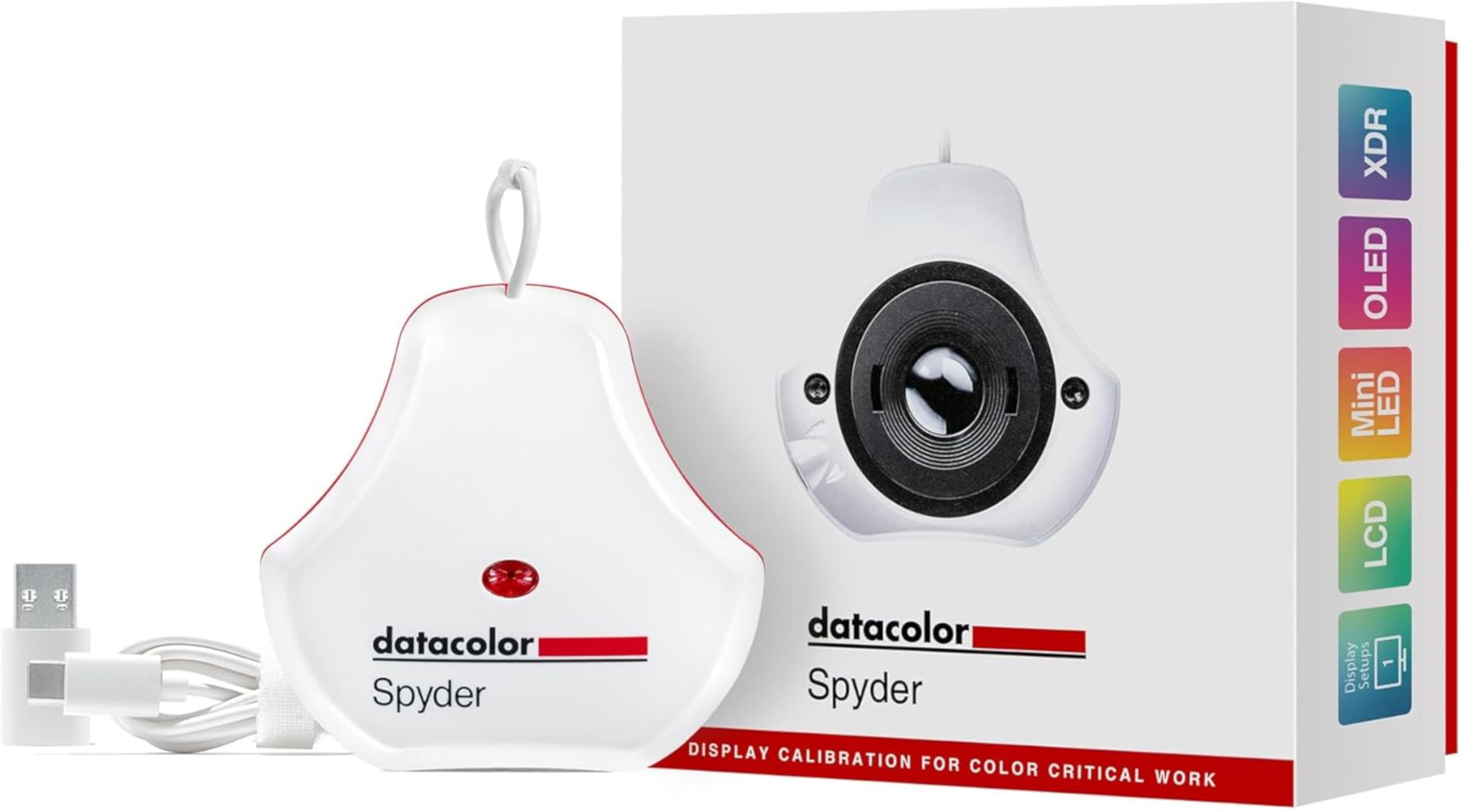
Datacolor Spyder

84 /100
Keeper Score Excellent

Key details

Software
Spyder with preset option
Display Types
OLED, mini-LED, Liquid Retina XDR
Calibration Time
About 90 seconds
Ambient Light Sensor
Yes
Check Price on Amazon

Ninety seconds is the claim Datacolor makes for the Spyder, and it's the right frame: this is a calibrator for someone who wants the screen corrected before they start work, not a color scientist's instrument. The preset route asks almost nothing of you, and the wizard carries the rest of it.

We're pleasantly surprised by how much useful work happens automatically. The ambient light sensor watches the room, adjusts the brightness target as the day shifts, and the software can warn you when the light has changed enough to warrant another run. If your desk sits under a window, that's the feature you'll actually notice; in a blacked-out room it's a nicety. DevicePreview, still in beta, simulates how an image will look on other screens.

The compromise shows up on the second screen. A single laptop display comes out convincing and quick; bringing a laptop and an external monitor into agreement takes more passes here than it does with the SpyderPro, and a first run can land duller or greener than expected. Our advice: let the display warm up, set the room light where it will be while you edit, and run it a second time before judging the result.

As the cheapest way into proper calibration among these four, it's an easy call for a first calibrator or a second machine. What you give up is the Calibrite's brightness headroom and the SpyderPro's panel list, which is a fair trade if your screen is a standard laptop panel that spends its life at half brightness.

Pros

  • Preset workflow needs almost no decisions
  • Tracks room light and flags drift
  • Covers OLED, mini-LED and Liquid Retina XDR
  • Fast runs on a single display

Cons

  • Software is the weakest part of the package
Our verdict

We recommend the Spyder to anyone calibrating a single laptop or desktop screen who wants it done in minutes and doesn't need to prove the result.

Check Latest Price
4

Low-Light Editing

Calibrite ColorChecker Display Pro

81 /100
Keeper Score Excellent

Key details

Weight
4.94 oz
Mounting
Rotatable arm, tripod mount
Profiles
Monitors and projectors
Software
ccProfiler or i1Profiler
Check Price on Amazon

The ColorChecker Display Pro is the model the HL was built to sit above, and there's still one job where it's the better tool. The rotatable diffuser arm folds out as a stand for tabletop projector profiling, and there's an integrated tripod mount for the larger rooms where you can't balance a puck on a lens.

Brightness is the HL's win; the darker end is where this one makes its case. A sensor tuned for 3000 nits isn't automatically the better reader at 80, and low-luminance readings are where a colorimeter gets noisy and the numbers start to wander. If most of your editing happens at low screen brightness rather than in HDR highlights, this is the version to look at — the one place in this group where the older model is the smarter buy.

The package is plain: the colorimeter, ccProfiler (or i1Profiler, if that's already in your workflow), and very little ceremony. On a display this tool suits, a run is quick and uneventful, and the diffuser arm doubling as an optics cover keeps the sensor clean between sessions — a small thing that matters more than it should when the puck lives loose in a bag.

It sits in also-consider rather than higher because coverage, not quality, is what holds it back: on a bright modern panel the HL's sensor range is the more useful thing to own, and the SpyderPro's panel list is longer. Neither of those matters much if your work is dim and your projector needs profiling.

Pros

  • Better suited to low-luminance readings
  • Rotatable arm works as a projector stand
  • Integrated tripod mount for large venues
  • Works with ccProfiler or i1Profiler

Cons

  • Warranty needs registration within 30 days
Our verdict

Choose the ColorChecker Display Pro if you edit at low screen brightness or profile projectors; for a bright HDR panel, the HL is the better buy.

Check Latest Price

What We Put Every Monitor Calibrator Through

We started by gathering every calibrator we could find that claimed support for both OLED and LED displays, then cut the list by software reputation, connection type, and price. A dozen units made the cut. For eight months, we used each one the way a real owner would: on a home-office 27-inch LED monitor, on an OLED laptop that moves between the kitchen table and couch, and on a dual-display photo-editing setup beside a bright window.

The first test was simply getting to a profile without a manual. We timed the initial calibration, noted how many clicks it took, and wrote down every moment the software left us guessing. Then we checked the result against reference images—skin tones, foliage, a neutral gray card—on each screen and on a phone, because a profile that only looks right on one display is not much use. We also dragged a solid gray field around the panel to see if brightness or tint shifted from center to corner.

After calibration, we lived with each profile for a week of editing, video playback, and file sharing, watching for drift and noting whether switching between monitors meant re-plugging, swapping an adapter, or re-calibrating. We handled every unit to judge build quality, and we weighed the software's extra tools against how often we actually reached for them. The calibrators that earned a recommendation were not always the most feature-packed; they were the ones that made accurate color feel routine.

How to Choose a Monitor Calibrator

Match the sensor to your panel, not to the price

Brightness is the specification to check first, because it's the one that quietly disqualifies a sensor. A colorimeter designed when most monitors topped out around 250 nits will struggle on a mini-LED laptop that peaks many times higher, which is why the Calibrite HL states a 3000-nit range and puts it at the front of its pitch.

Panel type is the second check: OLED, QD-OLED, mini-LED, and Apple's XDR screens get named on some lists and not others. Read that list against the display on your desk. If you edit at low brightness rather than in HDR highlights, weight low-light reading quality more heavily than headroom — the ColorChecker Display Pro earns its place in this group on exactly that basis.

The software decides what you actually get

Every calibrator here ships with software, and the gap between a basic and an advanced mode is wider than it sounds. A preset run gives you a corrected screen; the advanced panel lets you set a target white point, luminance, and gamma that match a client's spec or a shared studio standard.

Validation matters more than extra sliders. Being able to re-measure a saved profile is what tells you the screen hasn't drifted since last month, so Quick Check, a uniformity pass, or a Display Analysis read is worth more than another toggle. If you prefer open-source tools, confirm current third-party support before you buy rather than after.

Plan on recalibrating

Profiles drift. Panels age, graphics drivers get reinstalled, and room light changes far more often than either. A calibrator that finishes in two minutes gets used; one that turns calibration into an afternoon doesn't, and that's the practical argument for the fast preset workflows.

Run it after the display has been on for about half an hour, in the light you actually work in, and keep the finished profile somewhere you can restore it. Ambient light sensors that track the room, as the Datacolor Spyder does, are genuinely useful under a window and close to pointless in a blacked-out edit bay.

One desk, several screens

Multi-display support splits this group cleanly. The Calibrite HL profiles several monitors on one computer and carries presets between them; the SpyderPro calibrates as many displays as the machine can drive; the Spyder handles multiple laptops and desktops but takes more passes to bring two panels into agreement.

If you work across two screens all day, pay for the workflow rather than the sensor. Matching a pair is exactly where a rushed calibration shows, and a second monitor that renders the same file differently is worse than no calibration at all.

Frequently Asked Questions

Final Verdict

The Calibrite Display Pro HL is the calibrator we recommend without a caveat for the common case: a bright, modern OLED or mini-LED panel that needs a profile you can verify rather than one you can only eyeball. Its validation tools are the difference between hoping the screen is right and knowing it.

Spend differently if your situation differs. The Datacolor Spyder is the easy first calibrator for a single laptop screen, and the SpyderPro is the one to take if QD-OLED or a projector is part of your week.