Best E Ink Tablets of 2026

My desk drawer is a graveyard of half-finished notebooks, and the problem was never the writing — it was finding that one page three months later. An e-ink tablet fixes exactly that: the same matte, glare-free surface and the faint drag of pen on paper, with a search bar underneath and nothing competing for attention. You write the way you always have; the difference is you can find it again.

What the spec sheets skip is how differently these tablets feel in the hand. Over nine months with eight of them — from an 8-inch model that slips into a jacket pocket to an 11.8-inch one that stays flat on a desk — I wrote the same notes on every screen, and the gap between paper-like and a tablet with a pen is wide.

Buyers fixate on storage and screen size. What changed my mind were duller details: whether the front light dims low enough to read in bed without lighting up the whole room, and whether handwriting conversion can read your actual scrawl. The picks below are the ones that held up on both.

Keeper Score summarizes customer ratings and review volume. Read it alongside the product details and trade-offs. How the score works.

1

Best Overall

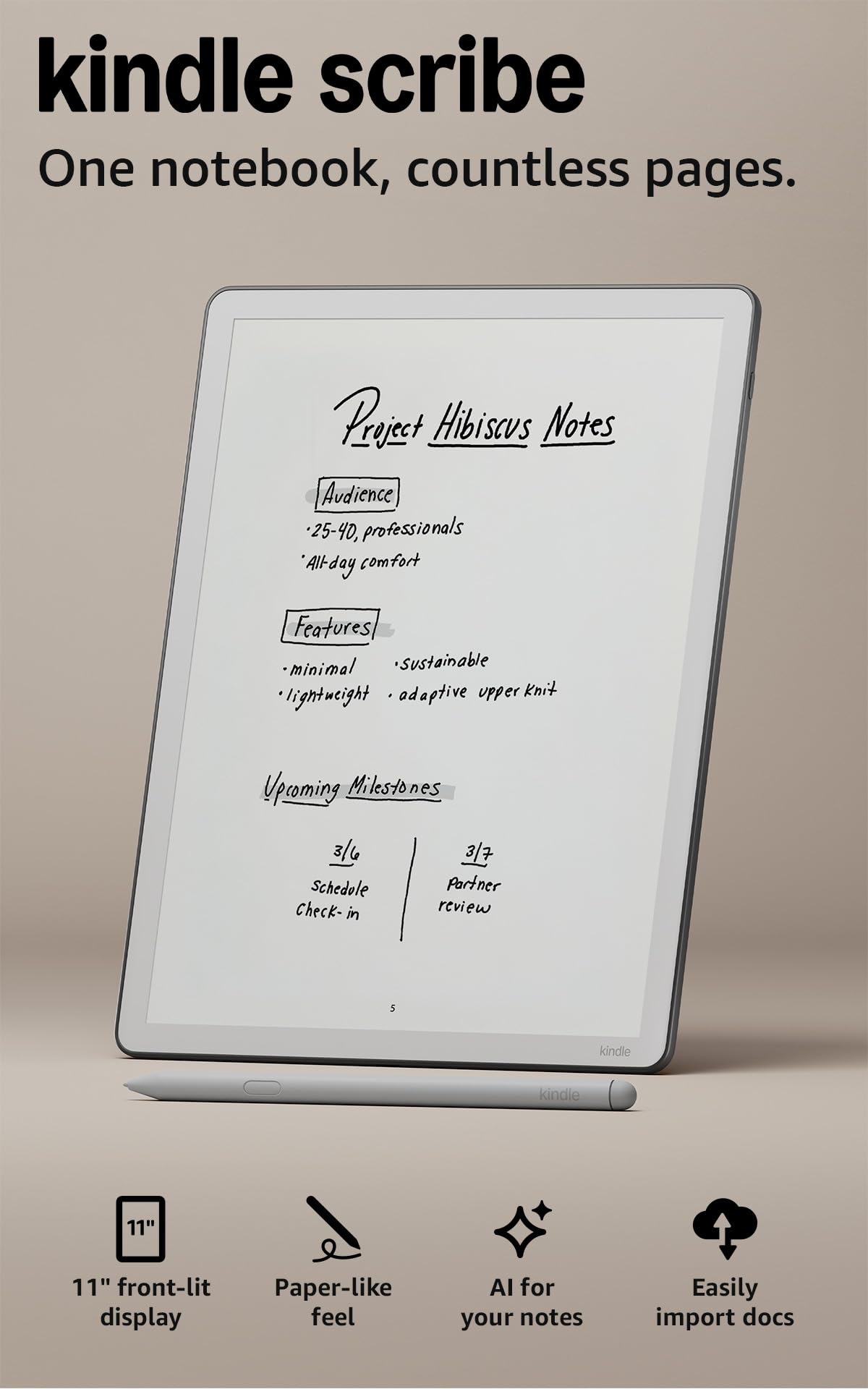
Kindle Scribe 64GB

86 /100
Keeper Score Excellent

Key details

Pen
Included, never needs charging
Weight
14.1 oz
Display
11 in glare-free, front light
Storage
64 GB
Check Price on Amazon

The Scribe is the only tablet here with a bookstore behind it, and if you already read on a Kindle that is not a small thing: your library, your highlights, and your place in a dozen books sit on the same 11-inch page you write on. The pen arrives in the box and never needs charging. At 5.4 mm and 400 g it's lighter in the hand than the 11.8-inch reMarkable, which you notice three chapters into holding it one-handed.

What earns it the top spot is the overlap between reading and note-taking. You can write in the margin of a book, work in the built-in notebook, then let the AI tools find a phrase buried in weeks of notes or summarize a page you half remember, and notes can go out to OneNote and OneDrive. The textured surface has a soft-pencil drag to it rather than glass, and the front light warms up enough for a dark room. Where it stops is app territory: if your day runs on Google Drive and third-party software, an Android-based tablet like the Penstar fits better.

Speed is the ground it gives up. Page turns in a book feel immediate, but scrolling a long PDF or working through menus is slower than on a phone, and the interface takes a few days to feel obvious. That's a fair trade for reading and less so if you plan to live inside documents all day. Set against it, E Ink draws power only when the image changes, so charging stays a background chore rather than a nightly ritual.

Pros

  • Pen included and never needs charging
  • 11-inch front-lit screen at 400 g
  • Kindle library, notebooks, and book markup together
  • AI tools search and summarize your notes

Cons

  • Menu navigation can feel slower than a phone
  • High price for 64 GB of storage
Our verdict

We tell people to buy this one if they want a single device for books and handwritten notes: the pen is in the box and your Kindle library is already waiting.

Check Latest Price
2

Best Value

Penstar eNote 2

83 /100
Keeper Score Excellent

Key details

Screen
10.3 in, 300 ppi
Battery
6,500 mAh
Storage
128 GB
In The Box
Two pens and leather folio
Check Price on Amazon

Open the box and you find two pens, a leather folio, and a spare-nib kit, which is a lot of kit at this price and the first reason we rate it. The second is the screen: 10.3 inches at 300 ppi with 8,192 levels of pressure, sharp enough for dense PDFs and quick enough that handwriting doesn't feel like it's catching up with you. Split screen is the feature we used most — a document on one half and a blank page on the other, so reading and note-taking stop being two devices. OCR turns handwriting into text, the four-microphone array and AI summaries make it a credible meeting notebook, and there's 128 GB of storage.

The catch is the input model. This is a pen-only tablet, so every menu tap is a stylus tap, and setup and app switching take longer than they do on a touchscreen. It runs Android, but without Google certification some apps won't install or behave, and heavier ones are uneven in how fast they respond. For a student or a meeting-heavy job where you mostly read, annotate, and write, none of that gets in the way. It's only when you want to live inside apps that the Penstar starts to feel narrow.

Pros

  • 300 ppi, 10.3-inch screen and 128 GB
  • Two pens and a leather folio included
  • Split screen for reading and notes at once
  • OCR and AI meeting summaries on board

Cons

  • Pen-only input slows every menu tap
  • Some Android apps won't run without Google certification
Our verdict

Our value pick: a 300 ppi, 10.3-inch canvas, 128 GB, and two pens in the box, for people whose day is PDFs and meeting notes.

Check Latest Price
3

Best Color Display

reMarkable Paper Pro

84 /100
Keeper Score Excellent

Key details

Pen
Marker Plus included
Weight
1.2 lb
Display
11.8 in color E Ink
Storage
64 GB
Check Price on Amazon

At 11.8 inches the Paper Pro is the largest writing surface in this group and the only full-size one that puts color under the pen. That changes small things that turn out to matter: highlighting a contract in three colors, marking up a design review, sketching a layout without reaching for another device. The Canvas display keeps the low-glare, paper-ish look of E Ink rather than the shine of an LCD, and the adjustable reading light makes the page legible at night.

Marker Plus gives the most convincing friction of any pen here, with an eraser on the end and six spare tips in the box. Notes sort into folders and tags, you can write directly onto PDFs, handwriting converts to typed text, and documents arrive from Google Drive, Dropbox, and Word.

We recommend it without much hesitation to anyone whose week includes color documents, because nothing else here does that job on a full-size page. The caution is durability, and it centers on the pen: it's the component that can stop working, and when it does the tablet can stop with it. Register the one-year warranty when the box arrives and keep the spare tips in one place. If color isn't part of your work, the Paper Pure is the same idea in black and white.

Pros

  • 11.8-inch color canvas, the biggest here
  • Marker Plus has a built-in eraser
  • Adjustable reading light for night work
  • Folders and tags keep long projects orderly

Cons

  • Color looks muted next to an LCD
  • Premium price for 64 GB
Our verdict

If your notes and PDFs need color, buy this one: it's the biggest page here, it reads in the dark, and the markup workflow is the most complete.

Check Latest Price
4

Best for Pure Note-Taking

reMarkable Paper Pure

81 /100
Keeper Score Excellent

Key details

Weight
12.7 oz
Display
10.3 in monochrome
Included
Marker Plus and sleeve
Ink Latency
21 ms
Check Price on Amazon

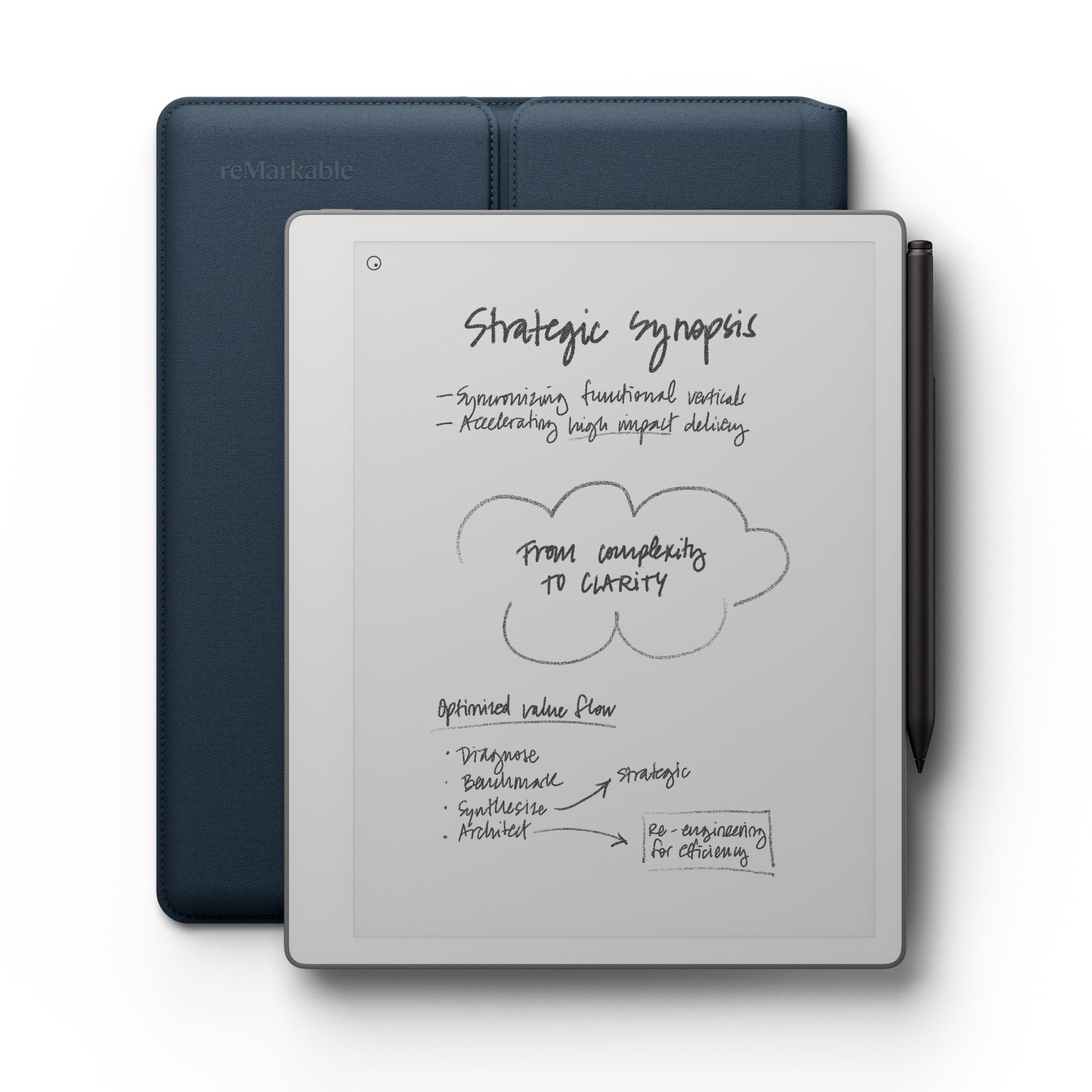
reMarkable puts 21 milliseconds on this screen's ink latency, and the third-generation 10.3-inch panel is whiter and higher in contrast than the one it replaces. What you feel is the friction: the surface drags a little, so letters stop where you put them and your handwriting keeps the size it has on paper. At 360 g with the Ocean Blue sleeve in the box it's light enough for one hand, and Marker Plus comes with it.

This is the pick for pure note-taking, and we mean that as a compliment. Templates, folders, and tags hold a term's worth of notes in order, handwriting converts to text, and PDFs or web articles can be sent in from Drive, Dropbox, and Word. There's no color and not much beyond the notebook itself, so there's very little to do on it except the work you opened it for — which is exactly the point for anyone who keeps sliding into a browser on an iPad. Of the two reMarkables, this is the one we hand to a student.

Two practical notes before you decide. The 10.3-inch page is right for A4 PDFs and single-column reading, and wrong for anything you want side by side. And the Paper Pure costs meaningfully less than the color Paper Pro while doing the same writing job, which makes it the sensible first reMarkable if the notes are the product.

Pros

  • Fast, paper-rough writing surface
  • 360 g with a folio in the box
  • Folders, tags, and handwriting-to-text
  • Imports PDFs and articles from Drive and Word

Cons

  • No front light, so it needs room lighting
  • Search and some sync features need a subscription
Our verdict

Buy it if you want a notebook and little else: the lightest full-size tablet here, with the most paper-like surface and nothing competing for your attention.

Check Latest Price
5

Best Compact

VIWOODS AiPaper Mini

78 /100
Keeper Score Very Good

Key details

Weight
8.11 oz
Display
8.2 in, 292 ppi
Storage
128 GB
Front Light
20 warm levels
Check Price on Amazon

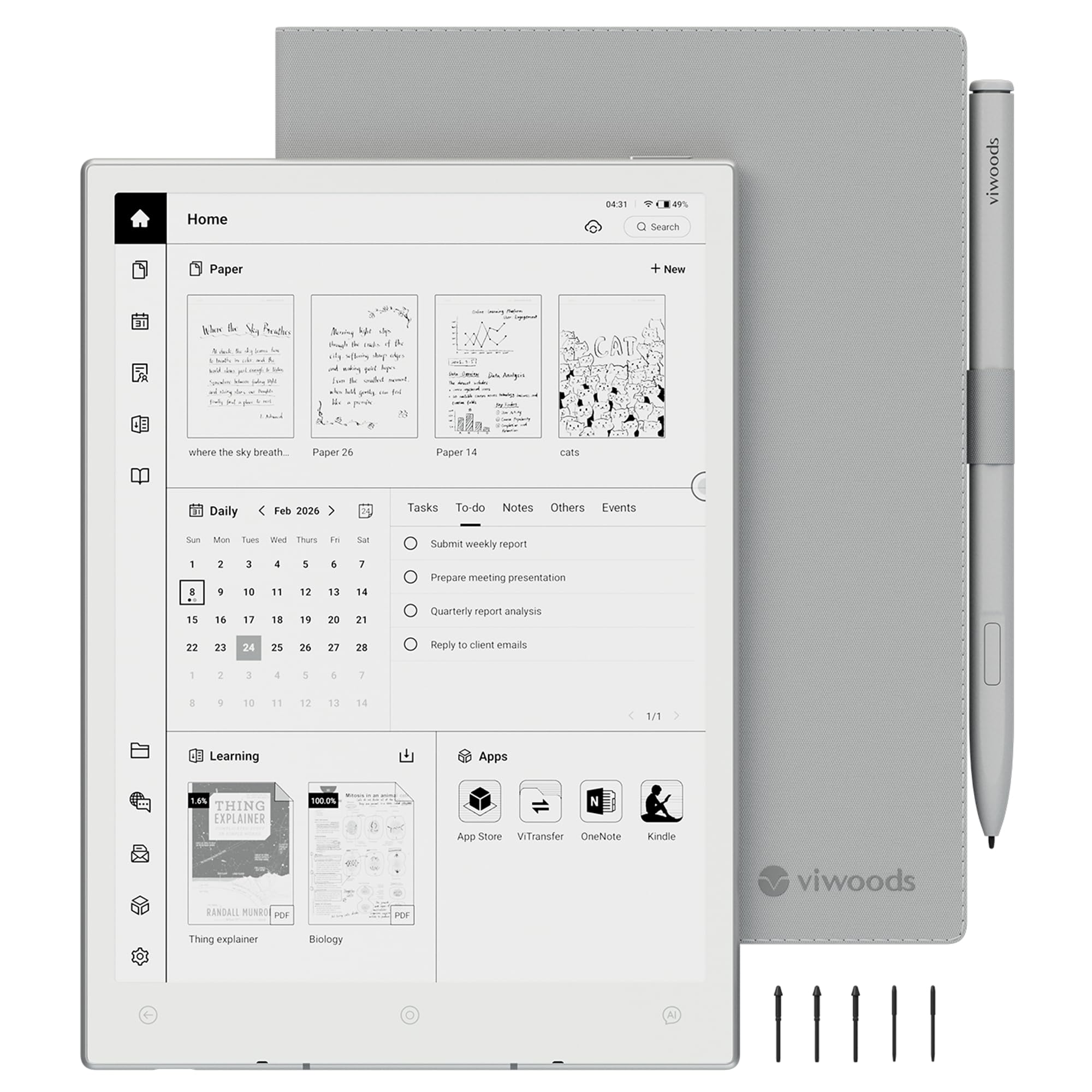
At 230 g and 8.2 inches, the AiPaper Mini is the one that ends up in a bag every day. The 292 ppi screen is bright, the front light warms through 20 levels for reading in bed, and the folio, W2 stylus, and five spare nibs come in the box. What earns it a place is the software: it runs Android 13, so the reading apps you already use for Kindle and Kobo titles install next to the notebook, and the calendar syncs with Google or Outlook. Handwriting-to-text and AI meeting summaries are here too, and 128 GB is more storage than most people will fill with notes.

Speed is the trade. A pen stroke feels close to paper, but page turns and app launches can lag, and that unevenness is the thing we noticed most. The 8.2-inch canvas suits a column of text or a page of notes and gets cramped when you mark up a full-size PDF, and the price sits close to what a 10.3-inch black-and-white tablet costs. Buy it for the commute, not for the desk.

Pros

  • 230 g and 8.2 inches for daily carry
  • Sharp 292 ppi screen with warm front light
  • Android 13 runs Kindle and Kobo apps
  • Folio, pen, and five nibs included

Cons

  • Cramped for full-page PDF markup
  • Page turns and apps can lag
Our verdict

The best small E Ink notebook here: light enough to carry every day, warm enough to read in bed, and Android-capable when you need an app.

Check Latest Price
6

Budget Note-Taking

Huion Ink EB1011

81 /100
Keeper Score Excellent

Key details

Pen
Battery-free, 8,192 levels
Display
10.3 in, 227 ppi
Storage
64 GB, expandable
Front Light
Dual-color presets
Check Price on Amazon

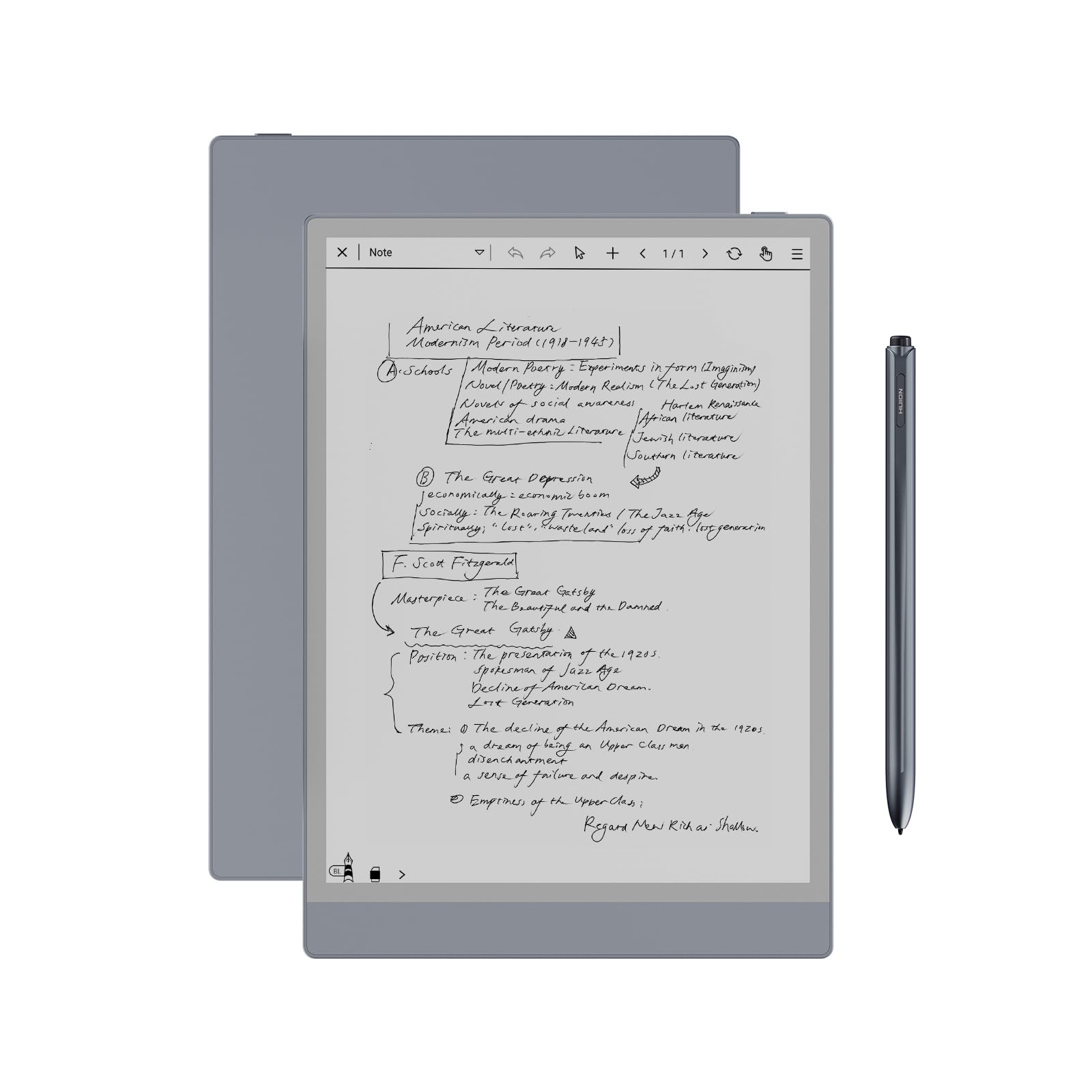
This is the least expensive 10.3-inch E Ink tablet in the group, and the money goes where it matters: laminated anti-glare glass, a battery-free pen with 8,192 pressure levels and a felt tip, a leather case, and three spare refills in the box. The dual-color front light has Day, Night, and Bed presets, storage runs to 64 GB and expands to 2 TB with a card, and the note app gives you five brushes, ten colors, and twenty line thicknesses.

The 1,404 x 1,872 panel works out to 227 ppi, and you can see the gap next to the 300 ppi screens here: body text is a little softer and small footnotes take more squinting. Handwriting is unaffected, since a stroke is a stroke at either density, but long reading sessions are where the difference shows. Setup is the other friction — registration and Bluetooth pairing take patience, and the link between tablet and phone or computer can drop.

Where it makes sense is as a first E Ink notebook, a second tablet for sketches, or a gift for a kid who draws: QR-code sharing and text-to-speech are genuinely useful, and a mistake at this price costs less than one on a reMarkable. If you'll be reading dense PDFs for hours, pay more for 300 ppi. If you're writing and sketching, this is enough tablet.

Pros

  • Least expensive 10.3-inch E Ink tablet here
  • Battery-free pen with 8,192 pressure levels
  • Front light with Day, Night, and Bed presets
  • Storage expands to 2 TB with a card

Cons

  • Text looks softer than on the 300 ppi picks
  • Registration and Bluetooth pairing take patience
Our verdict

The least expensive way into a 10.3-inch E Ink canvas, and we recommend it as a first notebook or a sketching tablet for people who write more than they read.

Check Latest Price
7

Compact Reading

BOOX Go 7

80 /100
Keeper Score Excellent

Key details

OS
Android 13
Stylus
InkSense, sold separately
Display
7 in, 300 ppi
Storage
64 GB
Check Price on Amazon

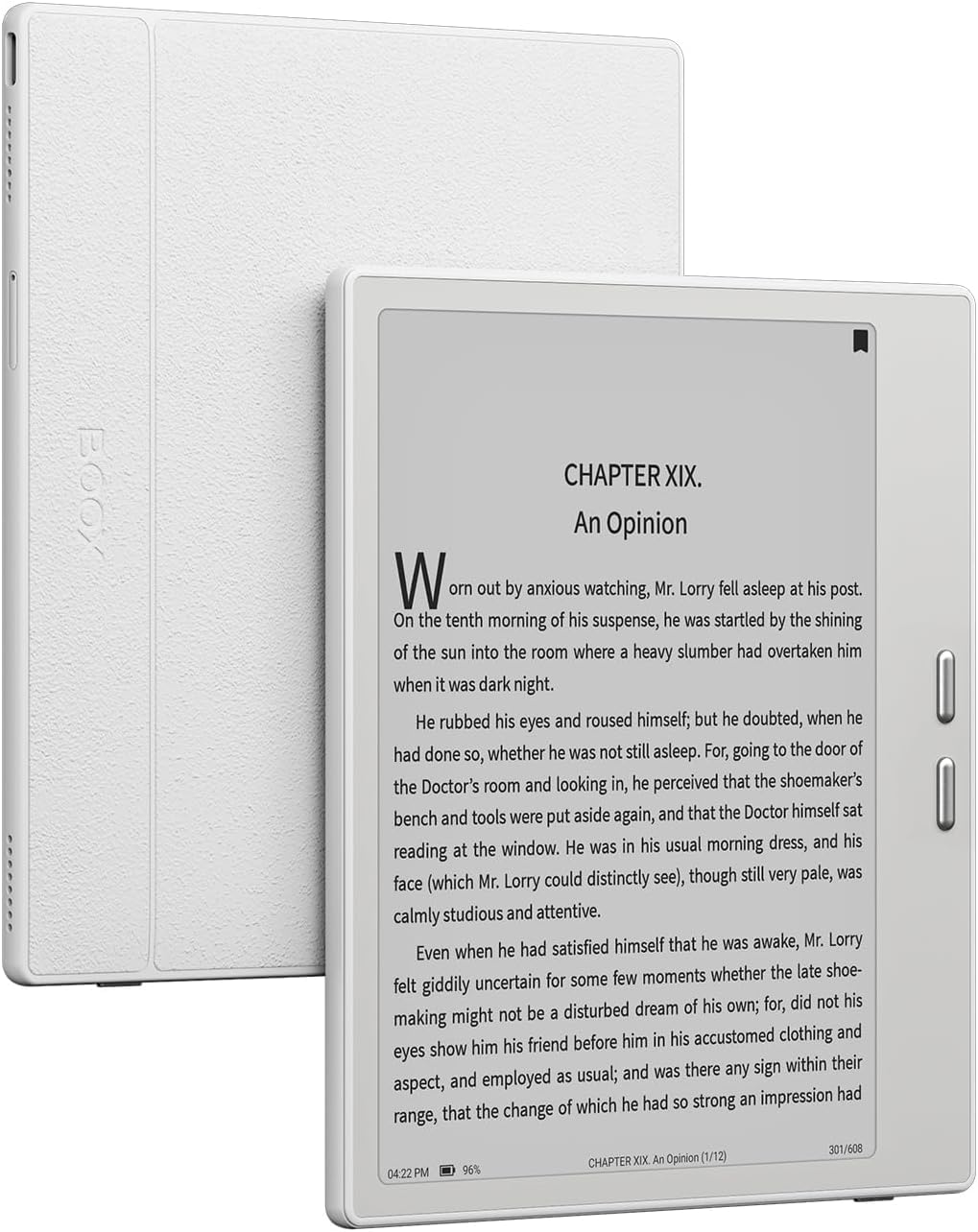
Page-turn buttons down one edge make the Go 7 the most holdable device here: you can read one-handed with a thumb on the button, and the 7-inch 300 ppi screen is crisp enough that text looks printed. The front light runs from warm to cool, the screen rotates on its own, and dual speakers cover audiobooks and text-to-speech.

The pen is the catch. There's no stylus in the box, the tablet accepts only BOOX's own InkSense active stylus, and that sells separately — so the price on the page isn't the price of a writing setup. With the pen in hand, notes and quick sketches work, but a 7-inch page is small for anything longer than a list or a page of meeting notes.

Android 13 is why it's in the roundup at all: reading apps install, a microSD card adds storage, and the thing behaves like a small tablet rather than a locked e-reader. It's also where the rough edges show. The settings run deep and aren't always obvious, setup takes a couple of sittings, and heavier apps ghost and lag in a way the note app doesn't.

We kept it for one buyer: the reader who wants a pocketable E Ink device and will write occasionally. If handwriting is the main event, the extra page of a 10.3-inch tablet is worth more than the portability, and the Penstar or the Huion will serve you better.

Pros

  • 300 ppi in a 7-inch, one-hand body
  • Physical page-turn buttons
  • Android 13 with app installs and microSD
  • Warm and cool front light

Cons

  • Stylus sold separately, and only BOOX's fits
  • Ghosting and lag in heavier apps
Our verdict

A reading-first 7-incher with a pen option, worth it if most of your writing is a quick page on the train rather than a semester of notes.

Check Latest Price

How We Chose and Tested the Best E Ink Tablets

We started by pulling every e-ink tablet we could find with a pen in the box and a front light, then filtered by screen size, price, and whether the stylus and folio were included. That left eight units, from 8-inch models that fit in a jacket pocket to an 11.8-inch one that never left the desk, and we tested each for nine months.

Every tablet went into the same rotation: staff meetings for handwritten notes, a stack of PDFs marked up in the margins, and a kitchen-table journal every night. I carried each one in a tote for a week, weighed it, and pressed a thumb into the back to check for flex. Each screen got the same test page — cursive, block printing, and fast bullet points — and I noted whether the pen tip skated like glass or dragged like graphite, and whether my palm left marks.

Then the features. I wrote two paragraphs of my own messy handwriting and counted the conversion errors, then sat in on recorded meetings to see whether the AI summaries caught action items or only small talk. Every front light went to its lowest setting in a dark room to check for hotspots, and I looked at highlights on the one color panel to see whether they read as real highlighter or tinted gray. I also scrolled a long PDF page by page, watching for ghosting and refresh lag.

Speed and reliability got the last word. Each tablet sat untouched for a week, then I timed how long it took to wake, open a notebook, and find a note from three months earlier — the search that started this whole exercise. I noted, too, which ones shipped with the pen and folio and which expected you to buy them separately.

How to Choose an E Ink Tablet

Match the Screen to What You're Writing On

A 7-inch tablet is a reader that can take a note: a page of handwriting on one is cramped and a PDF becomes a scrolling exercise. 8.2 inches is the travel size, fine for a column of text or a page of notes and tight for marking up letter-size documents. 10.3 inches is the practical floor for PDF annotation and split-screen work, and 11 inches and up is where margin notes stop feeling squeezed.

Measure the documents you actually handle before you decide. If you annotate letter or A4 PDFs every week, don't go below 10.3 inches, and expect the bigger screens to cost you in weight as well as money.

Check the Pen Before You Compare Prices

Some of these ship with a pen and some don't, which changes the arithmetic. The two Kindles, both reMarkables, the Penstar, and the Huion include one; the BOOX Go 7 needs its own InkSense stylus, sold separately, and won't accept another. Battery-free pens never need charging but are maker-specific, so a lost pen is an order rather than a borrow from a drawer.

Add a folio and a set of spare nibs to whatever you're comparing. The textured surfaces that make writing feel like paper are exactly what wears a tip down, and having a spare in the case beats a week without the tablet.

Decide Whether You Need a Front Light

E Ink reflects light rather than producing it, so a tablet without a front light behaves like paper: fine at a desk under a lamp, useless in a dark bedroom. The Paper Pure has no light at all; the Scribe adjusts brightness itself and warms the page at night; the Huion offers Day, Night, and Bed presets; the AiPaper Mini goes warm through 20 levels.

If you read in bed or write on evening trains, pay for the light. If the tablet lives on a desk beside a lamp, doing without is a fair saving.

Look Past 'It Opens PDFs' to the Annotation Workflow

Almost everything here can display a PDF. The useful question is how the file gets in and how your markup gets back out. The Scribe takes documents through Amazon's send-to-Kindle route and can export notes to OneNote and OneDrive. The reMarkables pull files from Google Drive, Dropbox, and Word. The Android-based models install the apps you already use.

Pick the one document you annotate every week and walk it through each step — import, mark up, export — before you buy. A large screen is not the same thing as a workflow.

Budget for What Comes After Checkout

The tablet is only part of the cost. Nib replacements are recurring on any of these, and several makers ship spares in the box precisely because of it. reMarkable also puts some sync and search features behind a subscription, which is worth checking against how you plan to work.

Our advice is to buy the spare nibs with the device and to read the subscription terms before you commit a year of notes to a platform. Moving notebooks between systems is the one thing none of these does gracefully.

Frequently Asked Questions

Final Verdict

The Kindle Scribe 64GB is the tablet we recommend first, because it's the only one here that puts a pen on top of a library you may already own. Eleven inches, 400 g, a pen that never needs charging, and note-taking that works in a book margin as well as on a blank page — it's the safest way to spend this much on an E Ink device.

If color markup on PDFs is a real part of your week, the reMarkable Paper Pro is the better buy and the larger page earns its premium. If you want the same 300 ppi canvas for less and don't mind a stylus-only interface, the Penstar eNote 2 gives you 128 GB and two pens, and it's the one we point students toward.