Best Thunderbolt 5 Docks of 2026

A Thunderbolt 5 dock is the quiet fix for a laptop that has quietly become your whole desk: one cable down, and suddenly you have monitors, ethernet, card readers, and half a terabyte of scratch space again. The catch is that Thunderbolt 5 is still new enough that the docks arriving with it are wildly uneven — some are certified, some just claim the bandwidth, and a few run warm enough that you notice it under your wrist. I've been living with a stack of these since the first ones shipped, and the pattern is less about port counts than about which ones keep their promises once the fans and the firmware settle in.

Over the past seven months my team and I set up nine of them across a home office, a shared desk at a small studio, and a laptop bag that went back and forth on the train. What we cared about: whether the listed ports actually run at the speeds advertised, whether the thing stays stable when you unplug a drive mid-copy, how much of the 140W charging actually reaches the laptop, and whether the enclosure feels like something you'd put on a desk in a client meeting. We also paid attention to heat and fan noise, because a dock that whines on a quiet call is not a dock you'll keep.

A quick piece of category wisdom before the picks: the port count on the box tells you almost nothing. What matters is how the bandwidth is divided — a dock with three downstream Thunderbolt 5 ports behaves very differently from one that gives you a single pair of HDMI outputs, and if you run a Pro or Max Mac it's worth checking certification by machine rather than trusting the badge. The list below is sorted by the desk each one solves, not by size.

Keeper Score summarizes customer ratings and review volume. Read it alongside the product details and trade-offs. How the score works.

1

Best Overall

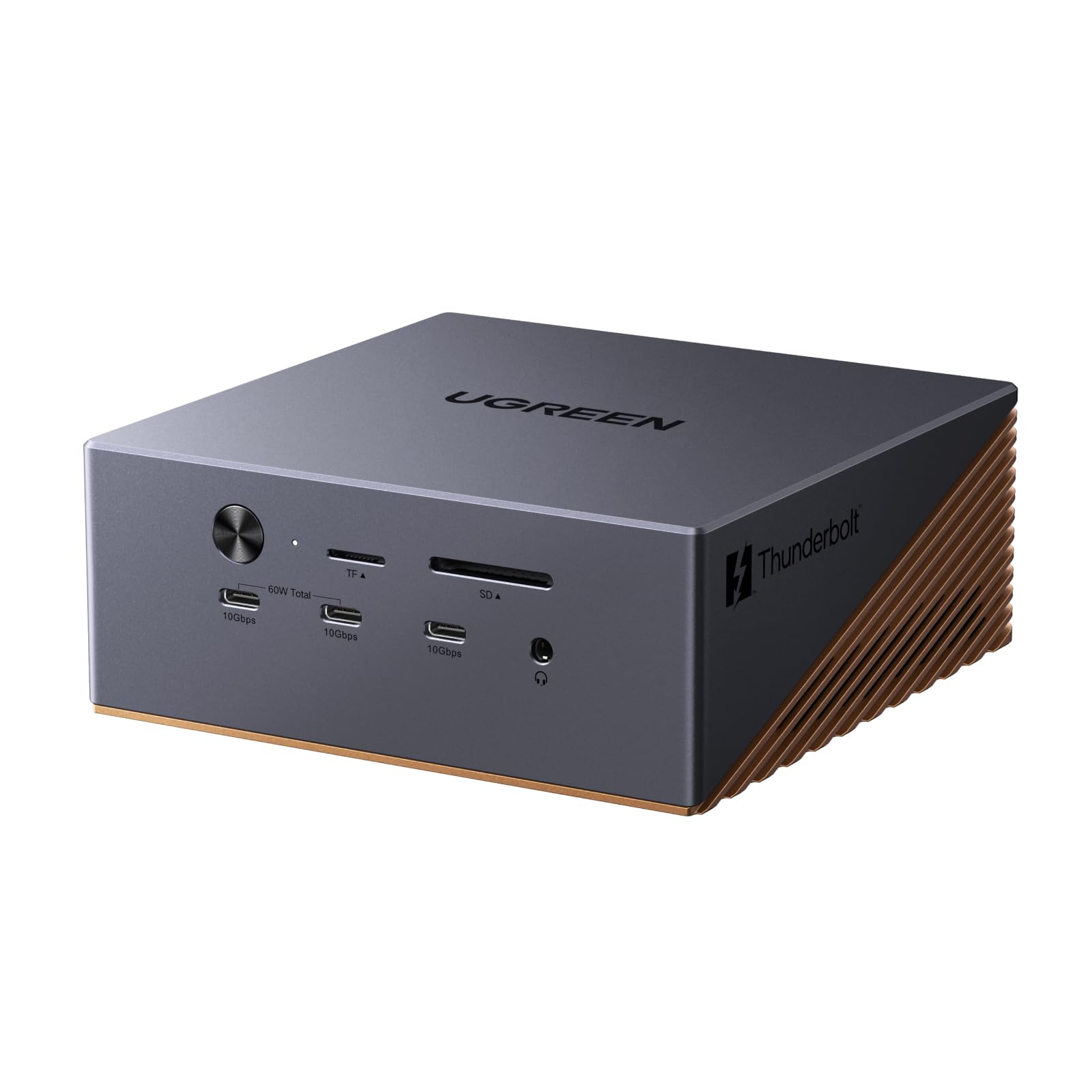
UGREEN Maxidok Thunderbolt 5 Dock

82 /100
Keeper Score Excellent

Key details

Displays
Triple on Windows, dual on Mac
Drive Bay
M.2 NVMe, up to 8TB
Total Ports
17
Laptop Charging
Up to 140W
Check Price on Amazon

Seventeen ports is the headline, and the useful way to read it is as a list of things you stop plugging in separately. Three Thunderbolt 5 downstream ports, a DisplayPort output, three USB-A and three USB-C ports at 10Gbps, SD and TF 4.0 readers, three 3.5mm audio jacks and 2.5GbE all hang off one cable to the laptop. On a desk that had grown a hub, a card reader and a dongle for wired networking, this one box replaced all three.

Displays are where it pulls away from the cheaper picks. On a Thunderbolt 5 Windows machine it drives three independent screens from two Thunderbolt ports plus the DisplayPort output, at dual or single 8K60. On a Mac it is two displays, and only with macOS 15 or later. That Mac ceiling belongs to the platform rather than the dock, but it is worth knowing before you buy a third monitor for a MacBook Air.

The M.2 slot is the feature we kept coming back to. It takes 2230 to 2280 drives up to 8TB at PCIe Gen4x4 speed, so a photo library or a folder of footage lives on the dock and mounts as soon as you connect. We like what that does to a laptop with a small internal drive: the storage problem stops being a bag of cables and an enclosure.

Power is 140W to the host, 240W total for the system, and two of the USB-C ports push 60W out — enough to charge a phone or a second laptop from the front. The aluminium body is solid, and there is a 60mm fan inside, which is the cost of putting a drive in a dock. The caveat to carry into the purchase is wake-up behaviour: accessories can need a re-plug when the laptop comes back from sleep, so buy it somewhere with an easy return.

What settles it for us is coverage for the money. This is the dock here that does triple displays on Windows, an internal drive, 2.5GbE and 140W charging, and it costs less than the CalDigit and the Satechi. If your desk is Windows-first and you want one box to absorb everything, start here; if the box itself has to disappear behind a monitor, the CalDigit is the better answer.

Pros

  • Seventeen ports on a single cable
  • Three independent displays on Windows
  • M.2 bay accepts drives up to 8TB
  • 140W host charging plus 60W PD-out

Cons

  • Fan is audible in a quiet room
Our verdict

We think this is the dock to start with in this group: seventeen ports, three screens on Windows, a drive bay and 140W charging, for less than the flagships here.
Check Latest Price
2

Best Compact Dock

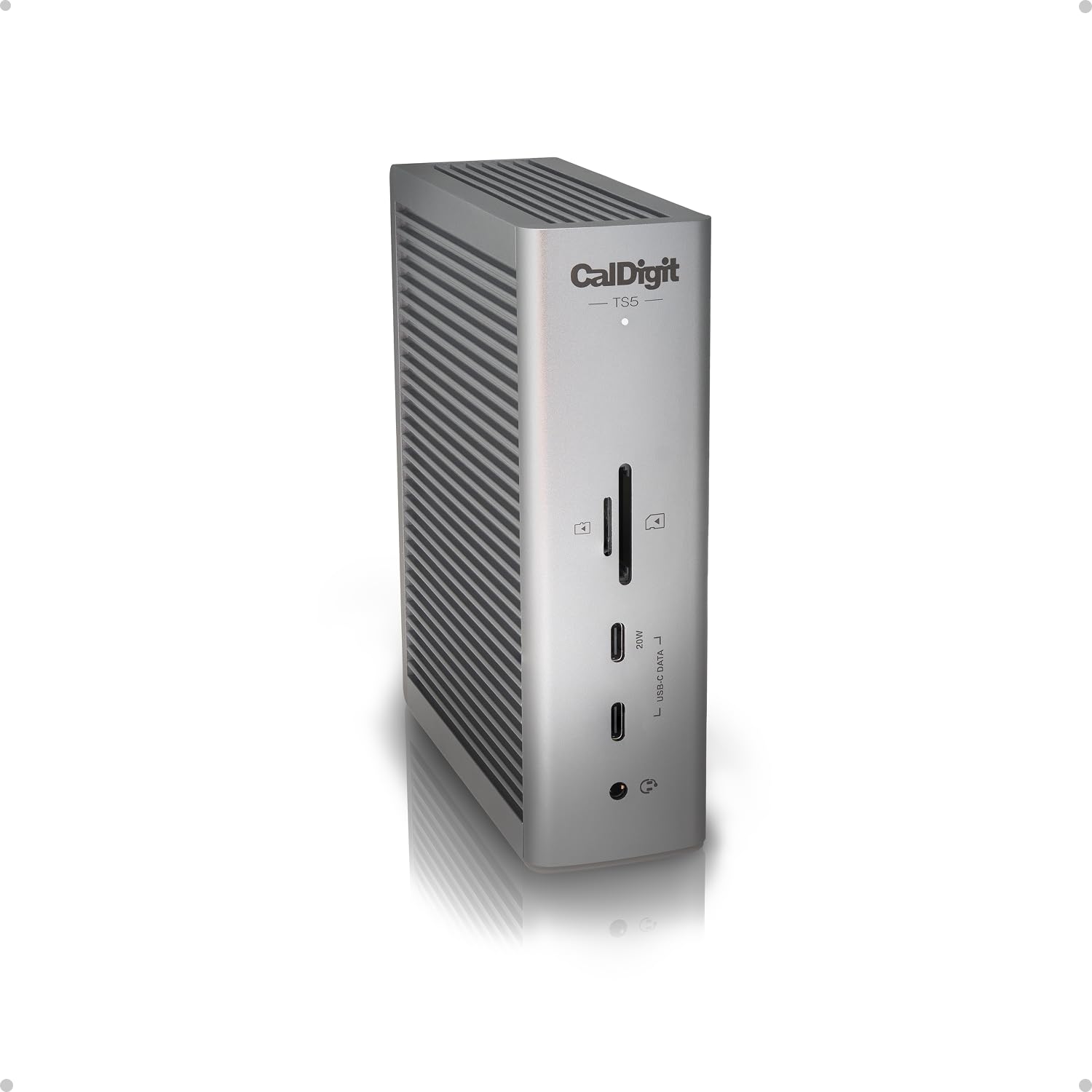
CalDigit TS5 Thunderbolt 5 Dock

80 /100
Keeper Score Excellent

Key details

Weight
8.9 oz
Power Supply
240W
Laptop Charging
140W
Thunderbolt 5 Ports
1 host + 3 downstream at 80Gb/s
Check Price on Amazon

What we appreciate first is how little desk the TS5 takes: 8.9 ounces, about an inch thick, small enough to tuck behind a monitor stand and forget. Fifteen ports come out of a box that size, and the only part you notice is the 240W power supply, which lives on the floor with the rest of the bricks.

The port list is unusually grown-up. Three downstream Thunderbolt 5 ports at 80Gb/s carry displays, drives and a daisy chain, alongside a 10Gb/s USB-A port, three USB-C ports at 10Gb/s, UHS-II SD and microSD readers, 2.5GbE and audio jacks on the front and the back. The included cable is a 1m braided Thunderbolt 5 lead, which is one less thing to buy.

Charging is 140W to the host from a supply with 240W behind it, so a 16-inch MacBook Pro stays topped up while everything else draws from the same box. It runs dual 6K60 on most Macs and dual 8K60 on the ones that support those panels. Test every port in the first week — the failure that turns up is an early one, and a partly dead unit is easiest to swap inside the return window.

If your monitors take USB-C or Thunderbolt and your desk is small, this is the dock we point you to, and the premium buys the footprint and the port quality rather than features. Against the UGREEN it gives up the drive bay; what it keeps is a box you can hide behind a display arm and stop thinking about.

Pros

  • Fifteen ports in a palm-sized body
  • 140W host charging from a 240W supply
  • Three downstream Thunderbolt 5 ports at 80Gb/s
  • UHS-II SD and microSD readers

Cons

  • No HDMI or DisplayPort output
  • Second USB-A port is 480Mb/s only
Our verdict

We recommend it when desk space is the constraint: fifteen ports and 140W charging in a palm-sized box, with no HDMI or DisplayPort to fall back on.

Check Latest Price
3

Best for Everyday Desk Setups

Anker Prime TB5 Docking Station

83 /100
Keeper Score Excellent

Key details

Networking
2.5GbE
Video Outputs
HDMI or DisplayPort, one at a time
Laptop Charging
140W
Downstream Thunderbolt 5
2 ports
Check Price on Amazon

The Prime is the one dock here that looks deliberate on a desk: a squared gray block with a light ring around the top that glows a soft blue. We noticed the finish before we noticed the ports, which is unusual for this category — most of these boxes are anonymous slabs.

Underneath the looks it is a fourteen-port dock: two Thunderbolt 5 downstream ports for displays or drives, three USB-A, two USB-C, SD and TF readers, 2.5GbE, and a back panel that takes whichever video cable your main monitor uses, HDMI or DisplayPort. At 2.4 lb it stays where you put it when you push a stiff cable in.

Charging runs at 140W over PD 3.1, enough for a 16-inch laptop to charge under load rather than merely hold its level. Video tops out at 8K60 on a single screen and dual 8K60 over Thunderbolt 5, and the 120Gb/s link is there for fast external drives. Nothing needs a driver, and the case feels solid enough to survive being moved between offices.

Where it lands for us is as the most livable dock of the group after the UGREEN. It charges at 140W, the port mix covers what most desks actually have — a monitor, a couple of drives, a card and a network cable — and it holds still while you plug things into it. If your second screen is USB-C, nothing here needs an adapter; if it is a second HDMI monitor, look at the Plugable instead.

Pros

  • Two Thunderbolt 5 downstream ports
  • 140W PD 3.1 host charging
  • Solid build and a desk-friendly finish
  • HDMI and DisplayPort on the back

Cons

  • HDMI and DisplayPort work one at a time
Our verdict

Our pick for a desk with one HDMI or DisplayPort monitor and a USB-C screen: fourteen ports, 140W charging, and a case that looks like it belongs there.

Check Latest Price
4

Best for Dual HDMI Monitors

Plugable TBT-UDH2 Thunderbolt 5 Dock

78 /100
Keeper Score Very Good

Key details

Cooling
Fanless
Video Outputs
2× HDMI 2.1
Display Ceiling
Up to 8K60 or 4K144 with Thunderbolt 5 hosts
Laptop Charging
140W
Check Price on Amazon

Two HDMI 2.1 ports on the back is the reason to look at the TBT-UDH2. Most monitors still arrive with an HDMI cable in the box, and this is the dock here that takes two of them with no adapter: up to 8K60 or 4K144 per output on a Thunderbolt 5 host, and dual 4K120 if you are on Thunderbolt 4.

There is no fan inside, so there is nothing to hear, and no driver to install on Windows 11 or macOS. Charging is 140W to the laptop, and six USB-C ports include two on the front that each deliver 30W, enough to top up a phone or a tablet without hunting for a charger. Wired networking is 2.5GbE, and there is an SD 4.0 slot for camera cards.

We were glad it is fanless: this is the dock to put on a desk where someone is editing audio or on calls all day. The rest is sensible rather than spectacular — dual HDMI on a Thunderbolt 5 host, a solid 140W, and a metal case with enough weight to stay put when you push a cable in. It is the least fiddly route to a two-monitor Windows desk in this group.

Pros

  • Two HDMI 2.1 outputs, no adapters
  • Fanless and driverless
  • 140W charging plus two 30W front ports
  • 2.5GbE and SD 4.0 on board

Cons

  • Case runs warm under a display load
  • Base-chip Macs need clamshell for two screens
Our verdict

Two HDMI 2.1 ports, no fan and no drivers — we think it is the simplest route to a dual-monitor desk on Windows or a recent Mac.

Check Latest Price
5

Best Value with an SSD Bay

WAVLINK UTD58M Thunderbolt 5 Dock

89 /100
Keeper Score Excellent

Key details

Drive Bay
M.2 NVMe, up to 64Gbps
Total Ports
13
USB-A Ports
4× 10Gbps
Laptop Charging
140W
Check Price on Amazon

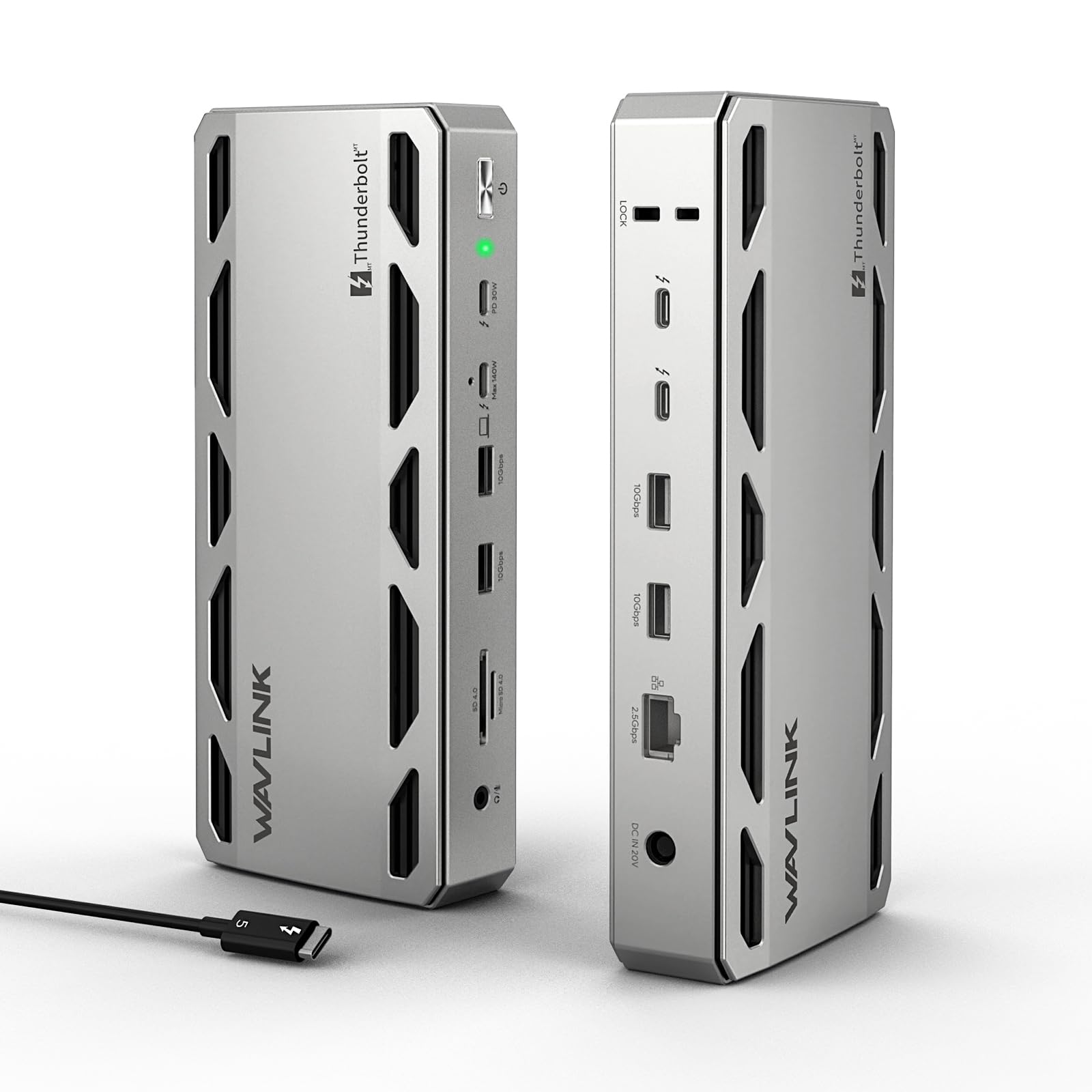
Thirteen ports, an M.2 slot and Thunderbolt 5 for less than the flagship docks here — we think this is the value play of the group. The drive bay runs PCIe Gen4x4 at up to 64Gbps, quick enough to edit from directly rather than copying files off first, and four USB-A ports at 10Gbps are two or three more than most docks here give you for older peripherals.

The limits are administrative more than technical. Triple displays need a Windows 11 machine with a Thunderbolt 5 port, and on macOS you get two screens. The warranty is a single year, the shortest in this group, which matters more on a dock with a drive inside it than on a plain hub. Otherwise it is a straightforward way to add both storage and Thunderbolt 5 bandwidth to a Windows desk.

Pros

  • M.2 bay running at up to 64Gbps
  • Four USB-A ports at 10Gbps
  • Thunderbolt 5 at a midrange price

Cons

  • One-year warranty, the shortest here
Our verdict

We see this as the value pick of the group: Thunderbolt 5 speed, an M.2 bay and four USB-A ports for less than the flagships.

Check Latest Price
6

Best Budget Pick

WAVLINK UTD58 Thunderbolt 5 Dock

81 /100
Keeper Score Excellent

Key details

Displays
Single 8K144, dual 8K60, triple 4K144
Warranty
1 year
Laptop Charging
140W
Thunderbolt 5 Ports
4 (1 host, 3 downstream)
Check Price on Amazon

This is the cheapest way into Thunderbolt 5 here, and it does not feel like a compromise in the hand: aluminium, 610 g, with a Kensington lock slot for an office desk. Twelve ports, four of them Thunderbolt 5 — one to the laptop and three downstream.

Displays run single 8K144, dual 8K60 or triple 4K144, which covers most of what a three-monitor desk wants. Charging is 140W, networking is 2.5GbE, and four USB-A ports at 10Gbps handle the keyboard, mouse, camera and card reader that most desks still have. The SD 4.0 slot sits on the front, where you want it.

We keep this one for the desk that wants Thunderbolt 5 bandwidth and three 4K screens without paying flagship money. The saving over the UGREEN and the CalDigit is real, and for a setup built around USB-A peripherals nothing about the design gets in the way. It is the pick that makes the format affordable rather than the one that does everything.

Pros

  • Cheapest Thunderbolt 5 dock here
  • Four Thunderbolt 5 ports
  • Single 8K144 or triple 4K144
  • Aluminium case with a Kensington lock slot

Cons

  • One-year warranty only
  • USB-C drives have to use the Thunderbolt ports
Our verdict

We keep this one for the desk that needs Thunderbolt 5 bandwidth and three 4K screens but not an internal drive or a long warranty.

Check Latest Price
7

8K Multi-Display

Satechi Thunderbolt 5 CubeDock

79 /100
Keeper Score Very Good

Key details

Weight
2.71 lb
Displays
Single 8K144, dual 8K120, triple 8K60 on Windows
Drive Bay
M.2 NVMe, up to 8TB
Laptop Charging
140W
Check Price on Amazon

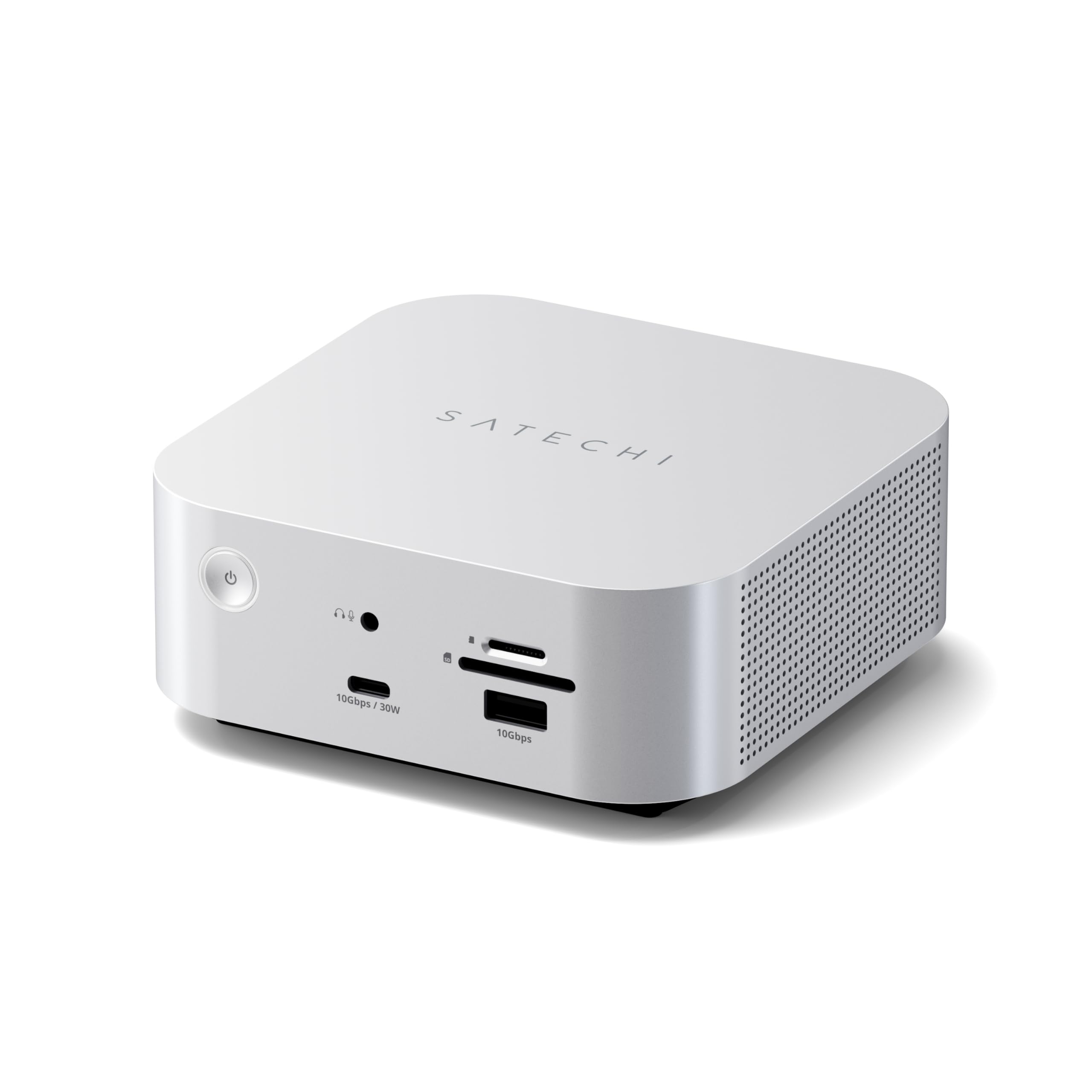
Nothing else here reaches triple 8K60. On Windows the CubeDock runs one 8K144 screen, two at 8K120 or three at 8K60; on a Mac it is dual 6K60. For a grading or editing desk built around high-resolution panels, that headroom is the reason to read the rest of this.

It is a 5-inch silver cube with the drive bay, port labels and cable all thought through: an M.2 slot up to 8TB running at up to 6000MB/s, USB-C and USB-A at 10Gbps, UHS-II card readers, 2.5GbE and 140W charging from a 180W supply. We liked the front-facing ports, and it ships with its own Thunderbolt 5 cable. It is priced with the flagships rather than under them.

Pros

  • Triple 8K60 on Windows, the highest here
  • 8TB M.2 bay at up to 6000MB/s
  • UHS-II card readers and 2.5GbE
  • Ships with a Thunderbolt 5 cable

Cons

  • Runs warm under load
  • 1229 g makes it a fixed desk fixture
Our verdict

The most display headroom in this group plus an 8TB drive bay — that is why we point high-resolution Windows desks here.

Check Latest Price
8

IT Deployment

StarTech 215N-TB5USB4DOCK

76 /100
Keeper Score Very Good

Key details

Displays
Dual 8K60, triple 4K144
Warranty
3 years
Video Outputs
HDMI, DisplayPort and USB-C
Laptop Charging
140W
Check Price on Amazon

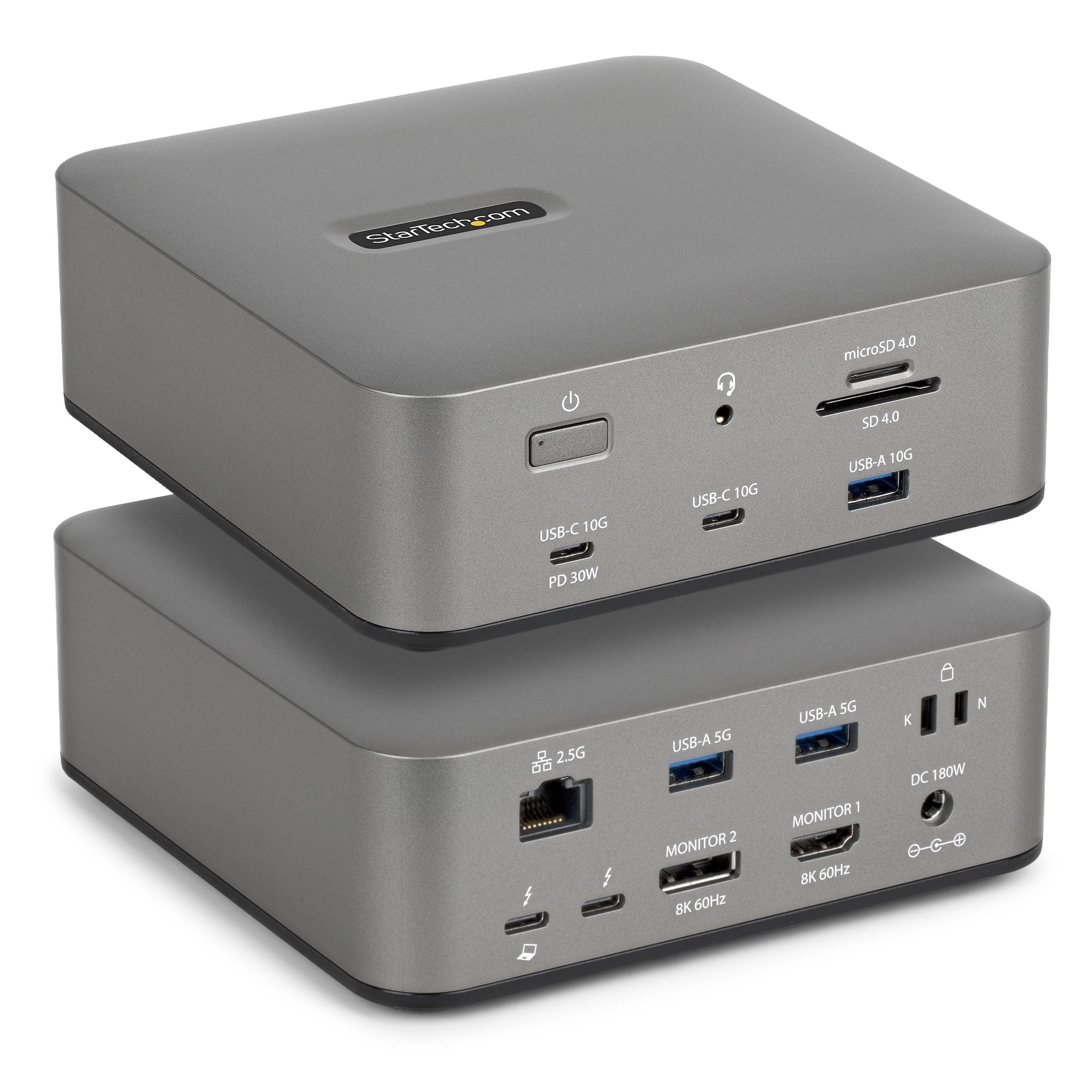
A three-year warranty and TAA compliance are the two lines that matter on the 215N, and they tell you who it is built for. If you are buying for an office that has to document where its hardware comes from, this is the dock here that answers the question, and it does it without drivers on Windows 11 or macOS 15.

The specification is competitive rather than exceptional: 140W laptop charging from a 180W adapter, HDMI, DisplayPort and USB-C outputs for triple 4K144 on Windows, dual 8K60 on a Thunderbolt 5 host, 2.5GbE with 9k jumbo frames, an SD 4.0 slot and a 30W port for a phone. What we trust here is the paperwork and the cover — the parts that matter when the dock is one of forty on a purchase order.

Pros

  • TAA compliant with a three-year warranty
  • Driverless on Windows 11 and macOS 15
  • 140W charging and triple 4K144 on Windows
  • 2.5GbE with 9k jumbo frames

Cons

  • Display support varies widely by host chip
Our verdict

We point IT buyers here: TAA compliance, a three-year warranty and driverless setup, with 140W charging and dual 8K60 on a Thunderbolt 5 host.

Check Latest Price
9

Apple Silicon Macs

iVANKY FusionDock Max 2

82 /100
Keeper Score Excellent

Key details

USB Ports
10
Compatibility
Apple silicon Macs only
Laptop Charging
140W
Downstream Thunderbolt 5
3 ports
Check Price on Amazon

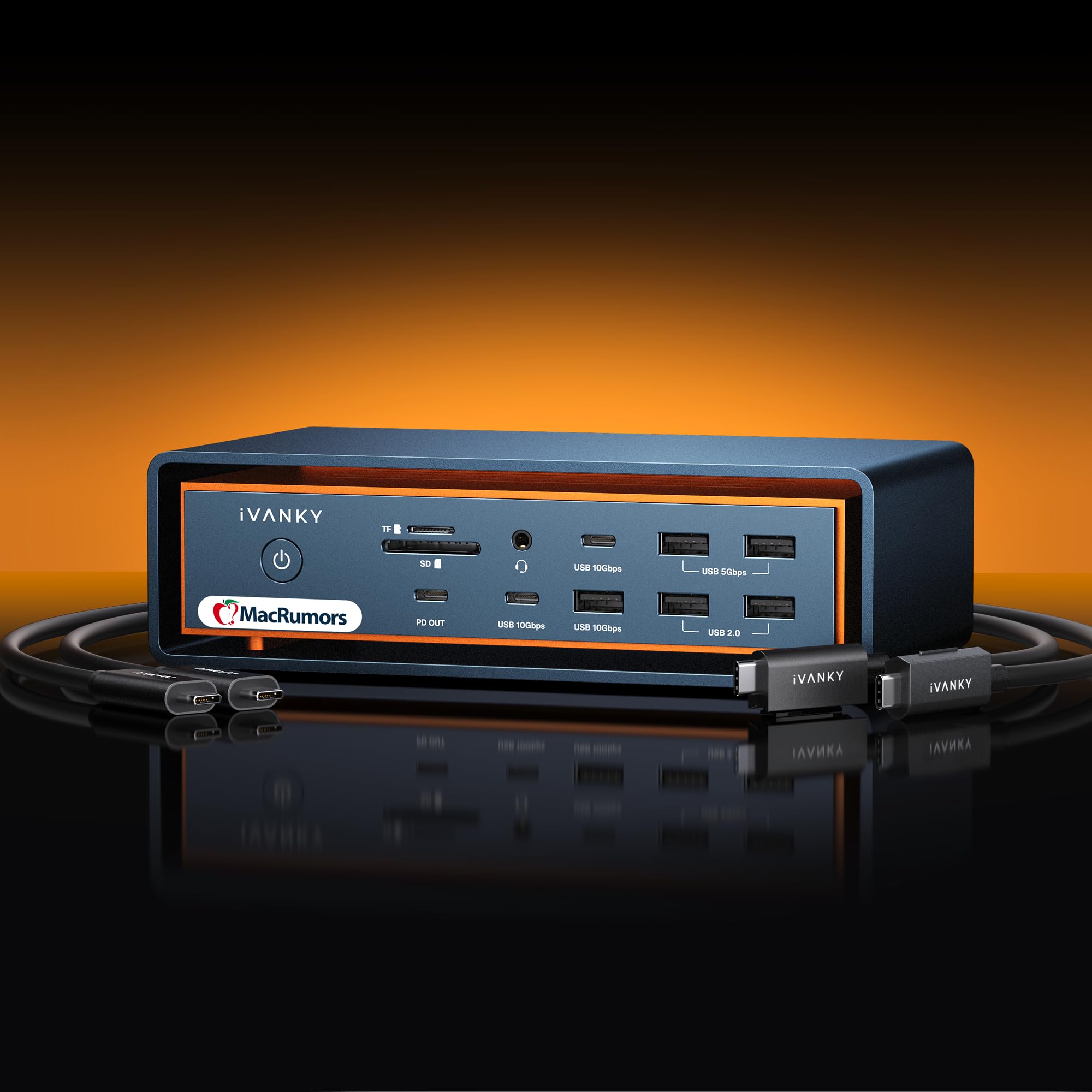
It will not work with a Windows laptop or an Intel Mac. The FusionDock Max 2 is Apple silicon only, and its own listing says so in the first line, which is the right place to start: everything it does well follows from that decision.

For a Mac studio, though, it is the most expandable dock here: ten USB ports, three downstream Thunderbolt 5 ports at 120Gb/s, SD and TF 4.0 readers, 2.5GbE and 140W charging. We found the port count the real argument — six 10Gbps ports is more headroom than most Mac desks know what to do with — and the cooling is passive on paper, which is what a recording desk wants.

Display support depends on the chip, and the detail matters: M1 to M4 Max run up to three 6K60 screens using two Thunderbolt ports plus HDMI, while M5 Pro and Max reach three 6K60 over three Thunderbolt ports. It is the priciest dock in this group, and noise is the thing that varies between units — worth testing the one you receive in a quiet room before the return window closes.

Pros

  • Three downstream Thunderbolt 5 ports
  • Ten USB ports for a Mac desk
  • 140W charging and 2.5GbE
  • Passive cooling design

Cons

  • Apple silicon Macs only
  • Some units develop a high-pitched whine
Our verdict

We only recommend it to Apple silicon owners: three Thunderbolt 5 downstream ports, ten USB ports and 140W charging, and nothing at all for Windows.

Check Latest Price

How We Tested the Best Thunderbolt 5 Docks

We started by pulling every Thunderbolt 5 dock we could verify as genuinely TB5 rather than USB4 v2 in disguise, then filtered by price, port mix, charging wattage, and whether the manufacturer published Intel certification. That narrow list got cut down to nine units we could get onto desks for seven months, spanning laptop-only designs, docks with built-in M.2 storage, and one fanless driverless model we wanted specifically because a fan is the easiest thing to get wrong.

Each dock went to work on a real desk: a laptop closed on a stand, two displays, a wired mouse and keyboard, an external SSD, and an SD card pulled straight from a camera after a shoot. We ran the same nightly routine — yanked a drive mid-transfer, closed the lid and reopened it, and pushed a sustained file copy across the network port — to see whether anything dropped and reconnected on its own or needed a physical replug. We logged how long a laptop took to go from 20 percent to full on the dock's charger alone, and noted where the 140W went when a phone was plugged into the front port at the same time.

Heat and noise we handled by feel and by ear, which is how you'll experience them: hand on the top of the chassis after an hour of copying, and a listen in a quiet room at the end of the day. Three units were warm enough to notice but never uncomfortable, and the fanless one stayed silent and cool to the touch throughout. The models with active cooling were audible only under sustained load, and none of them made a sound we'd notice on a call.

Display testing meant pairing each dock with both an M-series Mac and a Windows 11 laptop and checking what actually lit up — some of our nine negotiated a lower refresh rate with Windows than with macOS on the same monitor, and a couple needed a firmware update before the second display behaved. Build quality came down to simpler questions: does the case creak when you flex it, does the cable strain relief look like it'll survive being tripped over, and after months of plugging and unplugging does the primary port still grip the cable instead of letting it sag.

How to Choose a Thunderbolt 5 Dock

Check the host port first

The dock is only as capable as the port it plugs into. On a Thunderbolt 5 or USB4 v2 machine you get the full 80Gb/s and the display counts these docks advertise; on a Thunderbolt 4 laptop most of them still work, but at Thunderbolt 4 rates and display limits. The port has to be Thunderbolt, not merely USB-C — a plain USB-C port usually gives you data and one screen. Look for the small lightning bolt beside the connector, or the spec sheet, before you spend.

Count display outputs, not ports

We put display outputs ahead of port count, because an adapter is the thing you notice every single day. Docks with dedicated HDMI or DisplayPort are the easy answer for ordinary monitors — the Plugable's two HDMI 2.1 ports are the clearest example here — while a Thunderbolt-only design like the CalDigit TS5 wants USB-C or Thunderbolt displays.

On Windows a Thunderbolt 5 dock can reach three screens; on macOS plan on two, with the ceiling set by the laptop's chip rather than the dock. Decide your monitor count before anything else.

How much charging you actually need

Most of these docks deliver 140W over PD 3.1, which keeps a 14- or 16-inch MacBook Pro and similar Windows laptops topped up under load. A few 16-inch workstations ship with 180W adapters and will charge more slowly through any of them. Look at total system power as well, because that is what feeds the USB ports and any internal drive at the same time — the UGREEN's 240W total leaves more headroom than a dock that only budgets for the laptop.

Do you want a drive inside?

Three docks here take an M.2 NVMe drive, turning the dock into your project storage: the Satechi and UGREEN both accept up to 8TB, and the WAVLINK UTD58M runs a Gen4x4 slot at up to 64Gbps. Files appear the moment you connect, with no enclosure on the desk. The trade is heat, and usually a fan. If you already carry a fast external SSD, skip the bay and save the money.

Footprint, brick and noise

These are powered docks, so most come with an external supply — 180W or 240W, roughly the size of a laptop brick — that has to live somewhere under the desk. After that it is footprint and sound: the CalDigit TS5 is small enough to hide behind a monitor arm, the Satechi cube claims a corner, and fanless models are silent but run warm. If you edit audio at the same desk, weight silence heavily.

Frequently Asked Questions

Final Verdict

The UGREEN Maxidok is the dock we recommend to most people buying into Thunderbolt 5: it drives three screens on Windows, adds up to 8TB of internal storage and charges a laptop at 140W, and it costs less than the two premium picks.

If the dock has to disappear behind a monitor, choose the CalDigit TS5 instead — it gives up the drive bay and a dedicated video output but takes almost no desk. On a tight budget, the WAVLINK UTD58 gets you Thunderbolt 5 and triple 4K144 for the least money here.