Best Thunderbolt Docks of 2026

A Thunderbolt dock is a traffic cop for one cable: monitors, drives, ethernet, card readers all plug into the box, and the box hands the pile to your laptop through a single port. The promise is simple; the delivery is where these things diverge. I've watched a second monitor negotiate itself down to 30Hz, and I've heard a dock fan from across a quiet room.

Over the past six months my team and I have kept eight docks in daily rotation, from 40Gbps Thunderbolt 4 models to the newer 120Gbps Thunderbolt 5 boxes, swapping them between the same two monitors and the same work bag. What surprised me is how little the port count on the box actually tells you. A dock advertising four 4K displays is telling you the truth about the dock and nothing about your laptop.

What you're really shopping for is unglamorous: enough ports to stop unplugging things, charging that keeps up under load, and firmware that remembers your monitor layout every morning. The picks below earned their place on day ninety, not day one.

Keeper Score summarizes customer ratings and review volume. Read it alongside the product details and trade-offs. How the score works.

1

Best Overall

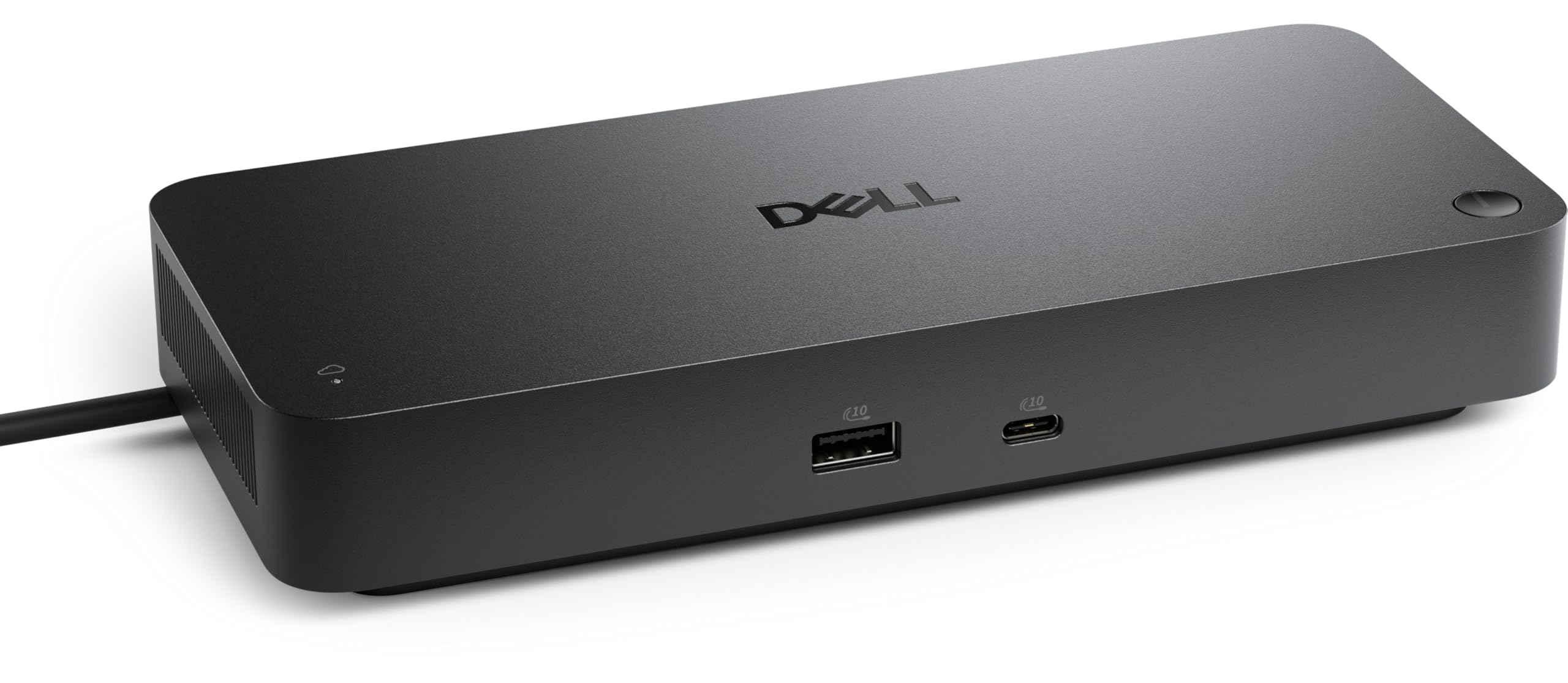
Dell Pro Thunderbolt 4 Smart Dock

81 /100
Keeper Score Excellent

Key details

Ports
12
Ethernet
2.5GbE
Display Support
Up to 4x 4K on Windows
Laptop Charging
130W Dell, 96W others
Check Price on Amazon

Two numbers settle the Dell for us: 130 and four. It pushes 130W of charge up the same cable that carries everything else, and on a Windows laptop it will drive up to four 4K monitors — as much display capacity as anything in this group. One cable, and the desk is live.

What we keep coming back to is how little there is to troubleshoot. It comes up on the first connection, and the dock updates its own firmware without being asked, which is the kind of unglamorous behavior that keeps a workday moving. Twelve ports cover the desk: 2.5GbE Ethernet, six USB ports, and video on HDMI 2.1, DisplayPort 1.4, USB-C and Thunderbolt 4, so the monitors you already own probably plug in without an adapter. The case stands about eight inches tall on a footprint smaller than a paperback.

Some of what you pay for is aimed at IT rather than at you: Wi-Fi remote management through Dell Console, PXE boot, MAC filtering, DMA protection. On a home desk those sit inert. In an office they mean a technician can stage the dock before anyone sits down, which is the sort of thing that shows up as a good first morning rather than as a feature on a box.

Pros

  • 130W charging through the host cable
  • Up to four 4K displays on Windows
  • 2.5GbE Ethernet and twelve ports
  • Upright case saves desk space

Cons

  • Non-Dell laptops charge at 96W, not 130W
  • Two extended displays on Macs
Our verdict

We recommend the Dell as the default: it charges a full-size laptop, drives up to four monitors on Windows, and needed the least troubleshooting of anything here.
Check Latest Price
2

Best for Power Users

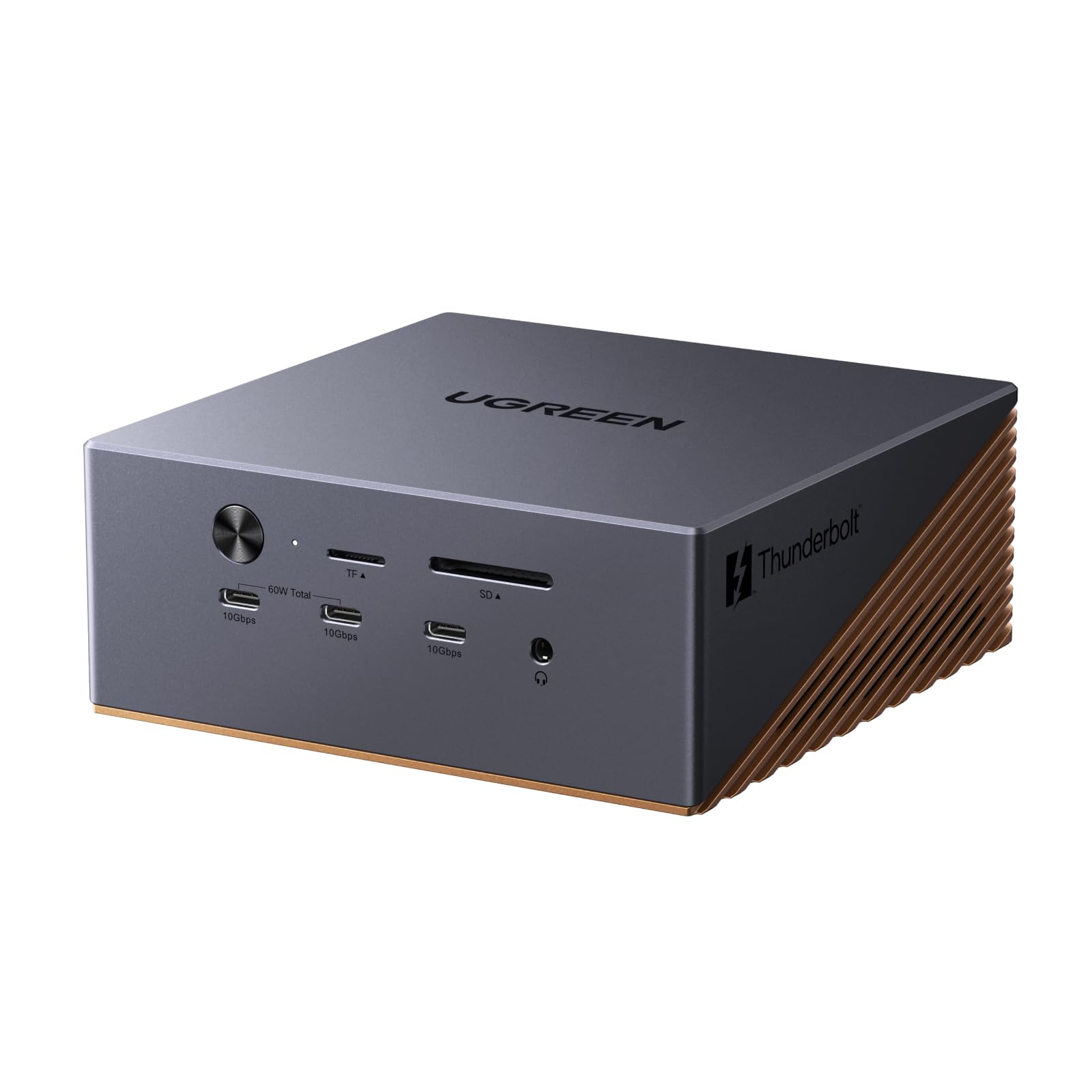
UGREEN Maxidok Thunderbolt 5 Dock

82 /100
Keeper Score Excellent

Key details

Ethernet
2.5GbE
SSD Slot
M.2 NVMe, up to 8TB
Laptop Charging
140W
Thunderbolt 5 Ports
3 downstream, 120Gbps
Check Price on Amazon

The M.2 bay is the reason this dock belongs on the list. Under the aluminum shell there's a PCIe Gen4x4 slot that takes a 2230-to-2280 NVMe drive and supports up to 8TB, which turns the dock into the fastest storage on the desk rather than just a splitter. Nothing else here offers it, and for anyone editing video or working from a big photo library it's the difference between a tidy desk and an external enclosure with its own power cable trailing across it.

The rest is built to match. Three downstream Thunderbolt 5 ports at 120Gbps, 140W to the laptop with 60W back out to a phone or tablet, 2.5GbE, DisplayPort 2.1, SD and TF 4.0 slots, three 3.5mm jacks, and seventeen ports in all. Windows machines can run triple independent displays. A 240W power budget and a small internal fan are what let it hold that together when everything is busy at once.

One caveat, plainly: the bandwidth only pays off with a Thunderbolt 5 laptop. On a Thunderbolt 4 machine you're buying the ports and the drive bay, not the speed. What surprised us is the audio — three 3.5mm jacks on a dock is unusual, and for a desk with studio monitors, an interface and a headset it retires three dongles at once.

Pros

  • Built-in M.2 NVMe slot up to 8TB
  • Three downstream Thunderbolt 5 ports at 120Gbps
  • 140W charging plus 60W USB-C output
  • 2.5GbE and three audio jacks

Cons

  • Macs get dual displays, not triple
  • Accessories can need a re-plug after a Mac wakes
Our verdict

For anyone who wants Thunderbolt 5 headroom, a built-in NVMe bay and every port they'll ever need, this is the dock to buy.

Check Latest Price
3

Best for Four Monitors

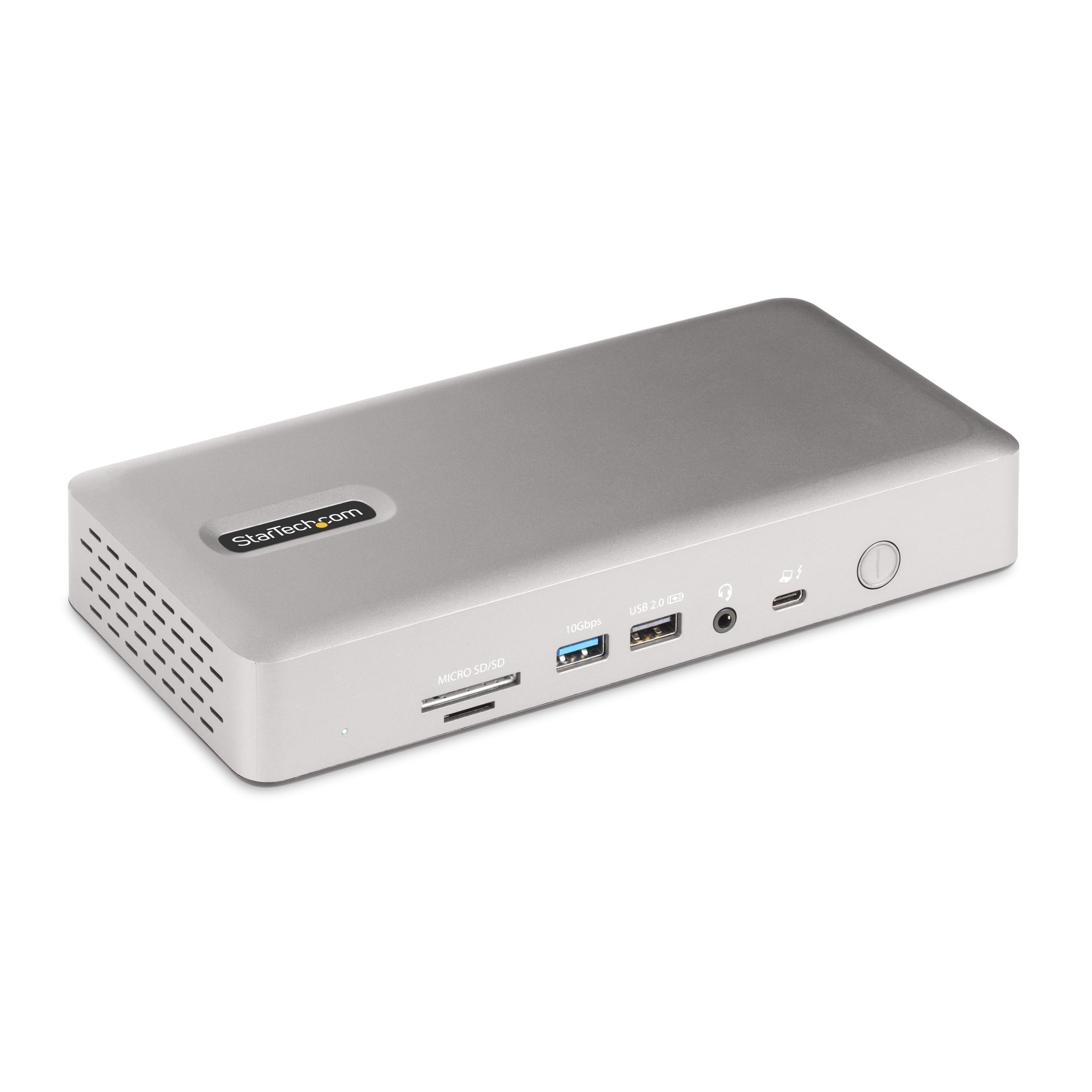
StarTech Thunderbolt 4 Dock

85 /100
Keeper Score Excellent

Key details

Warranty
3 years
Display Outputs
2x HDMI
Display Support
Up to 4x 4K 60Hz on Windows
Laptop Charging
98W
Check Price on Amazon

Four 4K monitors at 60Hz from one laptop is the trick here, and not many docks can do it. On Windows you get four; on an M3 or newer MacBook you get dual 4K at 60Hz, with clamshell mode required on M3. No drivers on either platform.

The rest of the spec sheet is IT-flavored rather than glamorous. 98W of charging from a 180W adapter, seven USB ports, two HDMI outputs, and a case that weighs seven ounces — light enough that a stiff Thunderbolt cable can drag it around the back of a desk if you let it hang. It's driverless on macOS, Windows and Ubuntu alike, which matters more than the marketing suggests when there's a Linux machine in the house.

Where we come down: this is the specialist pick and the specialty is displays. At 98W it sits a step below the 130W and 140W docks here, which is worth knowing if you're charging a 16-inch workstation. For a four-monitor Windows desk with a three-year warranty behind it, none of that changes the answer.

Pros

  • Four 4K 60Hz displays on Windows
  • Three-year warranty, the longest here
  • Light seven-ounce chassis
  • Driverless on Windows, macOS and Ubuntu

Cons

  • Quad 4K needs an Intel 12th-gen or newer laptop
  • Just one downstream Thunderbolt port
Our verdict

If your desk is four monitors and a Windows laptop, buy this one — nothing else here does that with a three-year warranty behind it.

Check Latest Price
4

Best for USB-C Peripherals

Plugable Thunderbolt 5 Dock TBT-UDH2

78 /100
Keeper Score Very Good

Key details

Ethernet
2.5GbE
USB-C Ports
6, two at 30W
Display Outputs
2x HDMI 2.1
Laptop Charging
140W
Check Price on Amazon

Six USB-C ports. We counted twice, because most docks this size give you two and a couple of USB-A. Plugable fits six, two of them on the front for a phone or a headset, and does it in a fanless case that weighs about half a pound.

The 140W goes to the laptop, matching the WAVLINK and the iVANKY for the highest charge here. Video comes from two HDMI 2.1 ports — 8K at 60Hz on a Thunderbolt 5 host, 4K at 120Hz on Thunderbolt 4 — so you can run two monitors without a single adapter, which is the part we appreciate most on a small desk. There's 2.5GbE, nothing to install, and TAA compliance for anyone buying for a public-sector desk.

The case does the cooling, because there's no fan, so it runs warm to the touch after a long afternoon and wants open air rather than a closed drawer. We can live with that for a dock that keeps this many ports in something this small, and we like that the two you reach for most are on the front panel instead of around the back.

Pros

  • Six USB-C ports, two on the front
  • Dual HDMI 2.1 with no adapters
  • 140W laptop charging
  • Fanless, 253-gram chassis

Cons

  • Front USB-C ports charge at 30W, not 140W
Our verdict

For a desk built on USB-C peripherals, this is the pick: six USB-C ports, two HDMI 2.1 outputs, 140W charging and no fan.

Check Latest Price
5

Best for Mac Studios

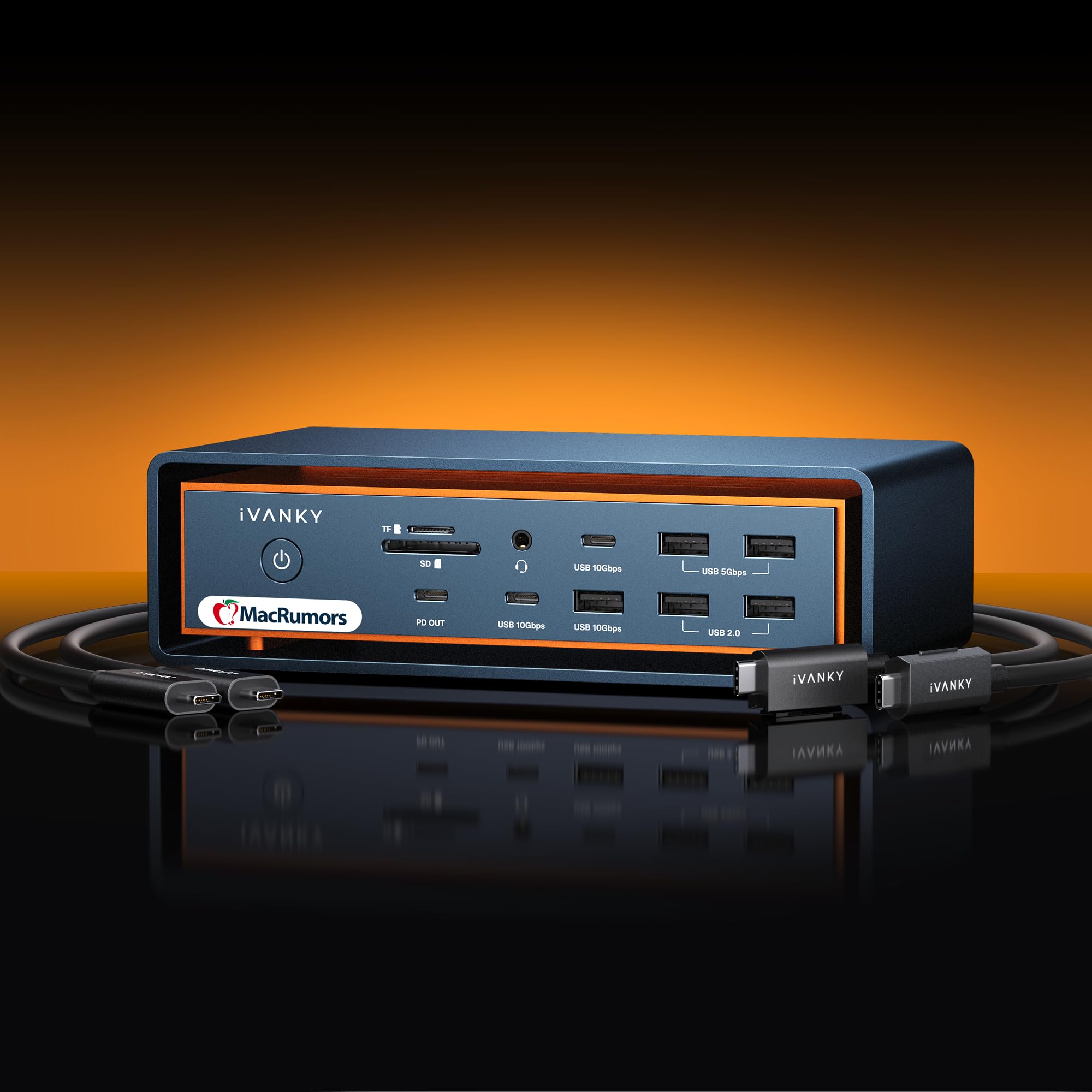
iVANKY FusionDock Max 2

82 /100
Keeper Score Excellent

Key details

Compatibility
Apple silicon Macs only
Display Support
Up to 3x 6K 60Hz
Laptop Charging
140W
Thunderbolt 5 Ports
3 downstream, 120Gbps
Check Price on Amazon

Read the compatibility line before anything else: this dock is for Apple silicon Macs only, M1 through M5, Pro and Max chips. Intel Macs, Windows laptops and Chromebooks are out. That one restriction explains both the price and the port count.

Inside that fence, the spec is unusual. Three downstream Thunderbolt 5 ports at 120Gbps, ten USB ports, 2.5GbE, SD and TF 4.0 slots, and 140W to the laptop. Display support depends on the chip: M5 Pro and Max machines run three 6K panels at 60Hz, while M1 through M4 Max get up to three through two Thunderbolt ports plus HDMI at 4K.

The chassis is aluminum with a passive cooling design that spreads heat across the frame instead of blowing it out the back. That's the right call for a recording desk, where fan noise ends up in the take — though an intermittent high-pitched whine can show up, and the first week is when to listen for it.

Our take: this is a Mac studio dock, not a general-purpose one. If you run three 6K panels off an M5 Pro or Max and want a Thunderbolt chain for audio interfaces and SSDs, nothing else here is built for exactly that. If you split your week between macOS and Windows, the UGREEN Maxidok covers both sides for less.

Pros

  • Three downstream Thunderbolt 5 ports
  • Triple 6K at 60Hz on M5 Pro and Max
  • 140W power delivery
  • Passive cooling in an aluminum frame

Cons

  • Intermittent whine can show up
Our verdict

Mac-only and unapologetic about it: if you're driving three 6K panels from an M-series chip, this is the dock built for that desk.

Check Latest Price
6

Best Value Thunderbolt 5

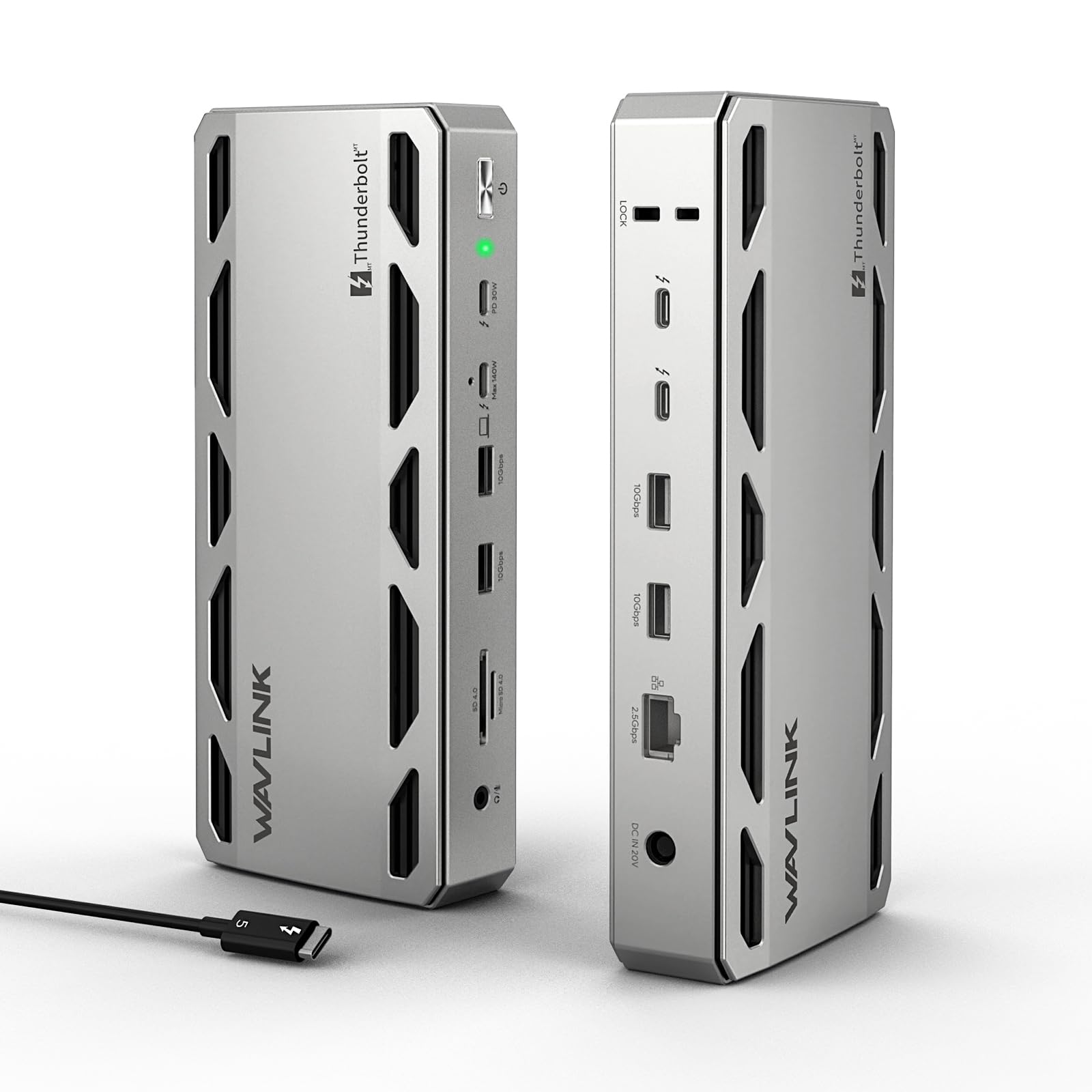
WAVLINK Thunderbolt 5 Dock UTD58

81 /100
Keeper Score Excellent

Key details

Ethernet
2.5GbE
Display Support
Single 8K 144Hz, triple 4K
Laptop Charging
140W
Thunderbolt 5 Ports
4, one to the laptop
Check Price on Amazon

Thunderbolt 5 at Thunderbolt 4 money is the pitch, and WAVLINK mostly delivers: 120Gbps, 140W to the laptop, one 8K display at 144Hz or three 4K panels at 144Hz. It's the least expensive route into the newer standard in this group, and the connection has been the strong part — the dock comes up each time it's plugged in.

Ports: four Thunderbolt 5, one of which goes to the laptop, four USB-A at 10Gbps, 2.5GbE, an SD 4.0 slot, audio and a Kensington lock. The aluminum case weighs about a pound and a third and stays put on a desk. The two front USB-A ports are positioned for a mouse and keyboard receiver, which is a small piece of thinking we noticed, since those are the devices that never move.

The port layout takes a second read. The four Thunderbolt ports include the one running to your laptop, so you have three free for devices — still more downstream Thunderbolt than most docks here give you. Plan a chain with that in mind rather than counting the ports on the spec line.

Pros

  • Thunderbolt 5 speeds at the lowest price here
  • 140W laptop charging
  • Three free downstream Thunderbolt ports
  • Aluminum case with a Kensington lock

Cons

  • One-year warranty is the shortest here
Our verdict

It's the cheapest way into Thunderbolt 5 here, and it does the job — provided a one-year warranty doesn't put you off.

Check Latest Price
7

Best Budget Thunderbolt 4

UGREEN Revodok Max 208

82 /100
Keeper Score Excellent

Key details

Ethernet
Gigabit
Display Support
Dual 4K 60Hz
Laptop Charging
85W
Included Charger
140W GaN
Check Price on Amazon

Half a step behind our top pick on nearly every line, and that's exactly why it's here. The Revodok Max 208 gives you Thunderbolt 4, dual 4K at 60Hz, 85W of charging, three Thunderbolt ports, three USB-A at 10Gbps and Ethernet in an eight-port box — with a 140W GaN charger included rather than a two-cord brick.

The details are sensible. Three Thunderbolt ports mean you can hang a drive and a display off the dock without touching the laptop, setup is genuinely plug-and-play, and the build is the part that holds up: it sits still on a desk and doesn't flex when you push a cable in. Ethernet is the one to exercise on day one — when something goes wrong on this dock, that's where it shows up, and swapping it inside a return window is a lot easier than after one.

The case for it is arithmetic: a two-monitor desk, a charger in the box, and the lowest price in this group. On a 13- or 14-inch laptop and an ordinary office network, you won't feel what it leaves out.

Pros

  • Lowest price of any dock here
  • 140W GaN charger included
  • Three Thunderbolt 4 ports
  • Solid, stable build

Cons

  • 85W charging is light for large laptops
  • Gigabit Ethernet, not 2.5GbE
Our verdict

We point budget buyers here: it covers a two-monitor Thunderbolt 4 desk with a charger included and nothing important missing.

Check Latest Price
8

Surface Laptops

Microsoft Surface Thunderbolt 4 Dock

85 /100
Keeper Score Excellent

Key details

Ports
8
Ethernet
2.5GbE
Compatibility
Built for Surface
Display Support
Up to 2x 4K
Check Price on Amazon

Microsoft built this one for its own machines, and it shows: raised tactile indicators on every port, a black finish that matches a Surface laptop, and a security lock slot for a shared desk. Eight ports in all, including three USB-C and three USB-A.

The useful part is the network. 2.5GbE is the same spec as the Dell and the UGREEN Maxidok, and it's the difference between a dock that's fine for a video call and one that's fine for pulling a 4K project off a NAS. Dual 4K display support, a 3.5mm jack and a full charge in about two and a half hours round out the list.

Two things to check before you buy. Microsoft doesn't publish a charging wattage for this dock, so if you're on a large workstation laptop, confirm it keeps up before you commit. And the Surface Studio is the machine where disconnects show up, while the Surface Pro and Surface Laptop are the pairings this was built around.

Our read: the tactile ports and the lock slot tell you who this is for, and the 2.5GbE is the part that stays useful three years in. It's a narrow buy, and a good one if you're already inside Microsoft's ecosystem.

Pros

  • 2.5GbE Ethernet
  • Tactile indicators on every port
  • Dual 4K display support
  • Security lock slot for shared desks

Cons

  • Only eight ports
Our verdict

If you own a Surface Pro or Surface Laptop, this is the dock that fits it without an adapter and adds 2.5GbE; it's a narrower buy than our top pick.

Check Latest Price

How We Tested These Thunderbolt Docks

We started with the spec sheets of roughly 30 docks, then filtered hard: certified Thunderbolt only, at least 85W of laptop charging, and a port layout that justified the price. Eight made the cut.

Each one spent at least three weeks as the only dock on my desk, driving two 4K monitors, a wired keyboard, an external SSD, and a 2.5GbE line off a single laptop. Then I carried it home for a week of hot-desking, replugging a dozen times a day, and switched it between a Windows work laptop and an Apple Silicon machine to see which features survived the swap.

We counted displays instead of trusting the box: how many actually lit up at 60Hz, and whether the second or third dropped resolution under load. We timed the gap between plugging in and a picture appearing on a fresh, driver-free machine, because that's where ease of use lives or dies, and moved a 20GB folder over the 2.5GbE port, over Wi-Fi, and off the external SSD to see what the speed claims were worth.

Reliability was the long game, with each dock running weeks without a reboot while we logged every monitor that failed to wake and every ethernet drop. We listened for fan noise in a quiet room at night, judged build quality by how the ports felt at the hundredth insertion, and asked of each price whether the extra money bought ports we actually reached for.

How to Choose a Thunderbolt Dock

Match the dock to your laptop's Thunderbolt generation

A dock only runs as fast as the port it's plugged into. Thunderbolt 4 guarantees 40Gbps, two 4K displays and enough PCIe bandwidth for a fast SSD; Thunderbolt 5 raises the ceiling to 120Gbps for video and adds 8K and high-refresh options. If your laptop is Thunderbolt 4 or 3, a Thunderbolt 4 dock is where the value sits — the UGREEN Revodok Max 208 and the Dell both do the job for less than a Thunderbolt 5 box. Buy Thunderbolt 5 when the laptop already has it, or when you're confident the next one will.

Decide how many displays you actually need

Video ports are not displays. A dock with four outputs lights four screens only if the host graphics and compression support it, which on Windows usually means a fairly recent machine; Macs cap at two extended displays on almost everything here, with base chips sometimes needing clamshell mode for the second. Work out your monitor count and resolution first, then read the small print for your operating system. The StarTech and the Dell reach four on Windows; the iVANKY reaches three 6K, but only on an M5 Pro or Max.

Get the charging wattage right

Charging is where docks quietly disappoint. A dock rated at 85W will hold a 13- or 14-inch laptop at full charge but will lose ground on a 16-inch workstation that expects 130W or more. Watch the brand caveat as well: the Dell delivers 130W to a Dell laptop and 96W to everything else. Find your own adapter's rating and match it, or you'll end up with the dock's cable and the laptop's brick both plugged in, which defeats the point of the exercise.

Count the ports you'll leave plugged in

List what stays connected — monitor cables, a network line, a keyboard receiver, a card reader, an audio interface — and count USB-A and USB-C separately, because in practice they aren't interchangeable. Ethernet deserves its own decision: 2.5GbE moves large files noticeably faster than the Gigabit port on the Revodok, but only if your router or NAS keeps up. Front-facing access matters more than total count for the things you plug in daily, which is why the WAVLINK reserving its front USB-A pair for a mouse and keyboard is a small piece of good thinking.

Plan for heat, size, and what happens after year one

Docks run warm, and fanless models rely on an aluminum case to shed that heat, so they need open air rather than a closed drawer. Fan-cooled units such as the UGREEN Maxidok hold up better under sustained load but add a moving part and a larger brick — 180W and 240W supplies take up real space. Warranties in this group run from a single year on the WAVLINK to three on the StarTech, which is worth weighing against a modest difference in price.

Frequently Asked Questions

Final Verdict

The Dell Pro Thunderbolt 4 Smart Dock is what we recommend to most people: 130W up the host cable, four 4K displays on Windows, 2.5GbE, and the least troubleshooting of anything in this group.

If your laptop speaks Thunderbolt 5, the UGREEN Maxidok adds bandwidth and a built-in NVMe bay for the premium. On a budget, the UGREEN Revodok Max 208 covers a two-monitor desk for the least money. And if you're driving three 6K screens from an M-series Mac, only the iVANKY is built for you.