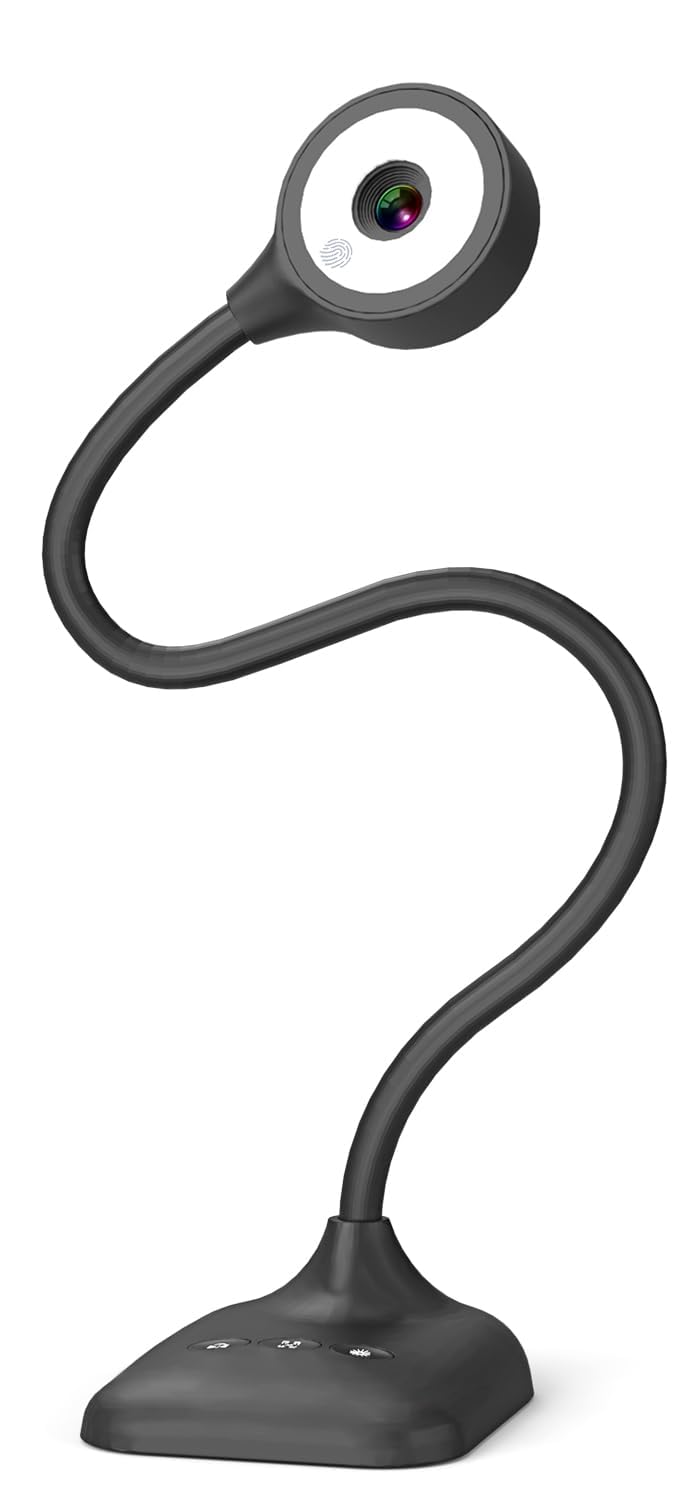
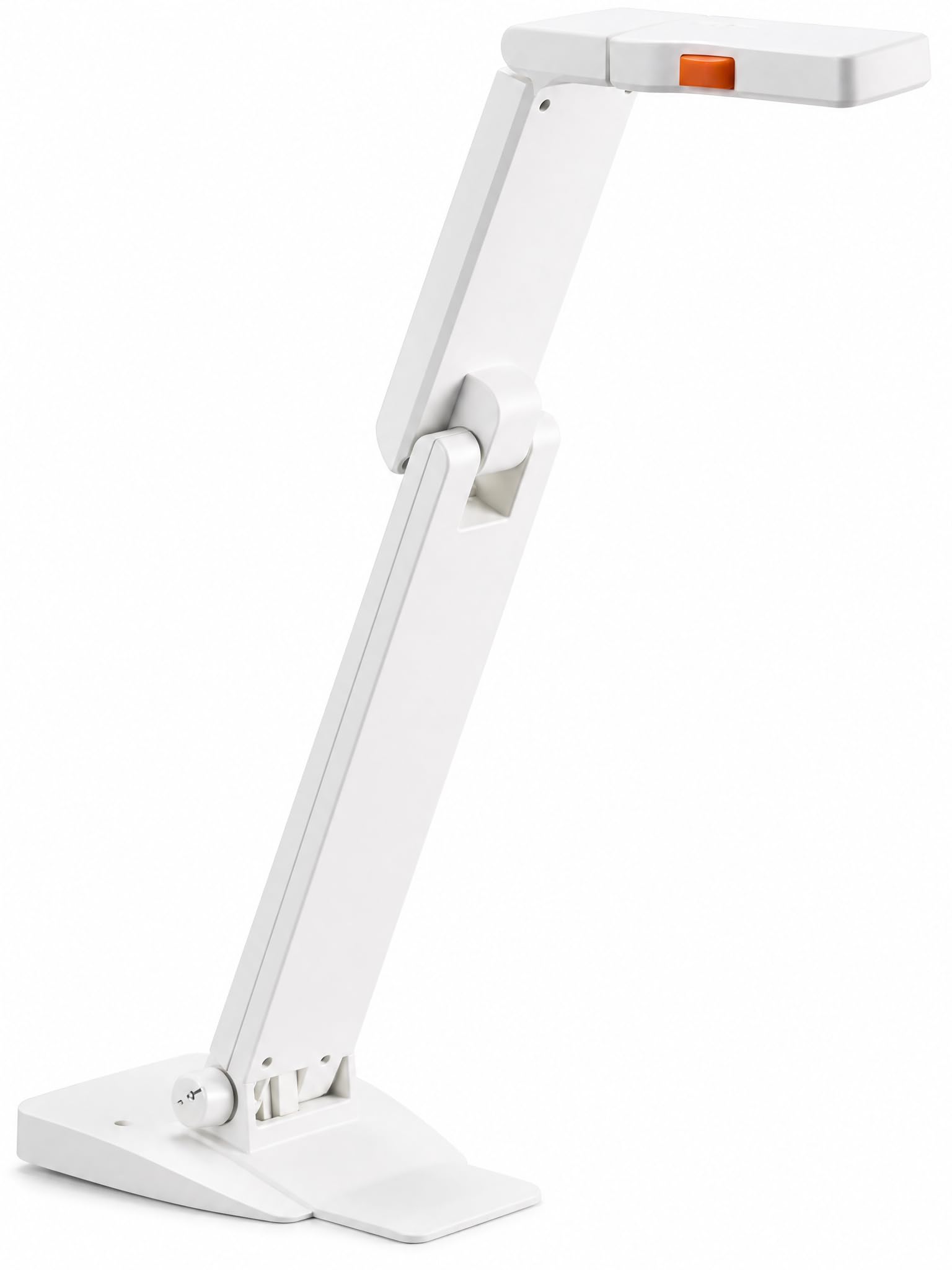
Best Document Cameras of 2026

The first time I tried to show a room of students how to fold a paper crane over video, I ended up holding my phone at arm's length, upside down, while the focus drifted off to my sleeve. A document camera solves exactly that problem: a small camera on an arm that looks straight down at your desk, so whatever you write, cut, or build stays sharp and right-side up on everyone else's screen.

We've spent the past eight months with 12 of them — clamped to dining tables, carted between classrooms, and plugged into Chromebooks, Macs, and Windows laptops — and the differences came down to less obvious things than the megapixel count on the box. Autofocus is the big one: a camera that hunts every time your hand moves will drive you up a wall, and a plain manual-focus model you set once can beat it. Built-in LEDs matter more than resolution in a dim room, and how adjustable the arm is decides whether you can frame a full A3 poster or just a sticky note.

Reliability and value separate the rest — the ones that woke up instantly every morning versus the ones that needed a re-plug before every class. Here's what earned a permanent spot on my desk.

Keeper Score summarizes customer ratings and review volume. Read it alongside the product details and trade-offs. How the score works.

1

Best Overall

INSWAN INS-1

92 /100
Keeper Score Outstanding

Key details

Frame Rate
30 fps
Viewing Area
14.72 x 11 inches
Light And Audio
LED light and microphone
Still Resolution
8 MP
Check Price on Amazon

The software is the part of the INS-1 that a spec sheet cannot show. INSWAN's Documate app drives zoom, annotation, image flip and recording from the keyboard, so you push in on a paragraph of a textbook without reaching for the arm and knocking the page off-centre mid-sentence. Anyone who has taught through a shared screen knows how much of a lesson disappears into that small fumble.

That completeness is why it is our default. An 8MP sensor, a 14.72 x 11 inch viewing area that clears a full A3 sheet, a built-in LED with stepped brightness, an anti-glare sheet for glossy pages, a microphone and 16x digital zoom — the kit is whole in a way most cameras here are not, at about the same money as the IPEVO V4K.

In daily use it is the small conveniences that keep it on the desk. The arm folds to a footprint that still leaves room for a keyboard, the 0.8 kg body moves between rooms without a second trip, and the USB-A cable means no driver install on a Mac, PC or Chromebook — the camera appears in Zoom, Meet or the system camera app as soon as it is plugged in.

One item in the box gets buried in the listing: a microscope adapter. Fit it and the camera will sit over a slide, a coin or a circuit board at close range, which is the sort of extra that turns a document camera into a science-department tool. The anti-glare sheet is the other accessory we ended up using more than expected, because overhead fluorescents and laminated worksheets are a bad combination.

Pros

  • Bundled software adds zoom, annotation, flip and recording
  • LED, microphone and anti-glare sheet included
  • 14.72 x 11 inch viewing area clears A3
  • Compact 0.8 kg folding arm for a shared desk

Cons

  • Digital zoom softens text past a few steps
  • Autofocus can hunt in dim light
Our verdict

We recommend it as the one camera that covers lessons, meetings and close-ups without add-ons: the light, the microphone and the keyboard-driven software are all in the box.

Check Latest Price
2

Best for Well-Lit Classrooms

IPEVO V4K

91 /100
Keeper Score Outstanding

Key details

Weight
1.3 lb
Frame Rate
Up to 30 fps at 1080p
Still Resolution
8 MP
Max Shooting Area
13.46 inch x 10.04 inch
Check Price on Amazon

Joints that loosen are how most document cameras die, and IPEVO designs for it: the V4K's multi-jointed stand can be tightened when it starts to droop. That detail is why we still rate this camera for a room that will use it every day, and it is the first thing we look for now whenever a cheaper arm shows up.

It is also the plainest camera here in the best sense. What you are paying for is the sensor, the stand and a 13.46 inch x 10.04 inch shooting area; the 8MP stills run to 3264 x 2448, video streams at up to 30 fps at 1080p, and 1.3 pounds is light enough to shift between desks. Handwriting and printed text come through cleanly as long as the room is lit for the people in it.

Focus is where to set expectations. It settles quickly when you move between a book and a model, but let a hand cross a glossy page and it can hunt for a beat before it locks again. Capture at the full 3264 x 2448 resolution and the frame rate drops to 15 fps, which makes that a photographs mode rather than a movement one.

What we appreciate most after using it is that there is nothing to prepare. It appears as a camera on Mac, PC and Chromebook and works inside the apps you already run, so a substitute teacher can be shown the routine in about a minute.

Pros

  • Stand joints can be tightened when they loosen
  • 8MP stills up to 3264 x 2448
  • Streams at up to 30 fps at 1080p
  • Nothing to install on Mac, PC or Chromebook

Cons

  • No built-in light or microphone
  • No zoom
Our verdict

We recommend it for a brightly lit classroom where the camera lives on the same desk all year: the stand can be tightened when it loosens, and the 8MP sensor reads handwriting cleanly.

Check Latest Price
3

Best for Artwork and Large Pages

INSWAN INS-2

86 /100
Keeper Score Excellent

Key details

Live Video
4K at 30 fps
Works With
Windows, Mac, Chromebook, iPad
Minimum Focus
3.9 inches
Still Resolution
13 MP
Check Price on Amazon

Thirteen megapixels is more resolution than a video call will ever carry, so it is fair to ask what the INS-2's bigger sensor is for. The answer shows up when you point it at something that is not a page: a painting with fine brushwork, a fabric swatch, a circuit board, or a two-page spread where the detail you need is a signature in the corner.

The numbers behind that: 4K (3840 x 2160) at 30 fps, 13MP stills from a Sony sensor, focus down to 3.9 inches, dual-mode autofocus, a built-in LED with an anti-glare sheet, a microphone, 16x digital zoom and an A3 capture area on a multi-joint arm. It runs over USB to Windows, Mac and Chromebook, and to an iPad with a USB-C port on iPadOS 17 or later.

For an art teacher or anyone presenting large-format work, this is the one we point to: the extra pixels are what let you crop into a corner of a drawing and still show a class something legible. The autofocus takes a beat to settle after a big arm move, so when you swing between a wide sheet and a close-up, give it that beat before you start talking over it.

The 2.3-pound body puts its weight in the base, which is what stops a long arm feeling top-heavy when it is stretched out over a big sheet. That is the right place to spend it.

Pros

  • 13MP stills and 4K at 30 fps
  • Focuses down to 3.9 inches for close detail
  • A3 capture on a long multi-joint arm
  • Weighted base steadies a stretched arm

Cons

  • LED is weak across a full A3 sheet
Our verdict

For artwork, fabric and oversized pages the extra resolution is worth the money: 13MP stills and 4K video let you crop into a corner and still show it legibly.

Check Latest Price
4

Best Value

THUSTAR 8MP Document Camera

85 /100
Keeper Score Excellent

Key details

Warranty
2 years
Live Video
2448P at 30 fps
Capture Size
A3
Still Resolution
8 MP
Check Price on Amazon

The THUSTAR arrives with the essentials already in place: 8MP capture, up to 2448P at 30 fps, A3 coverage on a folding arm, a three-level LED, dual microphones and image-flip buttons on the head. Nothing in that list is a compromise at the price, which sits at the low end of this set.

We reach for it as the value pick in this group: the same 8MP and 30 fps as cameras that cost noticeably more, with the light and the microphone built in rather than left to the room.

Two details we appreciated in practice. The flip buttons work without software, so a camera facing a class can be mirrored on the spot instead of through a settings menu. And the warranty runs two years, where several cameras here list one. Brightness steps in ten increments from buttons on the head, which is more control than the price suggests, and the box includes a USB-C adapter for a laptop that has nothing but USB-C ports.

Pros

  • 8MP capture and 2448P at 30 fps
  • Three-level LED, dual mics and flip buttons
  • Two-year manufacturer warranty
  • Folds small to carry between rooms

Cons

  • LED is modest across a wide spread
Our verdict

The best value here for a teacher who needs a light, a microphone and 8MP without paying for polish: it folds, it flips, and it costs less than most of the field.

Check Latest Price
5

Best Wireless

IPEVO VZ-X

86 /100
Keeper Score Excellent

Key details

Connection
Wi-Fi, HDMI, USB
Battery Life
9-12 hours
Wireless Range
Up to 33 feet
Still Resolution
8 MP
Check Price on Amazon

The case for the VZ-X starts in a room with no computer in it: a lab bench, a staff room with a wall-mounted display, or a classroom where the laptop sits across the room from where you want to demonstrate. It runs on its own battery for 9 to 12 hours, sends video over Wi-Fi to iOS, Android and Apple TV, and drives a projector or TV straight over HDMI.

Over USB it captures up to 3264 x 2448, close to 4K; in Wi-Fi and HDMI modes it tops out at 1080p. The head swivels on a multi-joint stand, the wireless range reaches about 33 feet, and the maximum viewing area runs to 14.29 x 19.01 inches in 4:3 — wide enough for a two-page spread and then some.

Wireless adds a way to lose the picture that a cable does not. If the Wi-Fi link does not come up, or the HDMI handshake misses, you have no image and no obvious fix in front of a class. Test the exact camera, display and network combination in the room before you rely on it, and keep the USB cable in the bag as the fallback.

It earns its price when the alternative is no document camera at all — a room you cannot tether, a display you cannot drive from a computer, a lesson that moves between three spaces. If you teach from one desk, a wired camera does the same job for a fraction of the money.

Pros

  • Battery runs 9 to 12 hours
  • Wi-Fi, HDMI and USB output
  • About 33 feet of wireless range
  • Near-4K stills over USB

Cons

  • Far more expensive than a wired camera here
Our verdict

The one to buy when there is no computer to plug into: battery, Wi-Fi and HDMI let it work standalone, and the near-4K USB mode keeps it useful at a desk.

Check Latest Price
6

Budget Live Lessons

PAKOTOO PA-800

83 /100
Keeper Score Excellent

Key details

Audio
Dual microphones
Light
3-level LED
Capture Size
A3
Still Resolution
5 MP
Check Price on Amazon

Start with the catch, because it decides whether this camera suits you: the PA-800 is not plug-and-play. You open the camera app and select USB Camera as the source before you see a picture. Once that is done it is one of the better-value 5MP cameras in this set, and the setup step is the whole of the friction.

What you get: 5MP capture at up to 30 fps, A3 coverage on a bendable arm, a three-level ring light with five steps of exposure adjustment, dual microphones and image mirroring from buttons on the head. The ring light sits right at the lens, which is where you want the light when the camera is only inches from the page.

Five megapixels is plenty for a live lesson — a call is sending 1080p whatever the camera can do — and the money a bigger sensor would have taken is visible in the ring light, the bendable arm and the dual microphones instead.

Pros

  • Three-level ring light with five-step exposure
  • Image mirroring from buttons, no software
  • A3 capture on a bendable arm
  • Dual microphones built in

Cons

  • 5MP stills leave little room to crop
Our verdict

A good buy for live teaching on a tight budget if you can live with selecting the camera source each session; the ring light and A3 arm do more for a lesson than extra pixels.

Check Latest Price
7

Still Documents

Elmo OX-1

80 /100
Keeper Score Excellent

Key details

Zoom
8x digital
Video
1080p at 15 fps, 720p at 30 fps
Capture Area
A3
Still Resolution
8 MP
Check Price on Amazon

The OX-1's headline numbers are a reminder that resolution and frame rate are separate promises. It captures 1080p at up to 15 fps and 720p at up to 30 fps, so the sharper mode is the slower one. For a static page that is fine; for a hand drawing, a liquid demo or a page being turned, 15 fps reads as a sequence of stills.

The rest of the package is conventional and solid: an 8MP CMOS sensor, one-push autofocus, 8x digital zoom through software, a built-in microphone and an A3 capture area. It folds to 11.4 x 3.2 x 0.9 inches and weighs 1.3 pounds, which makes it one of the easier cameras here to put away in a drawer or park on a cart.

It is built like the visualisers that have lived on classroom carts for years: a folding arm, one focus button, and zoom handled in software rather than by the lens. Nothing about that is exciting, and nothing about it is fussy either.

Where it lands for us: a dependable camera for documents in a lit room, priced above several cameras here that handle movement better. Buy it when the fold-flat build and the one-button focus are what you need; if your lessons involve movement, spend the money on a 30 fps camera instead.

Pros

  • Folds to 0.9 inch for storage
  • One-push autofocus and 8x digital zoom
  • 8MP CMOS sensor with A3 capture
  • Built-in microphone

Cons

  • Priced above cameras here that stream at 30 fps
Our verdict

A steady, familiar camera for showing still documents in a lit room: it folds flat, focuses with one button, and the 8MP sensor is sharp — just don't buy it to show motion.

Check Latest Price
8

Fixed Desks

BexonRuihe BR-200

78 /100
Keeper Score Very Good

Key details

Cable
USB-C included
Focus
Manual
Height
20.4 inches
Still Resolution
2 MP
Check Price on Amazon

Manual focus is the BR-200's whole argument. There is no autofocus to hunt when a hand crosses the page or the overheads change, because you set focus once by turning the lens and it stays there. For a camera that sits at the same height over the same desk every day, that is less of a compromise than it sounds.

It reaches 20.4 inches, folds down for storage, weighs 1.1 pounds and ships with a USB-C cable for a MacBook or a USB-C Chromebook. Live video runs at 1080p and 30 fps, which is the mode you will actually use in a meeting, and the microphone is built in rather than sitting on the desk.

It is the camera we suggest when the budget is the binding constraint and the job is simple: a worksheet under the lens, a book held open, a handwriting demonstration, all from a fixed desk. Set the arm height once, focus, and leave it; the routine takes about as long as opening the meeting.

Pros

  • Manual focus holds without hunting
  • 20.4-inch reach for large pages
  • USB-C cable in the box

Cons

  • 2-megapixel sensor limits detail in saved stills
Our verdict

Worth it if your camera never moves and the budget is tight: manual focus ends the hunting, the arm reaches over big pages, and you trade sensor detail for the price.

Check Latest Price

How We Tested Document Cameras at a Real Desk

We started with every USB document camera we could find that a teacher could buy without a purchase order, filtering for Windows, Mac, and Chromebook support, an A3 capture area, and an arm that folds down into a tote. From that pool we cut anything without published setup instructions, narrowed to 12 units across the price range, and ran them for eight months.

Most of the testing happened where these cameras actually live: a dining table turned demo desk, a borrowed classroom with hard overheads and a window at the wrong end, and my kitchen counter during weekend craft demos on video calls. Each camera stayed set up for at least a week, so we were plugging in cold every morning rather than only during a fresh unboxing.

Under each one we wrote the same handwriting sample — a short paragraph plus a small diagram — and checked whether the strokes stayed legible at the edges of the frame, not just the middle. We slid a full A3 poster underneath to see how much of the page actually fit, then set down a coin and lifted a textbook mid-sentence, watching how quickly autofocus settled and whether it grabbed the page or the spine. Lights got dimmed to check the built-in LEDs for glare on glossy worksheets, and we nudged each arm to see whether it drifted out of position.

We timed how long each took to appear in Zoom and Meet, recorded a minute of speech to hear what the built-in mic picked up, and left every unit running for weeks to catch the ones that needed re-plugging. Value came last: what each camera delivered measured against the others in its price band.

How to Choose a Document Camera

Resolution and Frame Rate Are Separate Promises

A 4K badge on a document camera is often a stills number. What travels over Zoom, Meet or Teams is 1080p or less, so an 8MP sensor does not make text sharper on the other end — it gives you room to crop into a corner and detail to save in a photograph. Frame rate is the part that changes what a lesson feels like: 30 fps at 1080p keeps a hand drawing or a page turn looking like movement, while 15 fps at full resolution reads as a sequence of stills.

So check which mode runs at 30 fps before paying for resolution. A camera that streams 1080p at 30 fps and saves 8MP stills is more useful in a classroom than one that only reaches its best resolution slowly.

Measure the Widest Thing You Will Show

Capture area is quoted for a flat sheet at the arm's full stretch, and a book propped open at an angle needs more height than a single page. A3 coverage, roughly 11.7 x 16.5 inches, handles a two-page spread; the arms in this group reach from about 13 inches up to 19 inches across, which is the difference between a worksheet and a full art sheet.

If you will adjust the camera one-handed while talking, base weight and joint stiffness matter more than the light. A long arm on a light base drifts, and a joint that cannot be tightened is the failure that ends a classroom camera's life.

Autofocus or Manual Focus

Autofocus is the most common source of frustration here, and speed is not the issue. It hunts when a hand crosses the page, when paper is glossy, or when the room light drops — usually mid-demonstration. Some cameras give you a one-push focus button or an autofocus lock; a manual model removes the problem completely if the camera sits at a fixed height.

Decide which behavior you want before you shop. If you demonstrate under the lens all day and move objects constantly, autofocus earns its keep. If the camera lives at one height over one desk, manual focus is steadier and cheaper.

Light Helps, and Sometimes Glare Doesn't

A built-in LED is genuinely useful in a dim classroom, but it sits inches from the page — exactly where a laminated worksheet or a glossy map throws a hotspot. Look for stepped brightness control and, where the listing includes one, an anti-glare sheet; INSWAN ships one with both the INS-1 and the INS-2.

Be realistic about reach, too. A small LED flatters a single page at desk distance and does very little across a full A3 sheet, so in a wide-format room the ceiling lighting still does most of the work.

Ports, Software and the Plug-and-Play Trap

Most document cameras are UVC devices: plug in, pick the camera in your meeting app, and go. Not all of them. A few need you to open the camera app and select USB Camera as the source first, and at least one here says so in its own instructions — worth knowing before a first lesson, not during one.

Check the port as well, since several cameras ship with a USB-A cable and a USB-C-only laptop then needs an adapter. Bundled software is a real bonus when it drives zoom, annotation, image flip and recording from the keyboard, because it keeps your hands off the arm while you teach.

Frequently Asked Questions

Final Verdict

Our default is the INSWAN INS-1: light, microphone and keyboard-driven software in the box, focus close enough for a coin, and midrange money rather than a premium. Choose the IPEVO V4K instead if the camera will live in a bright room and be handled every day — the stand can be re-tightened, which is the repair that keeps these things in service.

And if the room has no computer in it at all, only the VZ-X answers the question. That is the one requirement that changes the answer completely.