Best Digital Signage Displays of 2026

There's a particular kind of sad that is a digital sign you can't read. I first noticed it in a coffee shop — a big screen behind the counter showing the day's specials in pale, glare-washed grey while the paper menu taped beside it did the job better. That screen was almost certainly a consumer TV pressed into service, and it's exactly why this category exists.

A display built for signage has to do three things a television doesn't: stay legible in a bright room, run all day with nobody babysitting it, and update without someone plugging in a laptop. My team spent six months with eight of them — slim wall panels and freestanding kiosks, touch and non-touch — in a lobby, a conference room, and a checkout counter with direct afternoon sun.

The spec that matters most is the one nobody advertises: brightness. A few hundred nits reads fine in a dim hallway and washes out completely beside a window. What follows is what we'd buy again, whether the job is a hallway wall or a kiosk people walk up to and tap.

Keeper Score summarizes customer ratings and review volume. Read it alongside the product details and trade-offs. How the score works.

1

Best Overall

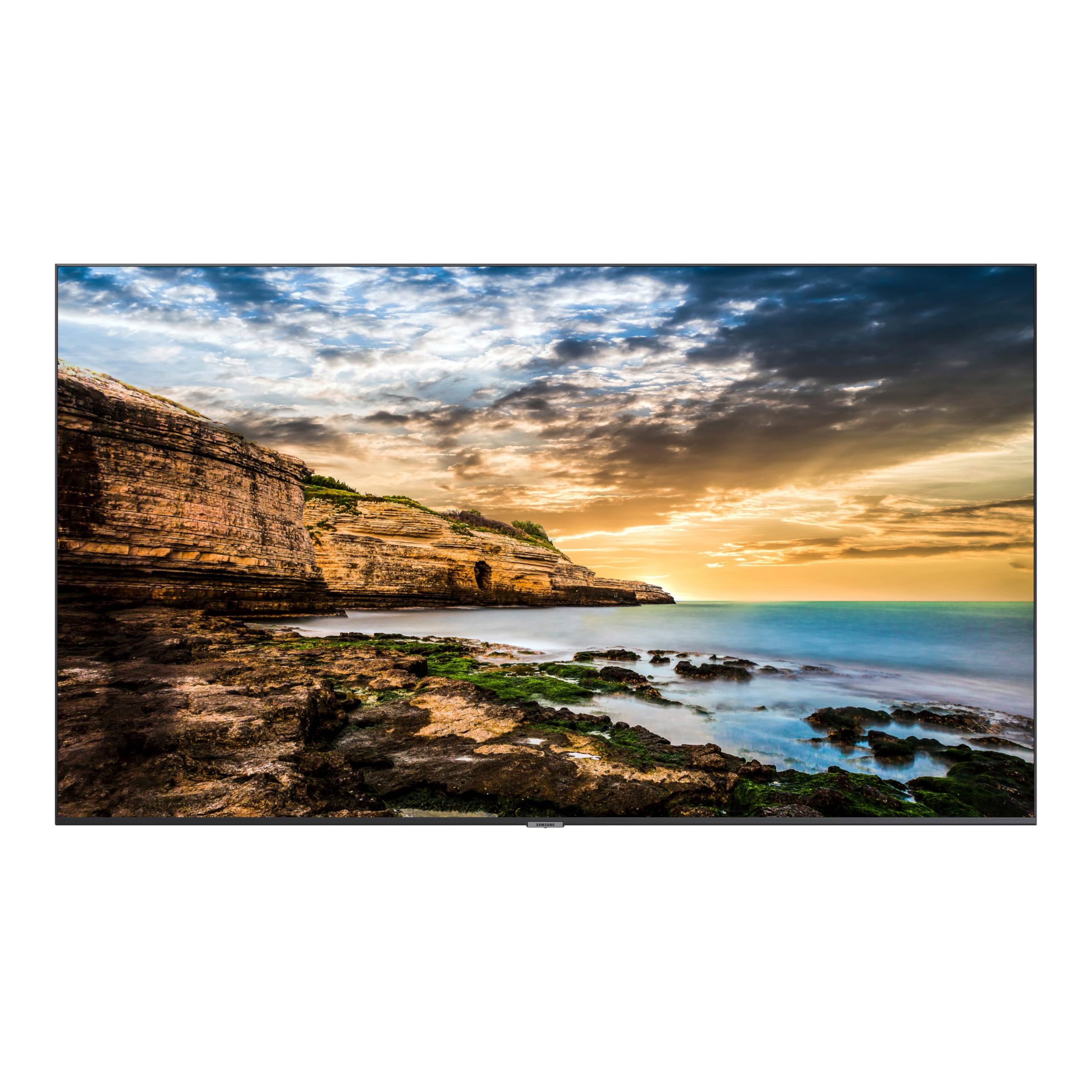
Samsung QET 43-Inch Display

80 /100
Keeper Score Excellent

Key details

Brightness
300 cd/m²
Resolution
4K UHD (3840 x 2160)
Screen Size
43 inches
Built-in Player
MagicINFO Lite
Check Price on Amazon

The media player lives inside the screen, and that is the detail that makes this the easiest display here to actually deploy. MagicINFO Lite runs on the panel itself, so you load images and video onto the display and schedule when each appears — no PC under the counter, no media box strapped to the back of the bracket, no USB stick left hanging out of the side. Run more than one screen and a connection to a MagicINFO server lets you monitor and update the lot from a single desk.

The panel is a genuine 4K commercial unit: 3840 x 2160 across 43 inches, 300 cd/m², a 178-degree viewing angle, and an anti-glare finish that stops a ceiling light or a nearby window from washing the picture out. Two HDMI inputs and a USB port mean a laptop or an existing player can still drive it when you need one. That anti-glare coating is worth more than the brightness figure suggests, because 300 nits is an indoor number — right above a counter, not enough to fight direct sun through a shop window.

Samsung rates it for 16 hours a day, seven days a week, and backs it with three years of onsite parts, labor, and backlight cover — the kind of term that matters when the screen is also your menu board. What it is not is a television: there are no streaming apps here, and nothing about the interface was built for one. Read it as signage hardware that happens to look like a TV and it does precisely what you paid for.

Pros

  • Media player and scheduler built in
  • 4K panel with an anti-glare finish
  • Rated for 16/7 commercial operation
  • Three-year onsite parts, labor, and backlight cover

Cons

  • 300 nits suits indoor, shaded placements only
Our verdict

This is the one we hand to most shops: real 4K, the signage player built in, a 16/7 rating, and three years of onsite cover.

Check Latest Price
2

Best Floor-Standing

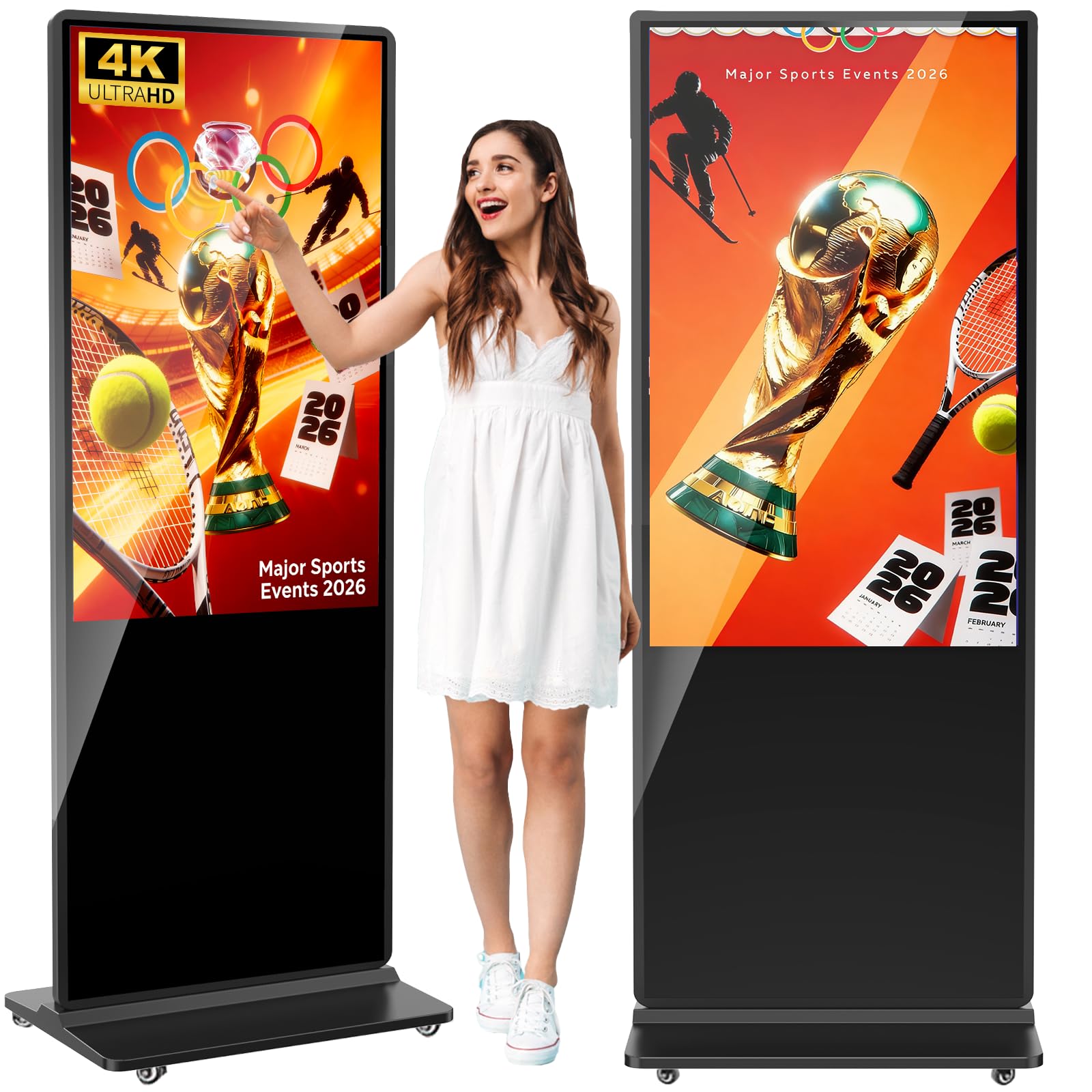
MWE 43-Inch Floor-Standing Kiosk

87 /100
Keeper Score Excellent

Key details

Mounting
Floor standing
Resolution
FHD 1080p (1920 x 1080)
Screen Size
43 inches
Built-in System
Android with CMS
Check Price on Amazon

A floor-standing kiosk solves something a wall display can't. It works in a rented unit, a trade-show booth, or a lobby where nobody wants to put a drill into the wall — and it arrives as a complete object: screen, base, mounting hardware, and a USB drive in the box. Overall it stands about 71 inches tall on a footprint of roughly 18 by 24 inches, which tucks against a wall without eating the room.

The compromise is a 1080p IPS panel rather than 4K, and from the distances people actually read a promo loop, we don't mind it. The money clearly went into the parts that are hard to add later: a rigid, self-supporting body, a 178-degree viewing angle that stays readable from either side of a doorway, and Android with a CMS running inside. The slim bezel and black finish read as deliberate furniture, which is why it can stand in a lobby rather than beside a stockroom door.

Android handles the working side: load content by USB or over Wi-Fi and Ethernet, split the screen between video and scrolling text, and set the display to switch itself on and off with the business day. There's a cavity for an external player box if you prefer to drive it with your own hardware, and three years of manufacturer warranty behind the whole thing. It suits a space with floor to spare and no wall it's allowed to touch.

Pros

  • Arrives complete, with base, tools, and USB drive
  • Android CMS with split-screen and scheduled on/off
  • IPS panel readable at 178 degrees
  • Three-year manufacturer warranty

Cons

  • FHD panel where the Samsung displays here are 4K
Our verdict

We like this for anyone who wants signage standing up without an installer: a complete 43-inch Android kiosk on its own base.

Check Latest Price
3

Best Interactive

YCKJNB 55-Inch Touchscreen Kiosk

91 /100
Keeper Score Outstanding

Key details

Mounting
Floor standing
Screen Size
55 inches
Touchscreen
Yes
Built-in System
Android with CMS
Check Price on Amazon

Fifty-five inches of touchscreen changes what a kiosk is for. At this size people don't just read the screen, they walk up and use it — a menu they can scroll, a floor plan they can tap, a catalogue of product photos they can open. The panel is IPS with a 178-degree viewing angle and a 2 ms response time, and taps land where you put them, which is the whole difference between a kiosk people try once and one they come back to.

Software is Android, with Wi-Fi, Ethernet, one HDMI input, and two USB ports, so you can run a CMS app, sideload your own APK, or simply feed it from a PC when a vendor hands you a player. Split-screen playback is the feature we come back to: a promo video on one half and opening hours on the other means one screen does two jobs without a second installation. Two 5-watt speakers cover lobby audio, and the front panel takes a custom logo as part of the order.

One thing to settle before you commit: the same listing covers touch and non-touch versions, so confirm which one you're ordering. Get past that and this is the strongest interactive display in this group — bigger than the 43-inch kiosks, quicker on the touch layer, and finished well enough for a reception area rather than a back office.

Pros

  • 55-inch touchscreen with fast tap response
  • Split-screen playback of video and images
  • Android with Wi-Fi, Ethernet, HDMI, and USB
  • Custom logo and poster included with the order

Cons

  • Native resolution listed as 1080p, not 4K
Our verdict

Our pick where customers need to touch the screen: 55 inches of responsive touch, split-screen layouts, and Android running on the kiosk itself.

Check Latest Price
4

Best Large Wall-Mounted

Samsung QB55R 55-Inch Display

81 /100
Keeper Score Excellent

Key details

Brightness
350 cd/m²
Resolution
4K UHD (3840 x 2160)
Screen Size
55 inches
Built-in Player
System-on-chip (SoC)
Check Price on Amazon

Fifty-five inches at 350 nits is the combination that earns this display its place. It's large enough to hold a headline from the far side of a room and bright enough to stay legible under normal interior lighting, which is more than the 43-inch panels here manage. If the screen is going to be read from a distance by people who never walk up to it, that gap is the one worth paying for.

The rest of the specification supports it: 4K UHD across 55 inches, a 4,000:1 contrast ratio, 178-degree viewing with Dynamic Crystal Color, and intelligent upscaling that keeps standard-definition content from looking rough. The system-on-chip carries an embedded media player, so the display schedules and plays on its own, and built-in Wi-Fi and Bluetooth let you control it or push content from a tablet. Video conferencing gets a nod too, with compatibility listed for the Cisco WebEx Room Kit. At 39.9 pounds it wants a proper bracket and two people at install time, and the slim chassis keeps cable management tidy once it's up.

Where we land: this is the best wall-mounted option in the group when the screen has to be seen from across a room, and the three-year onsite cover matches the smaller Samsung exactly. The finish is glossy, though, and that decides the wall. Opposite a window or beneath recessed lights, take the 43-inch QET and its anti-glare coating instead — you trade 12 inches of diagonal and 50 nits for a picture that stays readable.

Pros

  • 350-nit 4K panel, brightest wall mount here
  • Player built into the system-on-chip
  • Slim chassis mounts cleanly with tidy cabling
  • Three-year onsite parts, labor, and backlight cover

Cons

  • Glossy screen mirrors windows and overhead lights
Our verdict

The 55-inch choice for a bright room: 350 nits, a 4K panel, a system-on-chip player inside, and three years of onsite service.

Check Latest Price
5

Compact Interactive Kiosk

MWE 43-Inch Touchscreen Kiosk

87 /100
Keeper Score Excellent

Key details

Mounting
Floor standing
Screen Size
43 inches
Touchscreen
Yes
Overall Height
71.27 inches
Check Price on Amazon

This is the touch version of the 43-inch MWE kiosk, and the addition is the one that matters if people need to do something at the screen rather than read it. Taps register where you aim them, typing into a search field beats scrolling a remote through the alphabet, and the whole thing behaves like a very large tablet standing on a base. For a self-service menu, a directory, or a sign-in station, that changes the job description.

Behind the glass it's the same unit as its non-touch twin: a 43-inch 1080p IPS panel at 178 degrees, Android with a CMS, USB and HDMI inputs, Wi-Fi and Ethernet, split-screen playback, timed on/off, and a cavity for an external player box. It stands about 71 inches tall and comes with the base, mounting hardware, and a USB drive, backed by a three-year manufacturer warranty. Content loads the same way too, so a shop running one of each manages them identically.

The question is whether you need touch at all. If the content is a looping promo or a menu board, the non-touch version does the same job and leaves you one less surface to wipe and one less component to worry about. Pay for this one when customers will order, look up, or navigate — otherwise the touch layer is money spent on a feature nobody reaches for.

Pros

  • Responsive 43-inch touchscreen
  • Same Android CMS and split-screen playback
  • Complete floor-standing package with tools and USB drive

Cons

  • Costs more than the non-touch version for the same screen
Our verdict

We point small spaces here: the same tidy 43-inch kiosk as our floor-standing pick, with a touch layer for menus and lookups.

Check Latest Price

How We Tested Eight Displays Over Six Months

To build the shortlist, I read spec sheets for panels rated for continuous commercial operation, then filtered by brightness, whether a media player or Android build was already inside, and whether the unit arrived as a wall panel or a freestanding kiosk. Anything needing a separate PC or media stick to run a slideshow got pushed down the list — another failure point, another purchase. Eight displays came in for testing.

Each one went where a sign actually lives: a lobby wall facing a two-story window, a conference room doorway, and a checkout counter that takes direct sun from about two in the afternoon. I set them up solo and timed unboxing to first image, then built a playlist from a USB stick and again over the network, noting where the menus assumed I already knew what a content schedule was.

They ran twelve hours a day for six months, cycled on and off every morning, mostly unattended. I checked legibility from three feet and from the back of the room, in morning glare and after dark, watching for washed-out color and grey blacks once the sun hit. Because signage repeats the same slide for weeks, I parked a static logo in one corner of each screen and watched for ghosting, and I worked the touch kiosks dry-handed, wet-handed, and in a glove to see how often a tap landed late or not at all.

Then I judged them as furniture: bezel width, cable routing, whether a kiosk base looked deliberate or bolted together, and how loud the fans ran next to a reception desk. Value came down to what was in the box — player, mount, CMS access, speakers — because a cheap panel plus a media player plus a license usually costs more than the all-in model.

How to Choose a Digital Signage Display

Match brightness and finish to the room

Signage panels are rated in nits, and the commercial displays here run from 250 to 350 — enough for a wall above a counter or a lit corridor, not enough to beat direct sun through glass. If the spot you have in mind catches a window, plan to shade it or move to a high-brightness panel, because pushing the backlight on a 300-nit screen only washes the picture out.

The finish matters as much as the number. The anti-glare coating on the Samsung QET keeps reflections grey and the content readable, while the glossy panels on the floor-standing kiosks turn a window into a bright rectangle across the screen. Walk the room at the hour the screen matters most before you commit.

Decide where the player lives

Every display needs something to feed it, and the box you forgot to budget for is the one that spoils the install. A system-on-chip or built-in player — MagicINFO Lite on the Samsung QET, the embedded player on the QB55R, Android on the kiosks — schedules and plays content by itself, with no PC humming behind the counter.

If you already run a media player or a CMS appliance, buy the panel for its picture and plug your own hardware in. If you don't, pay for the built-in version; it spares you a box to buy, power, and hide.

Wall mount or floor stand

The two formats do the same job from different positions, and the choice is mostly about the room. A kiosk needs roughly two square feet of floor, an outlet at the base, and a spot out of the walking line; in return it goes into a rented space, a trade-show booth, or a lobby with no safe place to drill.

A wall mount disappears into the architecture and keeps the floor clear, but it needs the right bracket, a wall that can carry the weight, and someone competent with a drill. Find the outlet before you order either one.

Size and resolution against viewing distance

Resolution matters in proportion to how close people stand. A 43-inch 1080p panel is perfectly readable at the three or four feet where someone reads a menu; 4K on the same size earns its keep when you show photographs, product detail, or small type to people who walk right up. Across a lobby, size beats resolution — a 55-inch screen reads better at 20 feet than a 43-inch one, whatever the pixel count.

The trap sits in the listing itself: titles say 4K while the native resolution field says 1920 x 1080. Check the native figure, not the headline, before you order.

Add touch only if people will use it

Touch turns a display into a tool, and it costs more to buy and more to keep clean. It pays off when a customer has to do something — order food, look up a location, browse a catalogue, sign in — and when you have content built for tapping rather than a loop.

On a promo screen it is wasted money: the touch layer adds cost, adds a surface to wipe, and adds one more thing that can fail. The MWE kiosks make this decision easy because the same body comes both ways, so you can choose passive advertising or interactivity without changing anything else about the install.

Frequently Asked Questions

Final Verdict

For most businesses the Samsung QET 43-inch is the display to buy: 4K, a signage player and scheduler inside, a 16/7 rating, and three years of onsite cover, all in a panel that mounts on a wall and then disappears into it.

If the screen has to stand on the floor — a booth, a rented lobby, a spot with no wall to drill — the MWE 43-inch kiosk does the same job from its own base. And if customers will actually touch it, go straight to the 55-inch YCKJNB.