Best NAS Devices of 2026

A NAS is the one device in your house you want to be boring. It sits on a shelf, holds every photo, tax return, and work file you own, and quietly does its job until a drive dies — which is the day you find out whether you bought a good one. Mine replaced two external drives, a drawer of SD cards, and a cloud subscription I'd been paying for since 2019.

Over the past eight months we've run six of these boxes — two- and four-bay, budget to multi-gig — through the workload a real household generates: nightly phone backups, a 4K movie streaming while I pull files in the office, and one deliberate drive pull to see what happens when something fails.

Here's what first-time buyers get wrong: budgeting for the enclosure and not the drives. A diskless unit is a chassis, and the disks inside it can cost as much as the box. The other mistake is overrating the processor. Day to day, setup software and drive compatibility separate these machines far more than the spec sheet does.

Keeper Score summarizes customer ratings and review volume. Read it alongside the product details and trade-offs. How the score works.

1

Best Overall

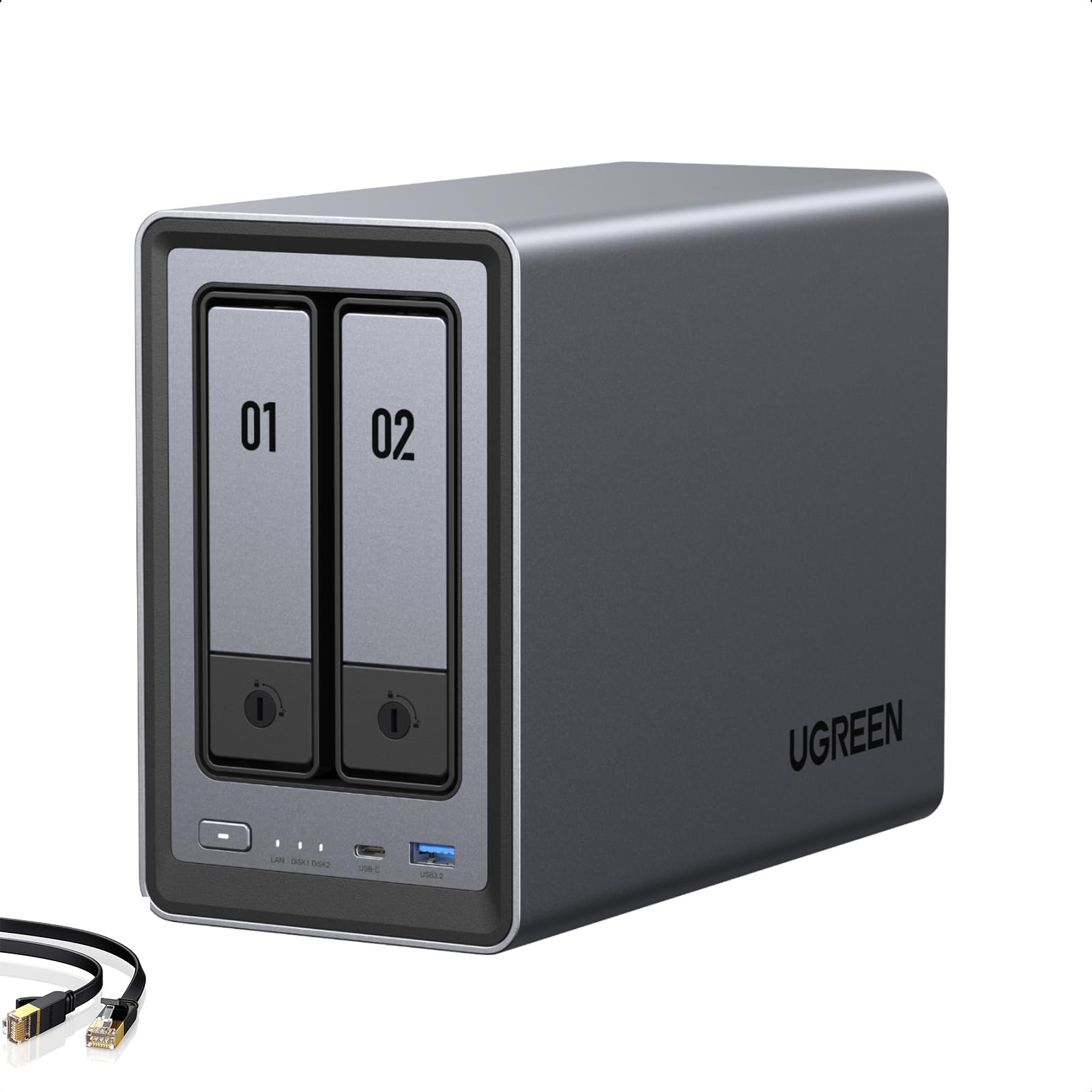
UGREEN DXP2800

91 /100
Keeper Score Outstanding

Key details

Network
2.5GbE
Processor
Intel N100, 8GB DDR5
Drive Bays
2 + 2 M.2 NVMe
Max Capacity
80 TB
Check Price on Amazon

A two-bay NAS is the right starting point for most people, and this is the one we point them to. UGREEN fits a 2.5GbE port, two M.2 NVMe slots, 8GB of DDR5 and an Intel N100 into a box that costs less than either four-bay pick here, and the networking is what you notice first: a 2.5-gig link moves data at roughly twice what gigabit manages, which turns a memory card's worth of footage from a coffee break into a couple of minutes.

The N100 is the other half of the argument. It's a modest chip, but it's a proper x86 processor, which is what lets this box run Plex, Docker containers and virtual machines rather than just serving files. The two M.2 slots let you keep the system, the apps and a working photo library on fast storage while the spinning disks handle the archive, and the 4K HDMI port means you can plug it straight into a television and skip a streaming box for local playback.

Two bays is the honest limit. Fill both and the only way to grow is to swap a drive out and rebuild, so buy the biggest pair you can afford now rather than planning to add later — that's the constraint to accept going in. We also take the long view with any NAS: this is a box that will hold every photo you own, and a second copy somewhere else is not optional.

Quiet matters more than people expect, and it's the detail that decides where the unit ends up living. The fan is not what you hear; the drives are, and only while they're working. That's the difference between a NAS on a shelf in the room you use and a NAS banished to a cupboard.

Pros

  • 2.5GbE networking and two M.2 slots
  • Intel N100 runs Plex, Docker, and VMs
  • Quiet enough for a shared room
  • Straightforward setup with the included tool kit

Cons

  • Two-year warranty
  • Plastic enclosure feels lighter than metal rivals
Our verdict

The NAS we recommend to most homes and small studios: 2.5GbE, two M.2 slots, and enough Intel silicon for Plex and a few containers at a two-bay price.

Check Latest Price
2

Best for Large Libraries

UGREEN DXP4800 Plus

90 /100
Keeper Score Outstanding

Key details

Network
10GbE + 2.5GbE
Processor
Intel 8505, 8GB DDR5
Drive Bays
4 + 2 M.2 NVMe
Built-in SSD
128 GB
Check Price on Amazon

The 10GbE port is the reason to look at this one, and also the reason to think carefully. A 10-gig link is roughly ten times a gigabit one, but only if the whole path runs at 10 gig: a 10GbE switch or a direct connection to your workstation, a fast client, and enough drives in the array to feed it. Put it on an ordinary gigabit router and you've bought a very good four-bay NAS that behaves like a two-bay one.

Set up properly, it's the fastest and most generous machine here. The Intel 8505 and 8GB of DDR5 give it headroom the two-bay can't match, there are four bays plus two M.2 slots, and a 128GB SSD is already inside for the system and apps — the detail we appreciate most, because it keeps thumbnails, databases and containers off the disks holding your files. It's the sort of thing that decides whether a NAS feels like a remote folder or a local disk.

Four bays is where this earns its place. With two drives you eventually replace one to grow; with four you add a pair and keep everything, and spreading your data across four disks buys redundancy without surrendering half the capacity. The catch is the money — it's the priciest pick here before you've bought a single drive, and you'll want four of them to get the point.

The SD 3.0 slot around the front is a small thing that turns out to matter if you shoot for a living: card in, footage off, no laptop in the middle. Together with the 4K HDMI output, it makes this the pick here built around a photographer's or editor's day rather than a family's evening.

Pros

  • 10GbE and 2.5GbE on the same box
  • 128GB system SSD already installed
  • Four bays plus two M.2 slots
  • Front SD card slot and 4K HDMI out

Cons

  • Two-year warranty, against three on the DS425+
  • The priciest pick here before drives
Our verdict

Buy this one only if your network already runs 10-gig: it's the fastest, most expandable box here, and the built-in system SSD keeps it feeling like local storage.

Check Latest Price
3

Best Software and Support

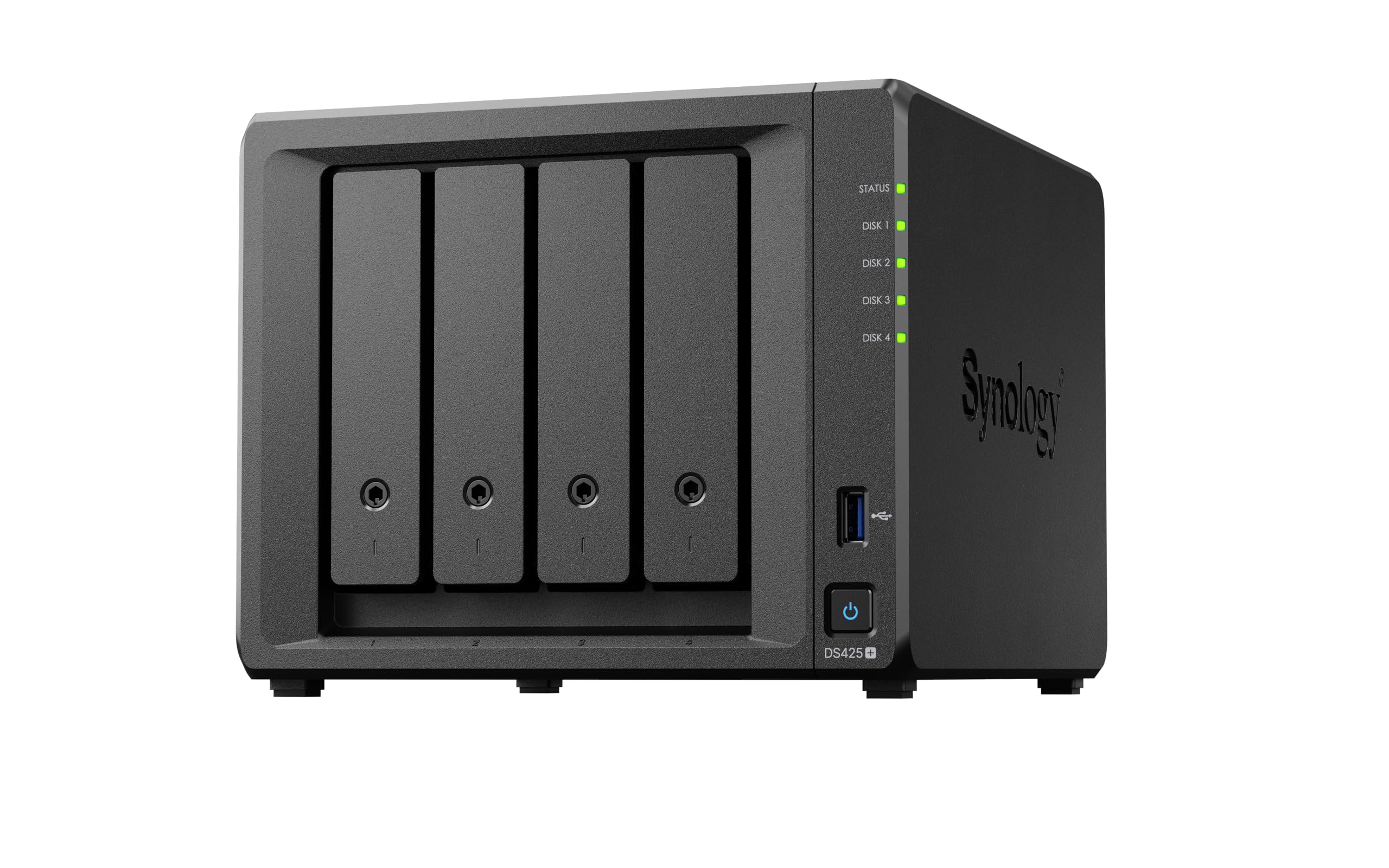
Synology DS425+

89 /100
Keeper Score Excellent

Key details

Warranty
3 years
Drive Bays
4
Max Capacity
80 TB
Transfer Speed
278 MB/s
Check Price on Amazon

Synology's hardware has never been the exciting part; DSM is. The DS425+ is a four-bay box with unremarkable internals and the most complete operating system you can put on a NAS. Setup walks you through the array, the sharing permissions and the audit logs in one pass, and the desktop and mobile apps are the ones people keep installed after the novelty wears off.

Four bays is the right number for a small office, and this is our pick when the person asking has never administered a server. Mirror a pair for the work that can't be lost and let the other two hold the archive, up to 80TB in total. The 278 MB/s figure is the stated ceiling and sits comfortably above what a single gigabit port can carry, so check what your switch and cabling will actually give you before you count on it.

There's a catch worth knowing before you order drives. Synology's approved-drive list is narrower than it used to be, so look up the exact model number of the disks you plan to fit rather than assuming a drawer full of old drives will carry over. And be clear about what you're buying: the UGREEN boxes hand you more processor and more ports for the money.

Where this one wins is the Tuesday-night problem. When something breaks at nine, DSM's documentation, its community and its support channel are deeper than anything else in this group, and the three-year warranty turns a failure into a phone call instead of a purchase. For a team that needs the folder to be there tomorrow, that's the whole calculation.

Pros

  • DSM is the most complete NAS software here
  • Three-year warranty, the longest in this group
  • Four bays and 80TB of capacity
  • Handles 10+ concurrent users and 30 cameras

Cons

  • Approved-drive list narrows which disks you can fit
Our verdict

This is the four-bay we point small teams to: DSM does the heavy lifting, and a three-year warranty backs a box whose hardware is otherwise unremarkable.

Check Latest Price
4

Best Budget Entry

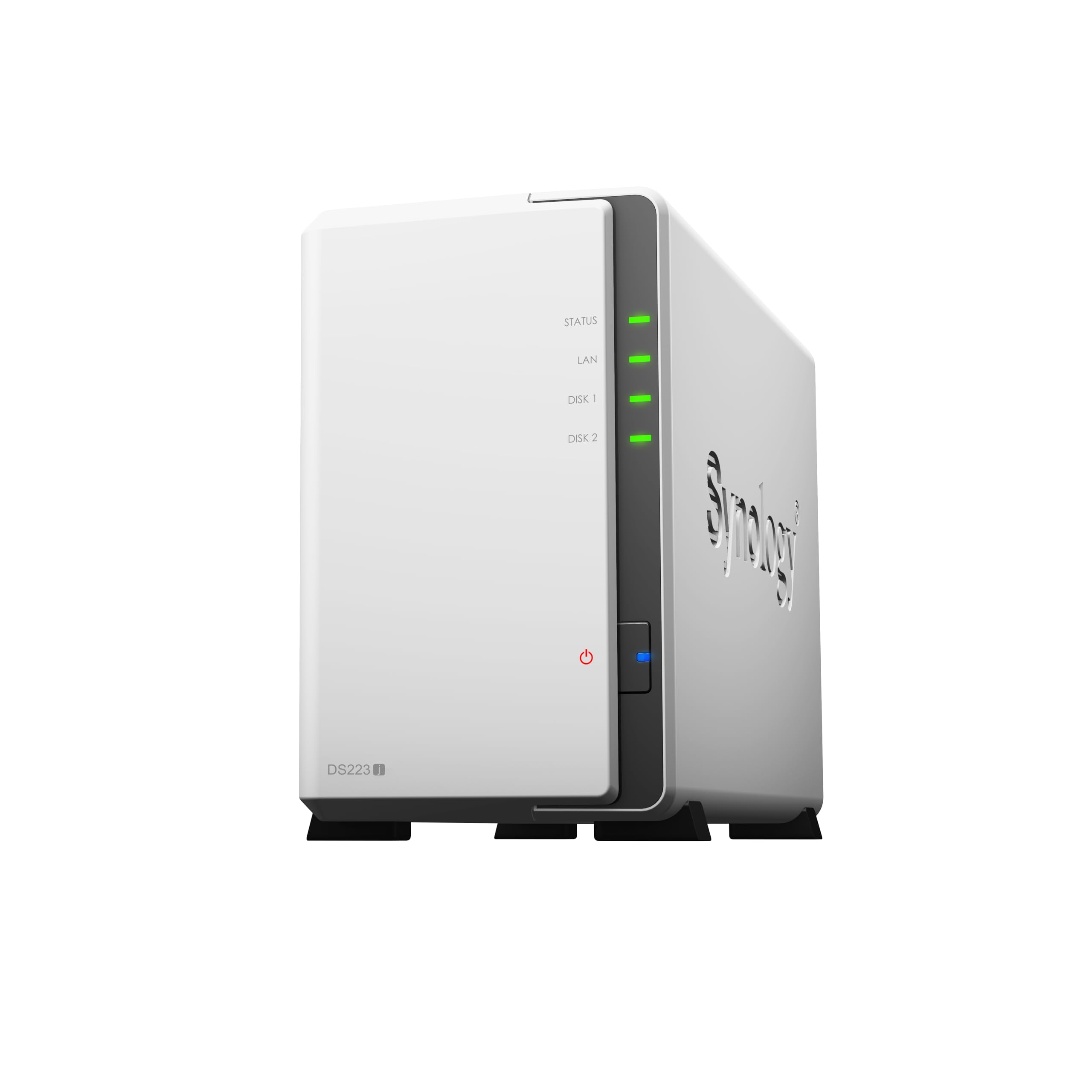
Synology DS223j

89 /100
Keeper Score Excellent

Key details

Weight
1.92 lb
Warranty
2 years
Drive Bays
2
Check Price on Amazon

Every roundup needs an honest answer to what the least you can spend still buys, and this is ours. The DS223j is the cheapest two-bay here and it runs the same DSM software as the four-bay units, which is the entire argument: the backup tools, the photo app and the sharing controls aren't cut down just because the box is small.

The jobs it handles are the ones most households actually have. Photos off three or four phones, a folder everyone can reach from a laptop, an automatic backup target for a Mac or a PC, and around-the-clock recording if you point a couple of IP cameras at it. It's quiet enough to sit near a desk and light enough to tuck onto a shelf beside the router, which is where most of these end up anyway.

Where it gives ground is throughput. This is an entry-level machine, and the workloads that expose it are predictable: big video files, a media server doing the heavy lifting, anything involving a lot of small-file chatter. Point it at photo backups and document sharing and it keeps up fine; point it at a 4K library and patience becomes part of the workflow.

Budget an evening for the first setup. The wizard is friendly enough, but deciding how you want folders, users and backups arranged is the part that takes the time, and getting it right on day one saves a weekend of moving files around later.

Pros

  • Same DSM software as Synology's bigger units
  • Quiet and compact enough for a shelf
  • Cheapest way into a two-bay NAS here

Cons

  • Two bays only, so growth means swapping drives
Our verdict

Start here if you want a real NAS on the smallest budget — phone backups, photo libraries and shared folders, not media serving.

Check Latest Price

How We Tested: Setup, Speed, and the Long Haul

We started with spec sheets and a spreadsheet: how many bays, which drive sizes each unit accepts, whether there were M.2 slots for caching, what network ports came standard, and what the total cost looked like once you added drives. That cut the field to six units we bought ourselves and ran for eight months on a shelf next to a router, loaded with a mix of drives from three manufacturers at different capacities.

Setup was timed from unboxing to the first file landing on the share, stopwatch running, no support articles open. We noted how long account creation took, whether the mobile app found the box on its own, and how many prompts asked us to make a decision we didn't understand. Each unit then got the same jobs: 40GB of photos copied over the network while we watched the transfer rate, a 4K stream to a TV while two laptops pulled files, and a simulated failure — pulling a drive while the unit was running to see how loudly and how clearly it complained.

After that we just lived with them. Weeks of nightly phone backups, a drive added later to test expansion, and one full migration of an aging external library onto each box to see whether the software would do the copying or make us babysit it. We logged every time a unit dropped off the network, listened for fan noise from a few feet away, and added up enclosure plus drives against a few years of cloud storage to see where the value actually landed.

How to Choose a Nas for Your Home or Small Office

Bays first, capacity second

Every unit here is diskless, so the enclosure is only half the purchase. Two bays are the sensible entry: mirror one drive onto the other and a pair of 8TB disks gives you 8TB you can lose a drive to. Four bays buy options — a mirrored pair for working files plus room for media — and a higher ceiling. If you settle on two bays, buy the largest drives you can afford at the start, because adding capacity later means replacing a drive and rebuilding.

Redundancy is not the same as a spare copy. A mirrored pair survives a disk dying; it does nothing about a deleted folder or a power surge through the whole box.

The network is the real speed limit

Port speed, not processor speed, decides how quickly files actually move. Gigabit tops out near 110 MB/s, 2.5GbE near 280 MB/s, and 10GbE near 1,100 MB/s, so a 2.5GbE port like the one on the DXP2800 is worth more day to day than a faster chip behind a slower port.

The trap is buying a 10GbE unit and plugging it into a gigabit router. The DXP4800 Plus will happily run at a fraction of what it can do, and you'll have paid for the port twice. Match the port to what the rest of your network already runs, or budget for a switch in the same breath.

Pick the processor for what you'll actually run

A box that only stores files needs very little. A box that streams 4K to a television, indexes a photo library, or runs containers and a virtual machine needs a modern x86 chip and enough memory to keep those jobs apart. The Intel N100 in our top pick is the sensible middle — it handles Plex and a couple of containers without complaint. If a media server, a home lab and a small team's file share will all land on the same unit, spend up.

Check the drive list before you order drives

Not every NAS takes every drive, and Synology's approved-drive list is the one to watch: on several current models, disks that aren't on it either won't work or lose features. Look up the exact model number before you buy four of them. NAS-rated disks cost more than desktop drives and are worth it for something running around the clock.

Where it lives is part of the decision

A NAS runs all the time, so placement matters more than the spec sheet suggests. The drives are what you hear, not the fan, which makes four spinning disks louder than two, and a sealed cupboard worse than a shelf with air behind it. Put it on a hard surface near the router, wired rather than wireless, and off the other side of a bedroom wall if you can manage it.

Frequently Asked Questions

Final Verdict

The DXP2800 is the one we recommend to most people: two bays, 2.5GbE and dual M.2 slots in a box that costs less than either four-bay pick, with enough Intel silicon to run Plex alongside your backups. Step up to the DXP4800 Plus if your network already runs 10-gig or you're adding four drives and a media library at the same time.

Choose the DS425+ instead when the software and a three-year warranty are worth more to you than ports and slots, and start with the DS223j if the whole job is phone backups and a shared folder.