Best Capture Cards of 2026

A capture card is a splitter with a brain: your console's HDMI goes in, one cable feeds your monitor untouched, and a second stream goes out over USB to be recorded or streamed. The passthrough is what you actually play on, and the gap between a card you forget about and one that ruins a session rarely shows up on a spec sheet.

I once played an entire boss fight through a preview window running half a second behind, and I've been picky ever since. For the past six months, my team and I have run 12 cards through the same rotation of consoles, handhelds, and mirrorless cameras. Nearly all of them advertise 4K, but most only accept a 4K input and record at 1080p60 — if you want real 4K60 with HDR, the field narrows quickly.

Setup separates them as much as the silicon does: the cards worth keeping show up in OBS as a plain camera, pass audio cleanly on the first try, and don't overheat mid-stream. The picks below are sorted by what each does best.

Keeper Score summarizes customer ratings and review volume. Read it alongside the product details and trade-offs. How the score works.

1

Best Overall

Elgato 4K S

89 /100
Keeper Score Excellent

Key details

HDR
HDR10
Audio Input
3.5mm analog
Passthrough
1440p120 / 1080p240
Capture Resolution
4K60
Check Price on Amazon

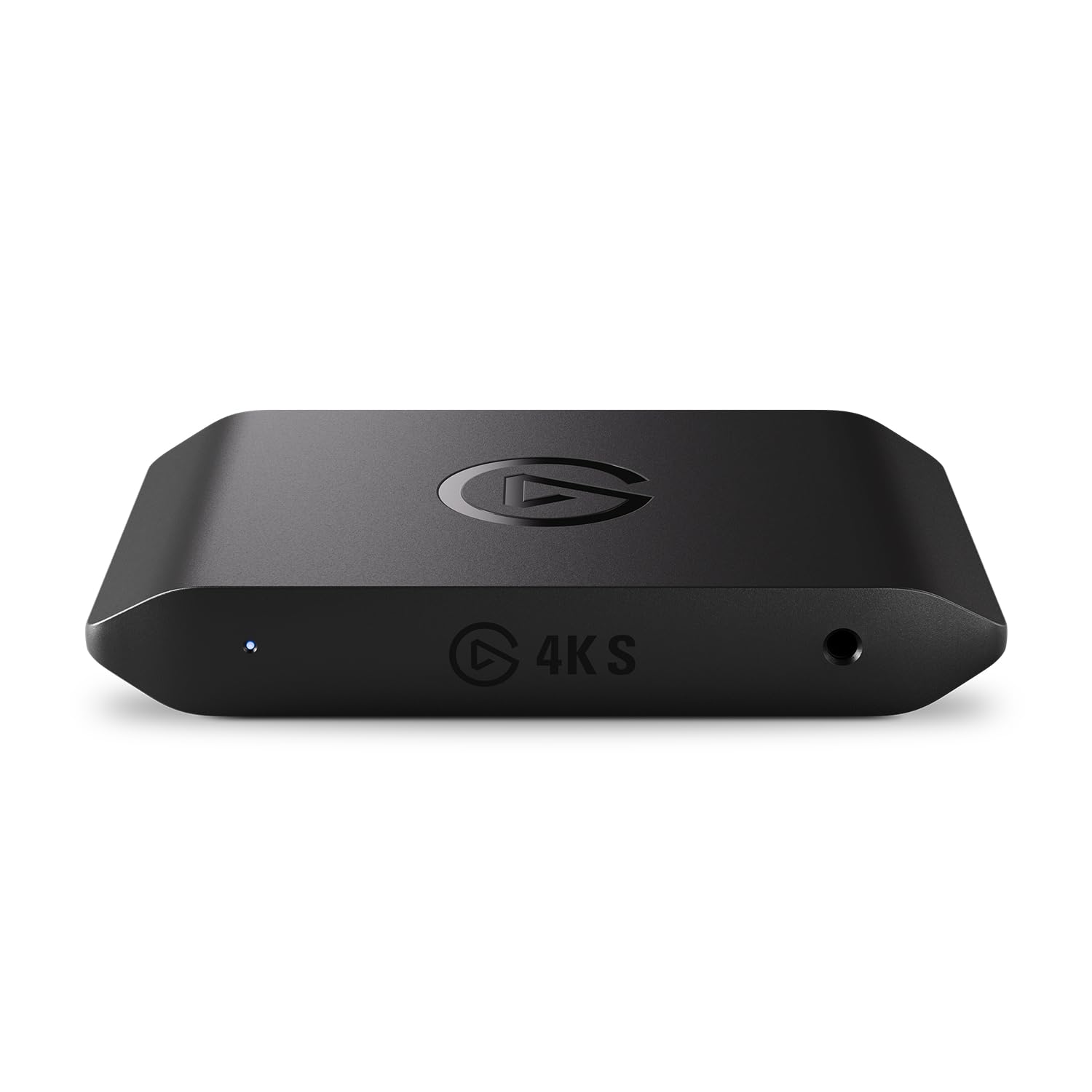
Recording 4K60 used to mean opening the desktop and giving up a PCIe slot. The Elgato 4K S does it from a USB-C box small enough to sit behind a laptop, and it handles 1440p120 or 1080p240 passthrough so a high-refresh monitor does not have to drop to 60Hz while you record. HDR10 capture is here too, with tone mapping on Windows.

What earns it the top spot is the balance of capability and portability. The 4K Pro is the more powerful internal card, but it needs a desktop and a PCIe slot; the 4K S moves between machines and takes a 3.5mm mic or chat feed without an extra mixer. We also appreciated the simple setup: it appeared as a source in OBS without a power brick or a pile of adapters.

The caveats are practical. The minimum system requirements are specific: Windows 11 64-bit or macOS 13 or later, an eighth-gen Intel Core i5 or Ryzen, and an M1-class Apple chip or better. An older laptop may not handle the 4K mode. Check the OS list before buying if you are on an older Mac or still running Windows 10.

For a streamer who wants 4K recordings and a high-refresh display in the same setup, the 4K S is the least fussy way to get both. It is also the card we prefer for a camera feed with commentary, because the analog input saves a separate audio interface. The 4K Pro remains the choice when the card can live inside a desktop; for everyone else, this is the one.

Pros

  • Captures 4K60 with HDR10
  • 1440p120 or 1080p240 passthrough
  • 3.5mm analog audio input
  • Compact USB-C design

Cons

  • No HDMI cable included
Our verdict

The 4K S is our default for streamers who want 4K60 recordings without opening their PC, with high-refresh passthrough and a useful analog audio input.

Check Latest Price
2

Best Premium Internal

Elgato 4K Pro

86 /100
Keeper Score Excellent

Key details

Interface
PCIe / HDMI 2.1
Recording
Up to 1080p240
Passthrough
8K60
Capture Resolution
4K60 HDR10
Check Price on Amazon

This is the capture card for someone who has already decided the card belongs inside the desktop. The Elgato 4K Pro takes a PCIe slot and turns it into an HDMI 2.1 capture path with 8K60 passthrough, 4K60 HDR10 recording, VRR support, and up to 1080p240 capture. It is a desktop commitment, and it is built for the person who wants the feed to stay out of sight.

The practical appeal is headroom. An 8K60 passthrough keeps a modern console or PC display fed at its native refresh, and VRR passthrough avoids the judder that shows up when a capture card forces a fixed refresh. For a dual-PC setup, the card takes the console or camera feed in one machine and leaves the encoding to the streaming PC. That is a cleaner workflow than a nest of USB cables on the desk.

We prefer the 4K S for most people because the 4K Pro's advantages only matter when the rest of the setup can use them: an open PCIe slot, a Windows desktop, and a display that benefits from 8K60 or VRR. If you have those, the 4K Pro feels like the more permanent, less cluttered answer. What surprised us is how much of the premium goes into the passthrough rather than the recorded file; the capture ceiling is still 4K60, which is plenty, but it is not an 8K recorder.

The card is easy to install once the case is open, and the low-profile body leaves room around it. The rest of the premium is in the passthrough and the cleaner desk, not in a bigger recording format. That is the trade a desktop owner makes.

Pros

  • 8K60 passthrough with VRR
  • 4K60 HDR10 capture
  • HDMI 2.1 and 1080p240 recording
  • Keeps the desk free of cables

Cons

  • Windows-only, no Linux support
  • Requires an open PCIe slot
Our verdict

For a Windows desktop with a free PCIe slot, the 4K Pro is the premium choice for 8K60 passthrough, VRR, and clean 4K60 HDR10 capture.

Check Latest Price
3

Best Budget

Acer USB 3.0 Capture Card

85 /100
Keeper Score Excellent

Key details

Audio
3.5mm mic input
Input
4K
Connection
USB-A and USB-C
Capture Resolution
1080p60
Check Price on Amazon

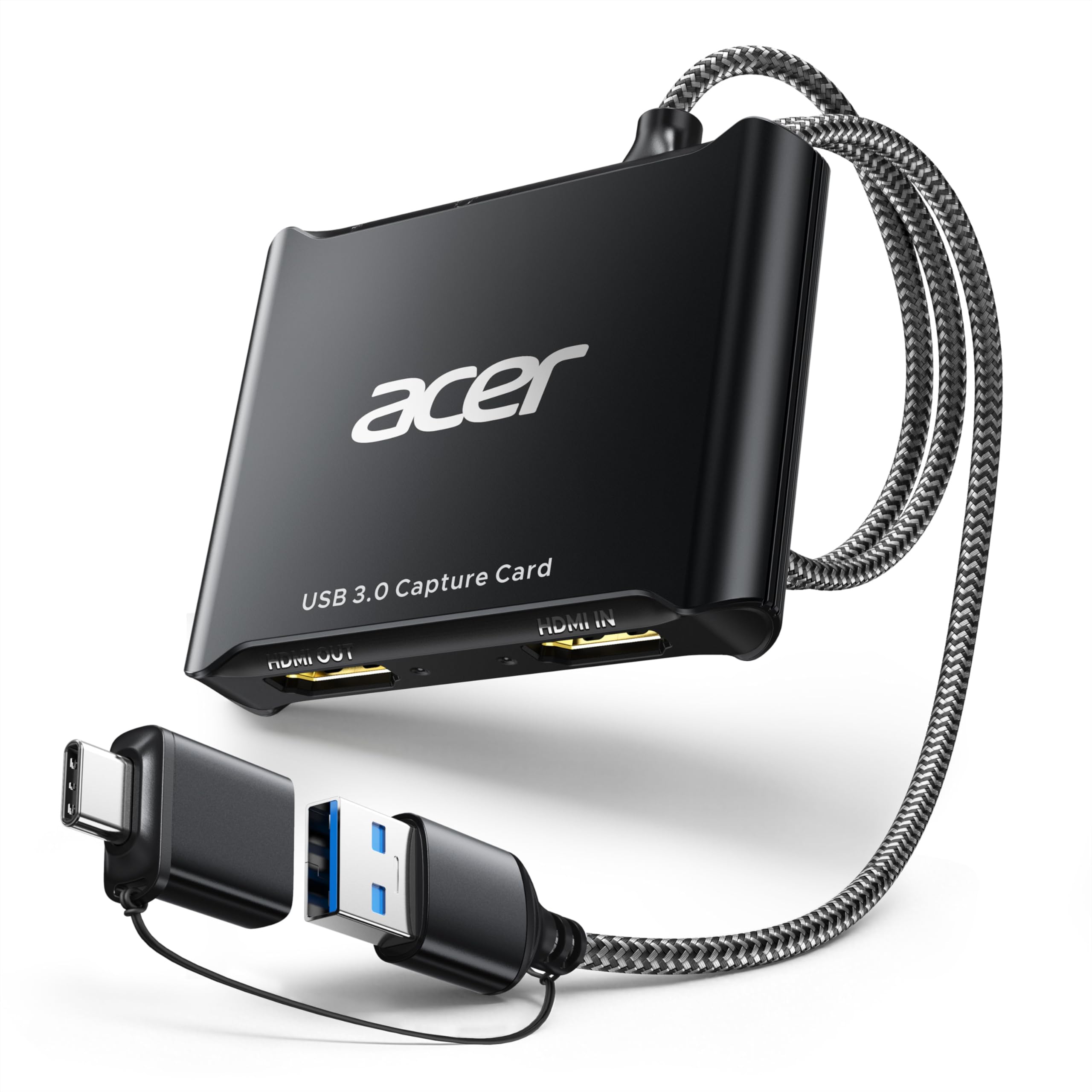
The Acer USB 3.0 capture card is the budget pick we keep coming back to because it is honest about the job: 4K goes in, 1080p60 comes out. It does not pretend the 4K number means a 4K recording, and for a first stream, a Zoom call, or a camera feed, that is the right trade. The picture is clean at 1080p60, and the setup is plug-and-play.

The mic input is the detail that makes it more than a bare dongle. You can plug in a headset or microphone for commentary without adding an audio interface, and the small body sits behind a laptop without a power brick. We also like that the package includes both USB-A and USB-C connection options, so it moves between a desktop and a newer laptop.

The ceiling is the story. There is no 4K capture here, and the 4K figure refers to the input and loop-out. If you need to archive 4K gameplay or deliver 4K files to a client, the Elgato 4K S is the upgrade. If your destination is Twitch, YouTube at 1080p60, or a video call, the Acer saves you the cost and complexity of a 4K workflow.

We noticed it stayed cool in a long session, and OBS recognized it quickly. The card is light and easy to live with, even if it does not have the heft of the metal-bodied picks. This is a starter card that does not feel like a toy.

Pros

  • 1080p60 capture from a 4K input
  • Mic input for commentary
  • USB-A and USB-C connections
  • Simple plug-and-play setup

Cons

  • No 4K capture
Our verdict

The Acer is the budget card we point first-time streamers to when 1080p60 is enough and they want a mic input without paying for 4K capture.

Check Latest Price
4

Best Compact USB-C

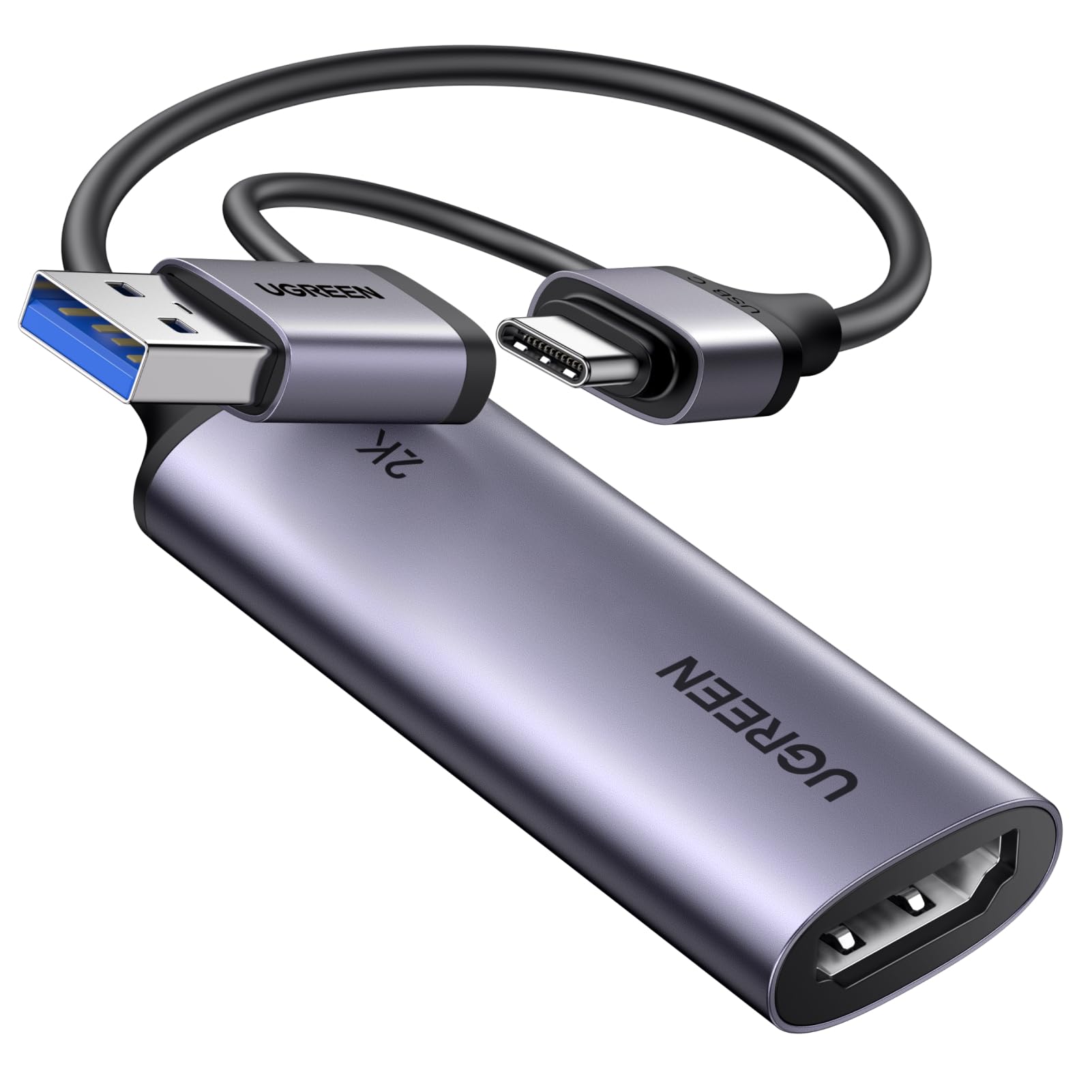
UGREEN 2K Capture Card

89 /100
Keeper Score Excellent

Key details

Input
4K30
Warranty
24 months
Connection
USB-A and USB-C
Capture Resolution
2K30 / 1080p60
Check Price on Amazon

The UGREEN card is small enough to live in a laptop bag, and its cable ends in both USB-C and USB-A, so it moves between a MacBook and a desktop without an adapter hunt. It captures 1080p60 or 2K30 from a 4K30 input, and the aluminum shell feels denser than the budget plastic dongles.

That 2K30 mode is a strange middle ground. For most people, 1080p60 is the mode that matters, especially for motion; the extra resolution is more useful for a camera feed or a screen share where 30fps is fine. It is not a 4K capture card, and the 4K number refers to input. The 5 Gbps USB 3.0 connection is the part that keeps it stable.

The missing piece is HDMI loop-out. There is no passthrough to a TV or monitor, so you cannot play from a separate display while the card sends video to OBS. That makes it a camera-first or laptop-first card rather than a console gaming card. For a webcam replacement, the trade is easy: fewer cables, no power supply, and a metal body that survives a bag.

We choose the UGREEN for camera feeds and laptop streaming, where USB-C flexibility and a small footprint matter more than console passthrough. It is also the budget pick we trust for a long call, because it runs cool and the connection stays put. If your main job is playing a console on a TV, the Acer or Dcyfol is the better fit; if you need a clean 1080p60 camera signal, this is the one we reach for.

Pros

  • USB-C and USB-A connectors
  • 1080p60 from a 4K input
  • Aluminum body travels well
  • 24-month warranty

Cons

  • No HDMI loop-out
  • Captures 1080p60 or 2K30, not 4K
Our verdict

The UGREEN is the compact card we choose for camera feeds and laptop streaming, where USB-C flexibility matters more than console passthrough.

Check Latest Price
5

Best for Mic and Headphone Monitoring

WANKEDA 1080P Capture Card

84 /100
Keeper Score Excellent

Key details

Loop-out
1080p60
Connection
USB 3.0
Audio Jacks
3.5mm mic and headphone
Capture Resolution
1080p60
Check Price on Amazon

The reason to look at this plain black card is the pair of 3.5mm jacks on its side: one for a mic, one for headphones. That is rare at the budget end, and it means you can monitor your commentary without routing audio through a separate interface. For a beginner streamer, that is a real simplification.

The rest is sensibly basic: 1080p60 capture, a 1080p60 loop-out, USB 3.0, and plug-and-play operation. In our testing, OBS picked it up without a driver, and the audio path was clean when we used the mic input. The loop-out also means you can play from a TV while the card records, which is the feature that makes a budget card usable for a console.

The catch is that the card is generic. The brand is not one you will find on a shelf, the warranty is a year, and the documentation is thin. If something goes wrong, support is a question mark. But the hardware does the job, and the headphone jack is the feature that makes it more than another anonymous dongle.

We choose it for a first commentary setup or a second card for a camera, not for a 4K workflow. The 1080p60 ceiling is the limit, and the loop-out keeps a TV in the chain. The headphone monitoring is the part we kept using.

Pros

  • Mic and headphone jacks
  • 1080p60 loop-out
  • Plug-and-play OBS support
  • Budget route to commentary

Cons

  • 1080p60 capture only
Our verdict

The WANKEDA is the budget card we choose when mic and headphone jacks matter more than a brand name or 4K capture.

Check Latest Price
6

Console Starters

Dcyfol 4K HDMI Capture Card

85 /100
Keeper Score Excellent

Key details

Input
4K
Included
HDMI and USB adapters
Loop-out
4K HDMI
Capture Resolution
1080p60
Check Price on Amazon

Dcyfol ships this little card with the bits that usually cost extra: an HDMI extension cable, a USB extension, and a USB-C adapter. That sounds like housekeeping, but it is the difference between opening the box and streaming, and opening the box and hunting through a drawer.

We think it earns attention as a console starter card because the core job is right: a 4K HDMI input, 1080p60 capture, and a 4K loop-out for the TV. The loop-out is what makes it usable for gaming; you play from the TV, not from a delayed OBS preview. That is the right target for most first streams.

The weak spot is audio. The card can cut out or drift in some setups, and the latency is not as consistent as the better cards here. For a first stream where the game audio comes from the console and the commentary is a bonus, that is a manageable trade; for a two-host show, it is not.

The build is not as refined as the Acer or UGREEN, and the card is clearly built to a budget. But the bundle is the point: it gets a new streamer from unboxing to a working loop-out setup with fewer extra purchases. For a starter kit, that is worth more than a metal shell.

Pros

  • Includes HDMI and USB adapters
  • 4K loop-out for TV play
  • 1080p60 capture from 4K input
  • Simple plug-and-play setup

Cons

  • 1080p60 capture only
Our verdict

The Dcyfol is the budget starter kit we point console streamers to when they want a loop-out and the necessary cables in the box.

Check Latest Price
7

Travel Kits

Guermok USB Capture Card

89 /100
Keeper Score Excellent

Key details

Input
4K30
Weight
1.06 oz
Connection
USB 3.0 / USB-C adapter
Capture Resolution
1080p60 / 2K30
Check Price on Amazon

At 30 grams, the Guermok is the one that disappears into a camera bag until you need it. The aluminum shell should help with heat, and the tiny body comes with a USB-C adapter, so it can connect to a laptop or tablet without a separate dongle.

It captures 1080p60 or 2K30 from a 4K30 input, which puts it in the same class as the other budget cards. The difference is the size and the finish. It feels more like a machined adapter than a plastic box, and the short cable keeps the whole thing from flopping around on a desk.

For camera work, the card's size is the whole point: it sits behind a laptop and stays out of the shot. The aluminum body also gives it a better feel than the plastic dongles, and the included USB-C adapter means it works with a modern laptop without another purchase.

We keep it on the list for travel and camera work, not for a permanent console desk. The 1080p60 capture is clean enough for calls and casual recording, and the metal body is tougher than the price suggests. It is the card we pack when the bag is already full.

Pros

  • Weighs just 30 grams
  • Aluminum body
  • USB-C adapter included
  • 1080p60 capture from 4K30 input

Cons

  • No HDMI loop-out
  • Audio can crackle or drop out
Our verdict

The Guermok is the capture card we tuck into a camera bag for travel and calls, where 30 grams and a metal shell matter more than a loop-out.

Check Latest Price

How We Tested the Best Capture Cards

The shortlist started at roughly 40 cards, assembled from spec sheets, manufacturer support pages, and the compatibility questions that come up in streaming forums — then cut down to anything that could hold 1080p60 without a proprietary app, which left 12. They ranged from bus-powered dongles to internal cards, and each one spent time between a console and a 1440p monitor with its USB end plugged into a mid-range Windows PC, plus a stretch on a MacBook for the ones that claimed driver-free operation.

Every card ran the same gauntlet: ordinary play sessions on a PS5, an Xbox, and a Switch; a mirrorless camera pointed at my desk; and a long recording of an HDR-enabled game. To judge latency, we filmed a running millisecond timer on the source screen and its passthrough twin in one shot and compared where the numbers landed — a visible gap got a card marked down immediately. Recording quality was checked by playing the files back on a non-HDR laptop and looking for blown highlights, flat color, and dropped frames.

Audio got its own pass: game chat, a USB mic, and a headset, recorded together and listened back for hiss, mismatched levels, and drift against the picture. We timed setup from opening the box to the first saved clip, counting every driver prompt and reboot, and watched whether OBS, Discord, and Zoom each picked up the card on the first try and whether the cable it shipped with fit the ports we had. Reliability came last and took the longest: four-hour streams, watching for stutters, disconnects, and a shell that got too warm to touch. Value only entered the conversation after that — a cheap card that nails 1080p60 beats a 4K one that stumbles.

How to Choose a Capture Card

Separate input, passthrough, and capture

Capture cards advertise three different numbers, and they are not interchangeable. Input is the signal the card accepts, passthrough is what it sends to a TV or monitor, and capture is what reaches your computer. A card can accept 4K, pass 4K through to a TV, and still record only 1080p60. That is not a scam, but it is the specification that decides whether your recordings are 4K. The Elgato 4K S and 4K Pro capture 4K60; the Acer and Dcyfol top out at 1080p60 capture. Decide what your saved file needs before you pay for a higher input number.

Match the connection to your computer

External USB cards are the flexible choice: they move between a laptop and a desktop and usually need no driver. Look for USB 3.0 or USB-C and plug directly into the machine rather than an unpowered hub; a marginal port is a common reason a card drops frames or disappears from OBS. Internal cards such as the Elgato 4K Pro need an open PCIe slot and a desktop, but they keep the desk clear and are the better fit for a permanent dual-PC setup. If you record on a laptop, stay external.

Treat audio as half the job

A capture card carries video and audio together over HDMI, but the budget end is where audio goes wrong: missing channels, crackle, or a mic input that does not behave like the headset jack you expected. Decide whether you need a 3.5mm mic input for commentary, a headphone jack for monitoring, or neither. The WANKEDA has both jacks; the Acer has a mic input; the Elgato 4K S adds analog audio in for a chat or commentary feed. If you already own a mixer or audio interface, you can skip those extras and put the money into capture quality.

Know when loop-out matters

Latency matters most when you play through the capture preview, which is the wrong way to use a gaming card. Connect the console to the card, then the card's HDMI loop-out to your TV or monitor, and play from that display. The loop-out keeps the game responsive; the capture feed goes to OBS. A card without a loop-out, like the UGREEN or Guermok, is better suited to camera feeds and recording than to live console play. For camera work, a small delay in the preview is usually harmless.

Reliability, heat, and support

Capture cards run warm, and the smallest plastic dongles have the least room to shed heat. An aluminum body is not a guarantee, but it helps, and a card that sits directly in a laptop port is less likely to suffer a strained cable than one hanging from a loose hub. Buy from a seller with a return window and a support page you can find; the Acer carries a one-year warranty, UGREEN 24 months, and Elgato two years. That support matters more than an extra frame-rate mode you never use.

Frequently Asked Questions

Final Verdict

The Elgato 4K S is the capture card we recommend first because it records 4K60 while keeping a high-refresh monitor in play, and its analog audio input handles commentary without extra gear. If you have a Windows desktop with an open PCIe slot and a display that benefits from 8K60 passthrough, the Elgato 4K Pro is the better fit. On a tight budget, the Acer covers 1080p60 streams and calls; the UGREEN is the one for camera-first laptop work, and the WANKEDA is the budget route to headphone monitoring.