Best Monitors for Photo Editing

The most frustrating part of photo editing usually isn't the editing. It's exporting a shot, opening it on your phone, and finding the sky you warmed for twenty minutes has gone flat and gray. A monitor built for photo work doesn't edit for you — it stops lying about what your file looks like, which is why even panel lighting and a trustworthy sRGB mode matter more than a big brightness number.

We've spent the past six months living with 12 monitors, from 27-inch 1440p workhorses to 32-inch 4K panels, keeping them on our desks through client edits, print comparisons, and plenty of late-night exports. The ones that stayed were the ones whose color held up in the corners of the frame, not just the center.

One thing worth knowing before you shop: a wide gamut only helps if the panel also displays sRGB cleanly, since unmanaged wide-gamut monitors turn skin tones sunburned in every browser. We weighed that alongside ports, build, and how steady the stand felt. The picks below all clear that bar — the differences are in what else you get.

Keeper Score summarizes customer ratings and review volume. Read it alongside the product details and trade-offs. How the score works.

1

Best Overall

ASUS ProArt PA279CRV

83 /100
Keeper Score Excellent

Key details

Resolution
3840 x 2160
Color Coverage
99% DCI-P3 and 99% Adobe RGB
Stand Adjustments
Height, tilt, swivel, pivot
USB-C Power Delivery
96W
Check Price on Amazon

Two coverage figures settle the print question: 99% Adobe RGB and 99% DCI-P3, both on a 27-inch 4K panel that leaves the factory calibrated to a Delta E under 2, with the measurement report in the box. It is the only monitor here that covers both wide spaces, and that is the difference between trusting a saturated red and hoping it survives the trip to paper. That combination is why it leads this list.

The resolution does the other half of the work. At 100% zoom on a 27-inch UHD panel you can see the actual pixels you are retouching without leaning in, and an image plus a column of panels still fits comfortably on screen. The USB-C port carries the picture and 96 watts of charging at once, so a laptop runs off one cable instead of a dock and a power brick, which quietly changes where the screen ends up on the desk.

Adjustment is the unglamorous part that ends up mattering daily. Height, swivel and pivot all move, and the matte coating stops a window behind you from washing out shadow detail, which you notice most in the afternoon when the sun moves across the room. On a screen set at eye level instead of propped on books, a long editing session costs you less.

One quirk to handle on day one: the energy-saving defaults can leave the panel slow to wake, and the fix is a settings change rather than a return. Claim the extended warranty the day it arrives, too. Five years of cover on a panel you intend to keep is the kind of thing you only appreciate in year four.

Pros

  • Factory Delta E under 2 with a report in the box
  • 99% Adobe RGB and 99% DCI-P3 coverage
  • USB-C carries video and 96W of charging
  • Height, swivel and pivot adjustment on a matte panel

Cons

  • 60 Hz refresh only
  • USB-C handshake with Macs can need a different port or cable
Our verdict

If your photos end up on paper or in a graded timeline, this is the one we buy: factory-calibrated 4K, real Adobe RGB coverage, and one cable to a laptop.

Check Latest Price
2

Best Value

ASUS ProArt PA278QV

92 /100
Keeper Score Outstanding

Key details

Ports
DisplayPort, HDMI, DVI-D, Mini DisplayPort
Resolution
2560 x 1440
Color Coverage
100% sRGB and 100% Rec. 709
Stand Adjustments
Height, tilt, swivel, pivot
Check Price on Amazon

The PA278QV gives up exactly one thing to reach its price: resolution. At 27 inches, 2560 x 1440 is sharp and comfortable for a full day's work, but at 100% zoom you see a coarser grid than a 4K panel shows, and a full-frame file fills the screen without much room around it. Spend your day judging composition at fit-to-screen and you will not miss the extra pixels; retouch skin at pixel level and you will.

What it refuses to give up is color discipline. This is a Calman Verified panel at Delta E under 2, covering 100% sRGB and 100% Rec. 709, with a pre-calibration report in the box. The payoff shows up in the corrections that are invisible on an uncalibrated screen: a magenta cast in a white balance, a green shift in the shadows, a skin tone half a point off. Those are the moves that make an edit look deliberate, and we could make them here.

The stand is better than the price suggests, with height, swivel, pivot and degree markings on the pivot, the sort of detail that tells you someone at ASUS actually uses the thing. Around the back there is DisplayPort, HDMI, DVI-D, mini-DisplayPort and a four-port USB hub, so an older laptop and a desktop can both stay connected. Longevity is the soft spot: the failures that turn up are panels going dark around the three-year mark, which is why the registered five-year warranty is worth ten minutes on the website.

Pros

  • Factory calibration to Delta E under 2, report included
  • 100% sRGB and 100% Rec. 709 coverage
  • Four-way stand with degree markings on the pivot
  • Unusual port set with mini-DisplayPort and a USB hub

Cons

  • 1440p rather than 4K
  • Only one HDMI input
Our verdict

The value pick we keep recommending for sRGB work: calibrated color, a stand that adjusts every way, and enough left over for a colorimeter.

Check Latest Price
3

Best 32-Inch

Samsung ViewFinity S8 32-Inch

87 /100
Keeper Score Excellent

Key details

Resolution
3840 x 2160
Screen Size
32 inches
Contrast Ratio
3,000:1
Stand Adjustments
Height, tilt, swivel, pivot
Check Price on Amazon

Thirty-two inches changes the shape of an editing session. A two-page spread sits at a comfortable zoom, a Lightroom grid holds more frames, and a timeline has room for a second panel without squeezing the preview. That extra canvas is the whole pitch, and for stills work it earns its keep faster than another hundred nits of brightness would.

The panel is 4K on a 3000:1 contrast ratio, which gives blacks more depth than the IPS norm, and the matte anti-glare coating holds up in a room with a window. Samsung's tool-free stand is the detail we appreciated most: it clicks together without screws and still gives height, swivel and pivot, so flipping the screen vertical for a portrait crop takes a second.

The size brings a trade-off worth naming. Four thousand pixels spread across 32 inches gives you larger pixels than a 27-inch 4K panel, which is a fair swap for the workspace and a slightly softer one for fine text and pixel-level retouching. For stills, contact sheets and layout work we take the canvas; if you spend the day at 100% zoom, the 27-inch ProArt is the sharper tool.

Pros

  • 32-inch 4K canvas for spreads and grids
  • Tool-free stand with height, swivel and pivot
  • 3000:1 contrast with a matte anti-glare finish
  • Built-in USB hub for drives and peripherals

Cons

  • No USB-C video input, so laptops need an adapter
Our verdict

We reach for this one when the desk can take 32 inches and the work is 4K stills: a big panel with a tool-free stand and a built-in hub.

Check Latest Price
4

Best Budget 4K

LG UltraFine 27US500-W

84 /100
Keeper Score Excellent

Key details

Panel
27-inch IPS, matte
Resolution
3840 x 2160
Color Coverage
90% DCI-P3
Stand Adjustments
Tilt only
Check Price on Amazon

White bezels, white stand, white back: the 27US500-W is the only monitor here that does not look like office equipment. Cosmetic, yes, but not nothing. On a light desk next to a laptop it disappears in a way black plastic does not, and the near-borderless frame makes the image feel larger than 27 inches.

Behind the finish is a 4K IPS panel with 90% DCI-P3 coverage and a matte coat. Resolution is where the money went: text is crisp, a raw file shows detail you can actually judge, and the HDR10 support is a bonus rather than a reason to buy. LG's on-screen control app earns its place too, since you can split the display or change settings from the desktop instead of reaching behind the panel for buttons.

The stand is where the savings show. It tilts and nothing else, it is plastic, and it wobbles when you type firmly, which is the one thing we minded in daily use. If you already have a VESA arm, that is the fix and the panel justifies it; if you do not, add one to the budget. Colors read true on skin tones and neutrals, and a profile run is the first thing to try if yours arrives looking washed out.

Pros

  • 4K IPS with 90% DCI-P3 coverage
  • White finish and near-borderless frame
  • Two HDMI inputs plus DisplayPort
  • On-screen control app for splits and settings

Cons

  • No USB-C and no USB hub
Our verdict

Our budget route into 4K: 90% DCI-P3, a matte IPS panel, and a clean white finish for a little more than a good QHD screen.

Check Latest Price
5

Everyday 4K Work

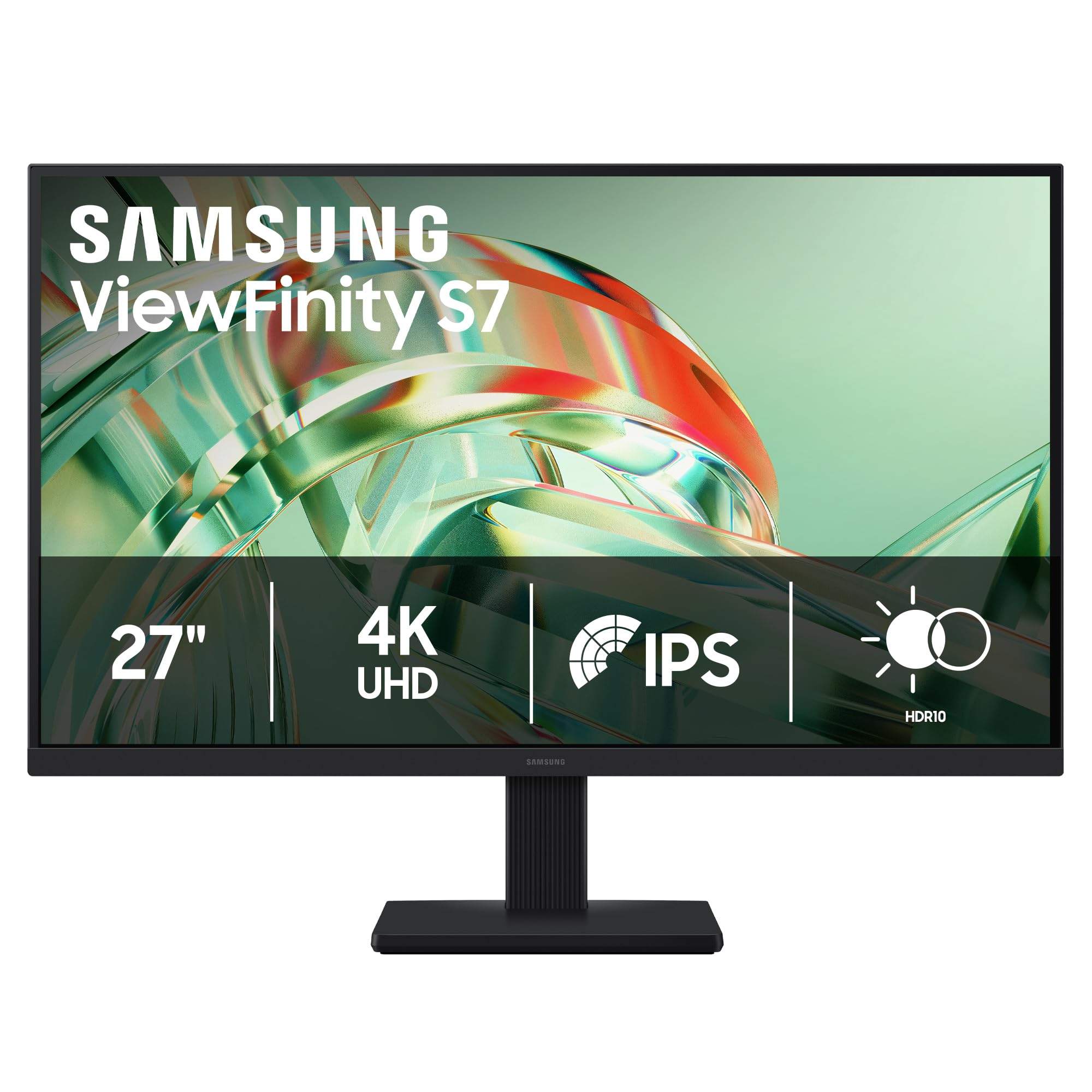
Samsung ViewFinity S7 27-Inch

83 /100
Keeper Score Excellent

Key details

HDR
HDR10
Panel
27-inch IPS, matte
Resolution
3840 x 2160
Contrast Ratio
1000:1
Check Price on Amazon

The S71H is the S80D's smaller, plainer sibling, and at 27 inches it trades the big canvas for a tidier desk. What survives the step down is the part that matters: the same matte anti-glare treatment, a 4K IPS panel, HDR10 and a slim bezel that makes a two-screen setup look intentional.

We keep it in the guide because it is unglamorous in the right way. Setup is two cables, text is crisp edge to edge, colors stay even across the panel, and nothing about it calls attention to itself, which for a screen you stare at for six hours is the goal. For a second display, a first editing setup or a home office that occasionally handles raw files, it does the job without drama.

The warranty is the compromise: one year, where the ProArt pair run three plus two more with registration. That is the difference between a screen you keep for a decade and one you treat as disposable, so weigh it against what you save. For a second desk, it is a reasonable bet.

Pros

  • 4K IPS with a matte anti-glare finish
  • Slim bezel and light enough to move between desks
  • HDR10 support for video previews

Cons

  • One-year warranty
  • HDMI and DisplayPort only, no USB-C
Our verdict

We keep this one for the desk that needs a clean, even 4K panel and a small footprint rather than a long feature list.

Check Latest Price
6

Cheap 4K Entry

CUNPU 27-Inch 4K

80 /100
Keeper Score Excellent

Key details

Panel
27-inch IPS, matte
Resolution
3840 x 2160
Color Coverage
100% DCI-P3
Stand Adjustments
Tilt only
Check Price on Amazon

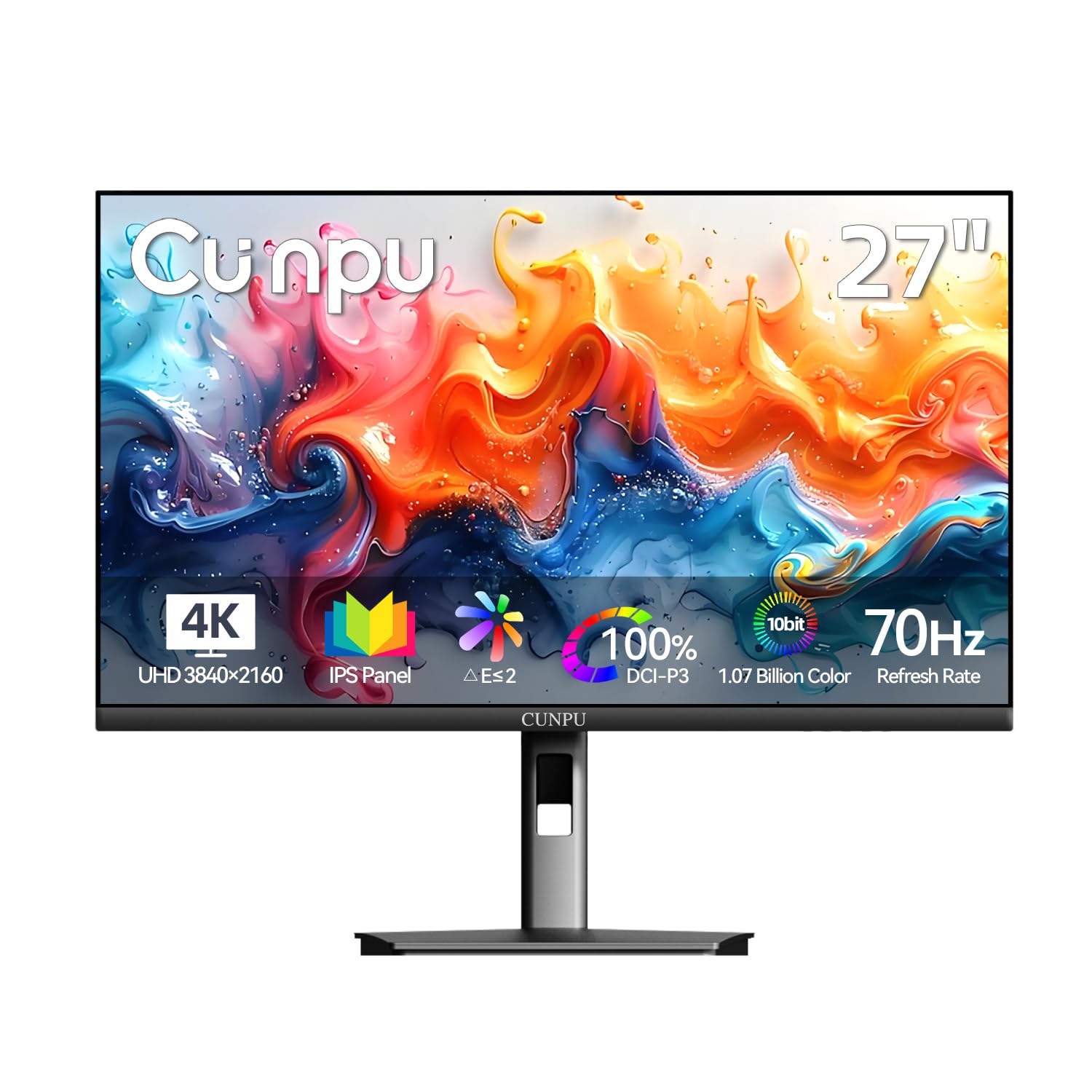
On paper the CUNPU looks like the deal of the group: 4K on a 27-inch IPS panel, a stated Delta E under 2, 100% DCI-P3, 1.07 billion colors and a 70 Hz refresh. Some of that is marketing confidence rather than measured fact, and there is no service history behind the badge. What we can say is that the panel holds up, crisp at 4K with colors that pop on a landscape raw, and it costs less than any other 4K screen here.

Two DisplayPort inputs plus HDMI mean a desktop and a laptop can both stay connected, picture-in-picture keeps an eye on a second source, and the bezel is thin enough for a dual setup. The 70 Hz refresh has to be switched on in the menu, which tells you where the money went.

That makes it a fair second panel and an unproven primary one. A source that drops out mid-session and needs the input reselected is the friction that turns up: fixable, but not what you want with a client waiting on a proof. Buy it as a spare screen or a cheap way into 4K detail, not as the display your print work depends on.

Pros

  • 4K IPS panel with a stated Delta E under 2
  • 100% DCI-P3 claim at the lowest price here
  • Two DisplayPort inputs plus PIP and PBP

Cons

  • One-year warranty from a little-known brand
  • Tilt-only stand
Our verdict

The cheapest route to 4K detail here, worth it as a second panel with the return window open, not as your primary editing screen.

Check Latest Price

How We Tested Photo Editing Monitors

We started by pulling every monitor that advertised a photo-editing pedigree — 4K resolution, IPS panels, quoted Delta E figures, coverage claims for sRGB, Adobe RGB, or DCI-P3 — then trimmed by price and availability. Twelve made it to our desks, where each lived for six months of real work: raw files from portrait and landscape shoots, black-and-white conversions checked against prints from a lab, and the usual spreadsheets in between.

Color got the most attention. We took colorimeter readings before and after calibration, then compared white and gray patches at the center and in the corners to see how far the edges drifted from the middle. We also opened a saturated test image in both the panel's wide mode and its sRGB mode to judge whether sRGB actually clamped the gamut or just softened it.

We connected each monitor to a laptop over USB-C and to a desktop over HDMI and DisplayPort, timing how long source switches took and whether settings survived a power cycle. Stands were tilted, swiveled, and typed on all day; the ones that shivered with every keystroke got marked down, and we noted whether the height range — where there was one — let us sit at eye level.

Reliability meant six months of daily power cycles, week-long static images to check for image retention, and a full-black screen in a dark room to catch backlight bleed. On value, we asked whether the better ports, sturdier stand, and cleaner factory calibration justified the step up from the cheapest 4K panel that looked fine on paper.

How to Choose a Monitor for Photo Editing

Match the gamut to where your photos end up

sRGB is the safe default because it is where the web, social platforms and most consumer print labs live. A panel that covers all of it and is calibrated well, like the ProArt PA278QV, will not lie to you about a post or a drugstore print. Adobe RGB and DCI-P3 matter when the destination supports them: a fine-art printer working from a wide-gamut profile, or a video timeline graded in P3.

Ignore a spec that reads 120% sRGB. A figure above 100 means the panel reaches past the space, which oversaturates untagged content rather than showing you more of it. Extra gamut without color management is worse than none, so if you buy wide, plan to work in a color-managed app with the right profile and soft-proof before exporting.

Resolution and screen size: what 4K actually buys you

At 27 inches, 4K puts about 163 pixels into every inch, which is why text looks like print and why a raw file at 100% shows the exact pixels you are retouching. A 1440p panel at the same size is comfortable rather than forensic: fine for culling, composition and most retouching, less so for spotting dust at pixel level.

Go bigger and the trade shifts. A 32-inch 4K gives you far more canvas for spreads, grids and timelines, but spreads fewer pixels per inch than a 27-inch 4K, so detail is a shade softer. Sit at arm's length and both work; if you like the screen pushed back, the 32-inch earns its place.

Read the calibration claim, then verify it

Delta E under 2 and a Calman Verified badge mean the panel was measured against a reference and came close; a printed report in the box means somebody wrote the numbers down. That is a better starting point than a marketing adjective, but only a starting point. Panels drift, and color-managed work uses the profile built for your unit in your room.

Plan on a colorimeter eventually, especially if you print. Until then, compare a file you know against a print you trust, and keep the factory report as your baseline if a unit arrives with a tint. If the monitor stores the profile internally, re-profiling is a menu operation; if it does not, the profile lives on your computer and applies only there.

The connection that decides your desk

USB-C with power delivery turns a monitor into a dock: one cable carries video, data and charging, which is why the 96 watts on the top pick matters more than the port count. Working from a laptop, add up what you plug in, camera card reader included, and check the hub can take it, or you will still be reaching for a dock.

On a desktop, DisplayPort is the simplest route to 4K at 60 Hz, and HDMI 2.0 will do it too. The trap is a laptop port that looks like USB-C but only moves data; the spec has to say DisplayPort alt mode and quote a wattage. Marginal cables cause the rest of the trouble, usually a screen that drops to 30 Hz or flickers.

Stands, glare and the room you edit in

Height adjustment is the specification people skip and then regret. A tilt-only stand sits where the desk decides, which for most people is too low, and the stack of books arrives a week later. If the model you want has a basic stand, budget for an arm at the same time; several picks here take a standard VESA mount.

Light is the other half of it. A matte coating is what you want near a window, and every pick here has one. Brightness matters less than people expect in a dim room, where 300 nits is plenty, and more when the sun crosses your desk, where 350 to 400 nits and good anti-glare buy you an afternoon of work.

Frequently Asked Questions

Final Verdict

For print work, or anything that needs Adobe RGB, the ProArt PA279CRV is the monitor we recommend: factory-calibrated 4K, a genuinely wide gamut, and 96 watts of USB-C charging that replaces a laptop dock. If your photos live on the web, the PA278QV does the same color job in sRGB for far less, and the savings cover a colorimeter.

Take the 32-inch Samsung when canvas beats pixel density and your laptop already has a dock. Take the LG when the budget is the constraint and you own, or will buy, an arm.