Best Keyboards for Video Editing

Somewhere in the middle of a long rough cut, my right hand starts repeating itself: grab the mouse, drag the playhead, hunt for a shortcut I half remember. An editing keyboard or console is supposed to end that loop, putting trims, scrubbing, and color work under one hand while the other stays on the timeline. Plenty don't. Some are gorgeous paperweights that talk to exactly one app; others are so programmable you spend the weekend remapping instead of cutting.

My team and I have spent eight months working 12 of them into real edit sessions — under the hand during a grade, on the couch over Bluetooth, and deep in client revisions. The good ones disappear fast: you stop thinking about the dial and start thinking about the cut.

One thing worth knowing before you compare: a knob count is not control. A single dial you can remap per app beats five that only work inside one vendor's panel, and a key you can't relabel is a key you'll forget by Thursday. The picks below are the ones that earned permanent desk space.

Keeper Score summarizes customer ratings and review volume. Read it alongside the product details and trade-offs. How the score works.

1

Best Overall

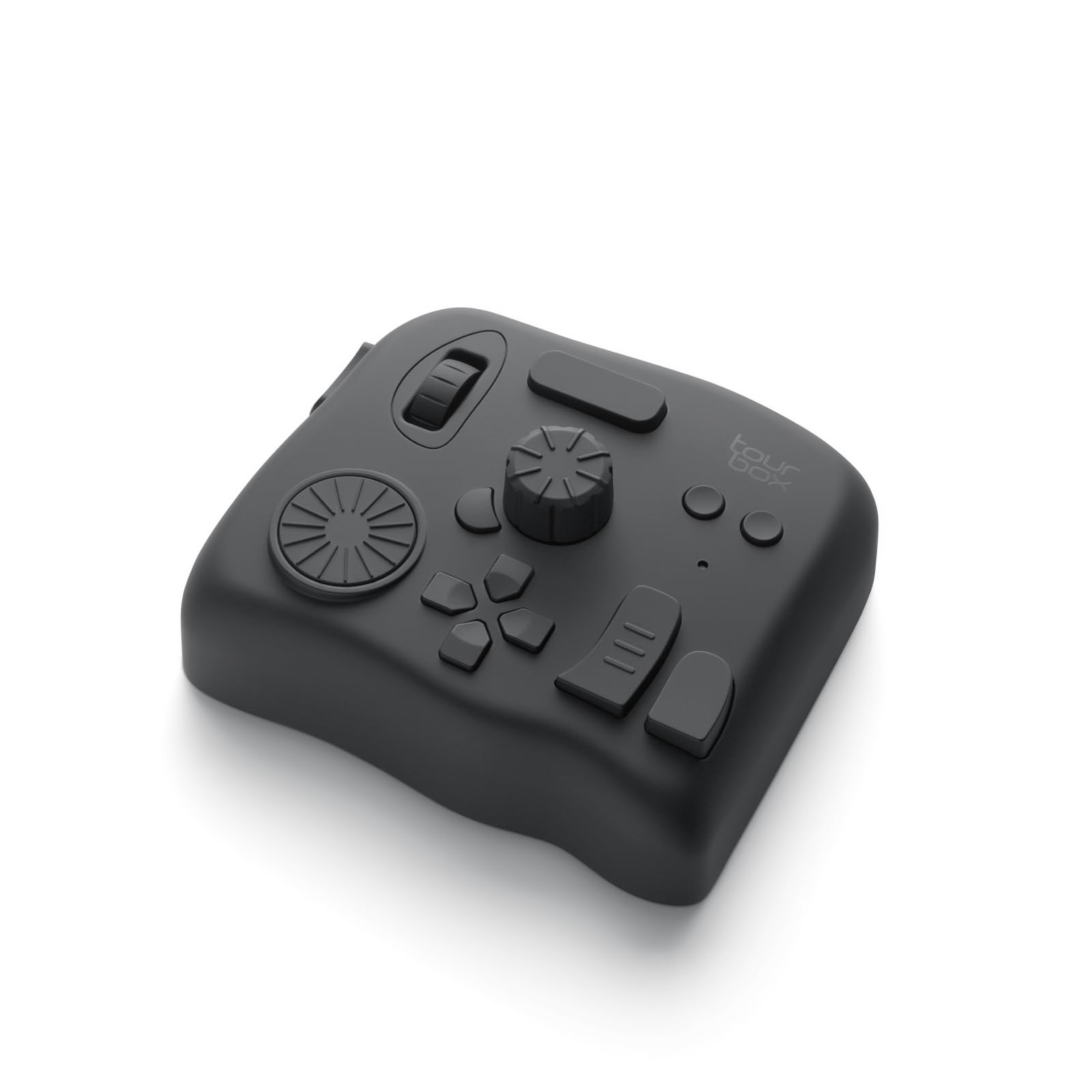
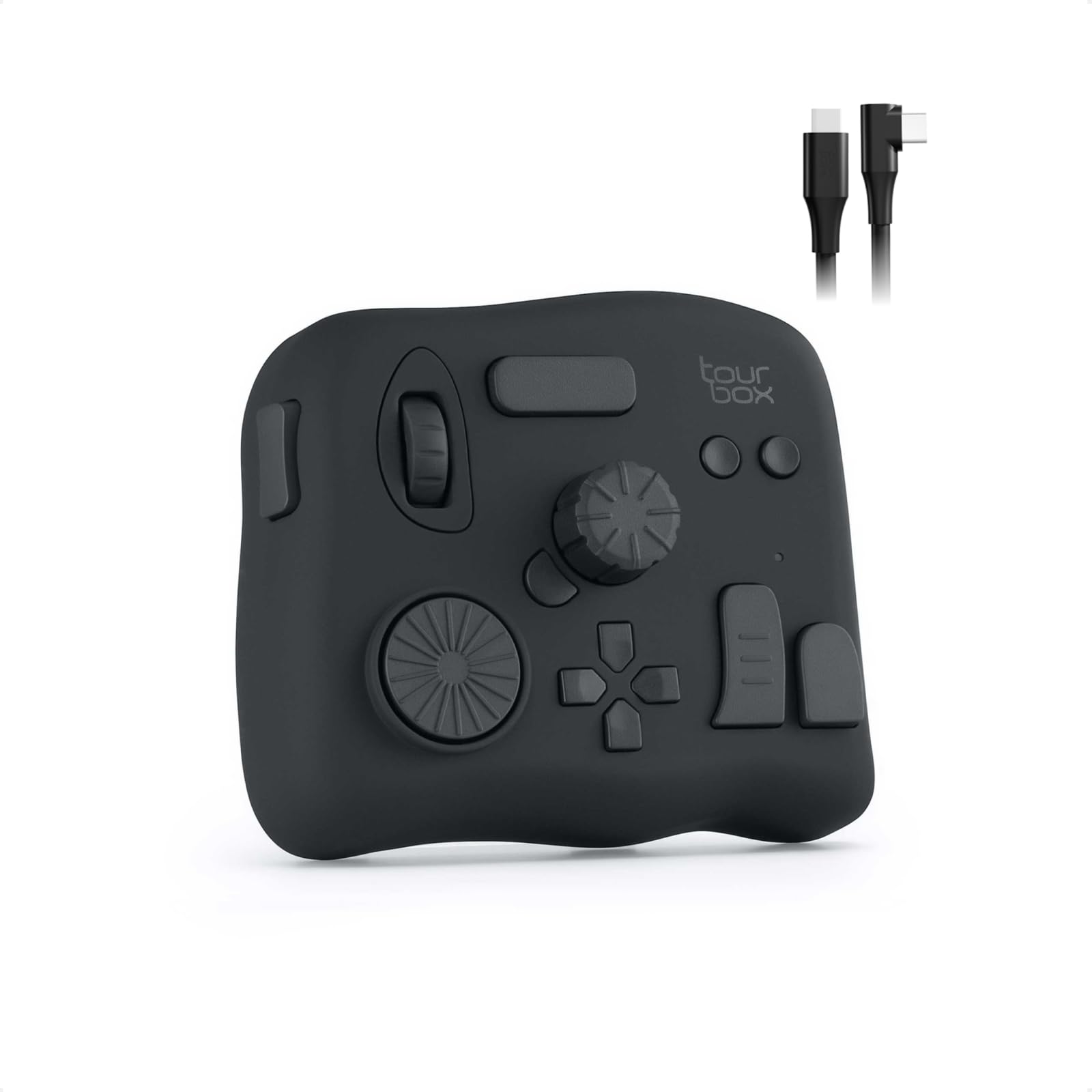
TourBox NEO

89 /100
Keeper Score Excellent

Key details

Controls
14 controls
Software
TourBoxConsole
Footprint
3.98 x 4.57 in
Connectivity
USB-C wired
Check Price on Amazon

Fourteen controls sounds like a lot until you put your hand on the NEO: the dial falls under your thumb, the D-pad sits under your fingers, and the buttons land where a mouse hand would otherwise leave the keyboard. That density is exactly why it is our top pick. You learn a small set of shapes—dial, scroll, D-pad, press—and those shapes stay useful whether you are trimming in Premiere Pro or grading in DaVinci Resolve.

The software is the part that turns those shapes into muscle memory. TourBoxConsole includes templates for the major editing and photo apps, and once a profile is built, switching applications is mostly automatic. The fixed-function dials are the exception: a few controls are locked to particular actions, so map your most-used shortcuts to the buttons and the free dial first. The learning curve is real, but it is a week of deliberate use rather than a technical wall.

Against the Speed Editor, the NEO gives up Resolve-specific search-dial integration and the included Studio license. Against the MX Creative Console, it lacks labeled LCD keys. What it keeps is among the broadest app coverage here and the most tactile controls in this group. If you edit in more than one NLE, that is the version of best that matters.

Pros

  • Fourteen tactile controls in one compact footprint
  • Works across Premiere, Resolve, Photoshop, and more
  • Profiles and templates reduce setup time
  • No battery to charge

Cons

  • Wired-only USB connection
  • Some dial functions are preset
Our verdict

For editors who move between Premiere, Resolve, and photo apps, the NEO is the most useful control surface we tested, with enough tactile controls to keep the mouse idle.

Check Latest Price
2

Best for DaVinci Resolve

Blackmagic Speed Editor

92 /100
Keeper Score Outstanding

Key details

Power
Built-in battery
Controls
17 keys + search dial
Included
Resolve Studio activation card
Connectivity
Bluetooth or USB-C
Check Price on Amazon

The first thing to understand about the Speed Editor is that the DaVinci Resolve Studio activation card is not a freebie—it is part of the value proposition. If you need Resolve Studio anyway, the controller's price includes a tool you were already going to buy. If you edit in Premiere, the same bundle is an expensive doorstop.

We recommend it for Resolve editors who want a physical cutting rhythm. The search dial is weighted and the keys are arranged around the Cut page, so trimming, source tape, and multicam switching happen without a menu. The built-in battery and Bluetooth make it easy to move around a suite, though the USB-C cable is the steadier connection when you do not want to think about pairing.

The limits are real: it is Resolve-only, and some keys do less on the Edit page than they do on the Cut page. The learning curve is steep if you have never used Resolve's cut workflow, but the layout starts to feel natural once you stop translating every button. In a Premiere or Final Cut suite, this is not the controller for you.

Pros

  • Search dial and dedicated edit keys
  • Includes Resolve Studio activation card
  • Wireless Bluetooth or wired USB-C
  • Built-in battery

Cons

  • DaVinci Resolve only
Our verdict

We recommend the Speed Editor for editors who live in Resolve; its search dial and dedicated keys make the Cut page feel like hardware, and the Studio license adds real value.

Check Latest Price
3

Best for Adobe Apps

Logitech MX Creative Console

82 /100
Keeper Score Excellent

Key details

Power
USB-C; 2 AAA batteries
Controls
9 LCD keys + dial
Profiles
15 keypad pages per profile
App Support
Adobe apps, Resolve, Final Cut Pro
Check Price on Amazon

Nine LCD keys and a low-friction dial are the whole pitch: Logitech is not trying to replace your keyboard, it is trying to pull the shortcuts you use most out of it. For an Adobe editor, that is a sensible trade. We set ours beside the keyboard, loaded the Premiere Pro profile, and the labeled keys quickly became faster to hit than a modifier combination.

The dial and roller handle two different jobs, which is more useful than it sounds: one for continuous adjustments, the other for moving through a list or timeline. The keypad supports up to 15 pages per profile, so a single set of nine keys can cover a lot of ground. The catch is the software layer. Photoshop and Premiere get the deepest integration; other editors may need more manual mapping, and compatibility can shift with app updates.

We recommend it when Adobe is the center of your day and you want shortcuts you can read rather than memorize. The VSD K1 Pro gives you a whole mechanical keyboard for a similar role, but the MX's labeled keys are easier to learn. The NEO has more tactile controls; the MX wins on readable labels and Adobe-specific polish. That is a genuine split, not a marketing one.

Pros

  • Nine labeled LCD keys
  • Dial and roller for two kinds of control
  • Deep Adobe and Premiere integration
  • Fifteen keypad pages per profile

Cons

  • Software compatibility varies by app
  • Premium price for a nine-key pad
Our verdict

For editors who spend most of the day in Premiere and Photoshop, the MX Creative Console is the easiest shortcut deck to learn here and the one we reach for first.

Check Latest Price
4

Best Full Keyboard Hybrid

VSD K1 Pro

79 /100
Keeper Score Very Good

Key details

Controls
87 keys, 6 LCD keys, 3 knobs
Software
VSD Craf
Switches
Hot-swappable 3- or 5-pin
Connectivity
USB-C wired
Check Price on Amazon

Three knobs above a row of six LCD keys is a lot of analog control to put on a mechanical keyboard, and that is exactly what makes the VSD K1 Pro interesting. It does not ask you to choose between a typing keyboard and a macro deck; it puts both on the same 87-key frame. We liked having the editing controls in the same place our hands already rest, though the desk-space cost is immediate.

The macro software is where this one asks for patience. Macros live in the VSD Craf app and need it running in the background; when it is running, the six LCD keys and three knobs can switch pages and control volume or app shortcuts. The mechanical feel is a genuine bonus—hot-swappable linear switches, a gasket mount, a thocky sound—but those are typing pleasures, not editing necessities.

The reason this is a runner-up rather than our top pick is reliability. Some units have developed key or LED faults, and the shift key can be inconsistent. Nothing about the design causes that, but it matters when the keyboard is also your main input device. If you want one device for writing and editing, the VSD is the most complete version here; if you want the most dependable editing control, the simpler NEO is safer.

Pros

  • Full mechanical keyboard plus six LCD keys
  • Three knobs for app and timeline control
  • Hot-swappable switches and gasket mount

Cons

  • Macros require background software
  • Some units have key or LED faults
Our verdict

The VSD K1 Pro is the best fit if you want one mechanical keyboard to type on and edit with, provided you can live with background software and a less consistent reliability record.

Check Latest Price
5

Best Compact Wireless

XENCELABS Quick Keys

87 /100
Keeper Score Excellent

Key details

Weight
5.01 oz
Display
OLED shortcut labels
Controls
8 keys + dial; 5 sets
Connectivity
Wireless or USB
Check Price on Amazon

The OLED strip above the eight keys is the detail that makes the Quick Keys easier to live with than a blank macro pad: it tells you what each key does before you press it. We did not have to memorize five layers of shortcuts or keep a cheat sheet on the desk. That is a small thing until you are switching between Premiere and Photoshop in the same afternoon.

The Quick Keys is our favorite compact wireless option because it balances a dial, labeled keys, and a genuinely small footprint. Eight keys times five sets gives 40 commands, and the dial can handle zoom, canvas rotation, brush size, or timeline navigation depending on the profile. It is not as tactile as the TourBox, and the driver can be fussy, but the screen removes most of the guesswork.

The 6.2-inch-wide pad is easy to tuck beside a laptop, and its rechargeable battery means one less cable. The trade-off is key count: eight physical keys is enough for a tight editing loop, not for every command. If you want a labeled, pocketable deck and can keep your most-used actions to a couple of layers, this is the one.

Pros

  • OLED labels for each shortcut set
  • Eight keys plus dial, five sets
  • Wireless and compact

Cons

  • Only eight physical keys
  • Software can be finicky
Our verdict

For editors who want labeled shortcuts and a dial without giving up desk space, the Quick Keys is the compact wireless pick we trust most here.

Check Latest Price
6

Best Budget

XPPen ACK05

85 /100
Keeper Score Excellent

Key details

Weight
2.65 oz
Battery
1000 mAh
Controls
10 keys + dial; 4 sets
Connectivity
Bluetooth 5.0
Check Price on Amazon

At 75 grams, the ACK05 is the one that disappears into a bag. It is a 10-key pad with a dial, not a keyboard replacement, and that is the right way to think about it: a travel shortcut remote for the handful of actions you repeat on every edit. We like it for a laptop setup because it takes up less room than a mouse pad and pairs over Bluetooth 5.0.

The 1000 mAh battery and four key sets give it more capacity than its size suggests—up to 40 shortcuts if you use all four layers. The dial is programmable, but its usefulness depends on the app: in some editors it scrubs or navigates; in others it may only zoom. Test that one behavior before you commit, because a dial that does not touch the timeline is just a volume knob.

The software and Bluetooth are the compromises. Programming takes patience, and wireless connections can drop; the USB-C cable is the reliable fallback. For the price, though, the ACK05 gives you a real dial and a programmable layout in a package you can carry every day. We recommend it as a budget travel pad, not as the centerpiece of a desk.

Pros

  • Weighs just 75 g
  • Ten programmable keys plus dial
  • Four sets, up to 40 shortcuts
  • 1000 mAh battery

Cons

  • Dial mapping varies by app
  • Bluetooth can drop
Our verdict

The ACK05 is the budget pick we take on the road: a light, genuinely programmable dial pad for editors who need a few reliable shortcuts, not a full desk console.

Check Latest Price
7

Best Wireless Step-Up

TourBox Elite

87 /100
Keeper Score Excellent

Key details

Weight
13.3 oz
Feedback
Haptic feedback
App Support
DaVinci, Premiere, Lightroom
Connectivity
Dual-channel Bluetooth
Check Price on Amazon

The Elite is what happens when the NEO cuts the cord and adds a haptic engine: the same hands-on creative control idea, now with two Bluetooth channels and a haptic pulse that lets you feel detents and limits without looking. That is the upgrade in one sentence. The question is whether the extra hardware changes your editing enough to justify the step up.

We found the haptic feedback most useful in color and precision trims, where a small turn of the dial can make a large change. Workspace Recognition shifts profiles as you move from editing to grading, which cuts down on manual switching. The controls and the software are still TourBox's familiar system, so the learning curve from the NEO is short.

The downsides are the ones that come with a premium wireless tool: the software can be fussy, some apps are supported more deeply than others, and the Elite has a price that puts it in a different class. If you mainly edit in Premiere or Resolve, the profiles are there; if you rely on Lightroom CC or iPad apps, check compatibility before you buy.

So while we recognize the NEO is the better value for most people, the Elite earns its place for editors who want the same control set without a cable and with tactile feedback. It is the one we reach for when the desk has to stay clear. That is a narrow but real advantage, and it is why it is our wireless step-up pick.

Pros

  • Dual-channel Bluetooth wireless
  • Haptic feedback on dial adjustments
  • Workspace-aware profiles
  • Solid build

Cons

  • Premium price
  • Some app compatibility gaps
Our verdict

The TourBox Elite is the wireless version of our top pick, with haptic feedback that makes precise trims easier—worth the step up if cables bother you and your apps are supported.

Check Latest Price
8

Full-Size Resolve

Blackmagic Editor Keyboard

84 /100
Keeper Score Excellent

Key details

Build
Full-metal body
Width
25 in
Controls
Full QWERTY + search dial
Connectivity
USB
Check Price on Amazon

The Editor Keyboard is not a shortcut pad you tuck beside your laptop. It is a full-size, metal-bodied Resolve keyboard with a search dial built into the right side, and it takes up roughly two feet of desk width. We include it for the editor who wants the physical edit keys and a traditional typing layout in one piece, not for someone who wants a small accessory.

The search dial is the centerpiece: metal, with a clutch, and designed to be operated with the same hand that would otherwise reach for the mouse. The full QWERTY layout means you can type titles and search fields without moving to another keyboard. It is a professional tool with a professional footprint.

The catch is that it is Resolve-only, and even within Resolve some controls are tied to the Cut page. The size and 3 kg weight make it a permanent desk fixture rather than something you move between rooms. Reliability is the other question: the controls can go unresponsive, and the jog wheel has stopped working in some cases. That is a serious fault on a keyboard this expensive, so buy from a seller with a clear return path.

We recommend it for a Resolve suite where the keyboard stays put and the editing is the main event. For everyone else, the Speed Editor gives most of the Resolve-specific control in a much smaller package, and the TourBox NEO covers more apps. The Editor Keyboard earns its place only when the full typing layout and the integrated dial are both non-negotiable.

Pros

  • Full QWERTY plus metal search dial
  • Dedicated Resolve edit keys
  • Premium metal build

Cons

  • Resolve-only
  • Very large and heavy
  • Some units have control failures
Our verdict

We recommend the Editor Keyboard only for a permanent Resolve desk—most editors are better served by the smaller Speed Editor or a cross-app controller.

Check Latest Price

How We Tested Editing Keyboards and Consoles

We started by gathering every editing keyboard and shortcut console we could find that plugs into a normal desktop setup, then narrowed to the ones that work on both macOS and Windows, hold at least some mapping onboard, and cost less than a decent lens. That left 12 units — full mechanical keyboards with programmable rows, single-hand keypads with dials, and tablet-style remotes — which my team used for eight months on actual paid projects.

Each device got the same assignments. We cut a 20-minute multicam sequence and counted how many times per hour we reached back for the mouse. We scrubbed to a specific frame from a standing start, ran slow and fast passes on every dial to feel whether it had detents or free-spun, and graded a five-shot scene to see whether a button labeled for color actually landed in the color panel.

Customizability was tested by rebuilding the same layout from scratch on a second machine, counting steps rather than options in a menu, and by pulling the cable or cutting Bluetooth to see which macros survived. We paired each wireless unit five times with a phone also connected and logged the ones that dropped mid-scrub. For build, we pressed every key a few hundred times and listened for rattle, twisted the chassis, and checked whether the labels were legible in a dim room.

Compatibility got the least glamorous test: the same unit moved from a Mac to a Windows PC midweek, with the companion software installed on both, to see whether profiles followed or had to be rebuilt. Value came last, and a cheap pad that needed a dongle and a driver almost always lost to one that just worked.

How to Choose a Video Editing Keyboard

Start with the app, then the hardware

The most consequential spec is not the number of keys; it is which editing software the controller actually talks to. A Resolve-specific tool like the Speed Editor or Editor Keyboard is deeply integrated with Blackmagic's Cut page, but it will not manage a Premiere timeline. A cross-app controller like the TourBox NEO or MX Creative Console is the safer choice if you move between NLEs.

Check the profile list and, more importantly, what the profile controls. A dial that scrubs the timeline in Resolve may only zoom in Premiere; the product page may call both dial support. We treat timeline scrubbing as the feature to verify first, then shortcut labels, then everything else.

Count controls you will actually use

Six to 14 physical controls is the useful range here; beyond that you are managing layers, not gaining speed. The XPPen ACK05 and XENCELABS Quick Keys stretch 10 or eight keys into 40 commands with four or five sets, which works if your editing loop is repetitive. The VSD K1 Pro takes the opposite approach: a full 87-key keyboard plus six LCD keys and three knobs.

List the 10 actions you perform on every edit, such as razor, ripple delete, slip, color, and export, and map those before you buy. If the controller cannot hold them without a layer change, it is the wrong shape for your workflow.

A dial is not automatically a jog wheel

The word dial covers two different jobs: continuous adjustment and frame-accurate transport. A good editing dial has enough resistance and resolution to stop on the frame you want; a smooth volume-style knob is less useful for trimming. The Speed Editor's search dial and the TourBox's control layout are built around transport, while smaller pads often prioritize zoom and app shortcuts.

Before buying, look for a demo or a return window and test the dial inside your NLE. If the listing only promises dial control without naming timeline navigation, assume it may be a zoom control until you confirm.

Decide whether it replaces your keyboard or sits beside it

A full keyboard hybrid like the VSD K1 Pro or Editor Keyboard puts editing controls where you already type, but it consumes the desk space of a keyboard. A small pad like the Quick Keys or ACK05 sits beside your existing keyboard and leaves room for a mouse. The TourBox NEO and Elite are one-hand controllers: they replace mouse reaches, not typing.

Measure the footprint before you choose. The Editor Keyboard is about 25 inches wide; a compact pad is closer to six. If your desk is shared or temporary, start with the smaller device.

Plan for software, cables, and charging

Every controller here depends on companion software for programming, and that software is the usual weak point. Some apps need to run in the background for macros to work; others store profiles onboard. Wired USB is the most predictable connection, while Bluetooth adds convenience and the occasional re-pairing session. If you switch between a laptop and desktop, check how many device profiles the controller stores.

Choose wired if reliability matters more than clutter. Choose wireless if you travel or present, but keep the cable in the bag as a fallback.

Frequently Asked Questions

Final Verdict

Most video editors should start with the TourBox NEO. It has the widest useful control set here, works across Premiere, Resolve, and photo apps, and does not make you choose between a keyboard and a controller. If you edit only in Resolve, the Speed Editor is the more natural fit and the included Studio license strengthens the case.

If you want the same one-hand layout without a cable, the TourBox Elite is the upgrade; on a tight budget, the XPPen ACK05 gets you a real dial for travel.